Passkey enrollment and account recovery, the new weak point
Registration campaigns, Temporary Access Pass, protecting security-info registration, and a help-desk recovery process that doesn't become a bypass
MFA to Passkeys in Microsoft Entra ID series · Part 4 of 7
Passkeys make the sign-in ceremony very hard to phish, so attackers go after the process that issues new credentials instead.
The most damaging identity intrusions of the last few years didn't break cryptography. The attackers called the service desk, impersonated an employee, sometimes with a spoofed number or an AI-generated voice, and asked for an MFA reset or a new device registration. Once the help desk registered a method the attacker controlled, every phishing-resistant control downstream worked as designed and protected the attacker's access.
So for passkeys, the security of the account equals the security of the weakest way to get a new credential onto it. This part covers four such ways, and how to close each:
- Self-service registration (Security info), protected by Conditional Access. This includes the BYOD trap where your own policies block registration.
- The first credential for new hires and users with no strong method, issued as a Temporary Access Pass.
- Registration campaigns that nudge users at sign-in.
- Recovery when someone loses every device.
Why enrollment is a high-risk action
Registering a passkey creates a long-lived credential. If an attacker who has a password plus a phishable second factor (or a stolen session) can add their own passkey, they have turned a temporary foothold into durable, phishing-resistant access. That access survives password resets.
Campaign season makes this worse. When the whole company is getting emails about "setting up your passkey", a phishing email about setting up your passkey looks perfectly normal.
1. Protect Register security information with Conditional Access
Conditional Access can target the user action Register security information (urn:user:registersecurityinfo). Microsoft's recommended policy requires strong conditions for any security-info change. A common design:
- Users. All users. Exclude guests (TAP doesn't work for guests) and break-glass accounts.
- Target. User actions → Register security information.
- Grant. Require MFA (or an authentication strength that includes TAP), or a compliant or hybrid-joined device, depending on your design. Many organizations also add a trusted-location condition for first-time registration.
Details that matter:
- TAP satisfies MFA requirements in Conditional Access. That's how a new hire with nothing registered gets through a policy that demands MFA to register.
- Since 6 July 2026, policies targeting Register security information also apply during Windows Hello for Business and macOS Platform SSO credential registration. If WHfB provisioning started failing on managed devices in July, check this policy first.
- Report-only is not supported for user-action policies. Test with a pilot group instead.
- Watch for self-inflicted loops. If the registration policy demands phishing-resistant MFA, a user without a passkey can never register one. Use an authentication strength that includes TAP, or the MFA grant.
1a. When your own Conditional Access blocks registration (the BYOD trap)
This failure mode catches teams who have done everything else right. You protect mobile access with Require app protection policy (or Require approved client app) targeting All resources, which is standard BYOD hygiene. Then users on personal phones try to register a passkey in Microsoft Authenticator, and it fails with an error that points nowhere useful.
The cause is that Microsoft Authenticator doesn't support app protection policies on iOS or Android. Microsoft documents the symptom on the Authenticator passkey page, along with several workarounds:
- Use application filters to move the policy from All resources to specific applications.
- Use Require device to be marked as compliant instead, if MDM fully manages the device. This isn't an option for true BYOD.
- Grant a temporary, time-boxed exemption, with compensating controls such as a trusted-location or compliant-device requirement.
- Split the policy by device platform and allow a TAP or passkey on mobile, so no loop occurs.
Why it breaks even when your registration policy looks correct
Registration doesn't happen entirely inside the Register security information user action. The flow also authenticates against other resources, so a policy scoped to All resources still applies, even though the user satisfied the policy you wrote for security-info registration.
Read your own sign-in logs and you'll see it. Filter to the affected user around the failed attempt, and look at the Resource field on each entry rather than only the application. The registration flow involves resources such as:
| Resource | App ID |
|---|---|
| Azure Credential Configuration Endpoint Service | ea890292-c8c8-4433-b5ea-b09d0668e1a6 |
| Windows Azure Active Directory | 00000002-0000-0000-c000-000000000000 |
| Microsoft Graph | 00000003-0000-0000-c000-000000000000 |
The Azure Credential Configuration Endpoint Service handles registration of security information gathered by apps such as Microsoft Authenticator and the My Sign-ins portal. When the app-protection policy blocks that call, registration fails.
Get-EptRegistrationBlock does this triage for you. It reads the beta sign-in logs, keeps only sign-ins against credential-registration resources, and names the Conditional Access policy that produced the failure:
function Get-EptRegistrationBlock {
    <#
    .SYNOPSIS
        Finds sign-ins where Conditional Access blocked or challenged a credential-registration resource.
    .DESCRIPTION
        Passkey registration does not happen entirely inside the "Register security information" user
        action. The flow also calls resources such as the Azure Credential Configuration Endpoint
        Service. A policy targeting All resources (for example "Require app protection policy" or
        "Require approved client app" on mobile) therefore blocks registration, usually with a
        confusing error in Microsoft Authenticator.

        This function reads the beta sign-in logs, keeps sign-ins against known registration resources
        (or any resource matched by -ResourceName), and reports which Conditional Access policies
        produced a failure or challenge, so you can see exactly which policy to adjust.

        Read-only. Requires AuditLog.Read.All plus Policy.Read.All to see appliedConditionalAccessPolicies,
        and a role such as Security Reader. Entra ID P1/P2.
    .PARAMETER ResourceName
        Additional resource display names to treat as registration-related (wildcards allowed).
    .EXAMPLE
        Get-EptRegistrationBlock -Days 7 | Format-Table Time, UserPrincipalName, Resource, Result, BlockingPolicies -Wrap
    .EXAMPLE
        # Which policies are responsible, across the whole window?
        Get-EptRegistrationBlock -Days 30 | Select-Object -ExpandProperty BlockingPolicies | Group-Object -NoElement | Sort-Object Count -Descending
    #>
    [Diagnostics.CodeAnalysis.SuppressMessageAttribute('PSReviewUnusedParameter', '',
        Justification = '-ResourceName and -IncludeSuccess are read inside the nested query helpers.')]
    [CmdletBinding()]
    [OutputType('Ept.RegistrationBlock')]
    param(
        [Parameter(ValueFromPipeline, ValueFromPipelineByPropertyName)]
        [Alias('UPN')]
        [string[]] $UserPrincipalName,

        [ValidateRange(1, 30)]
        [int] $Days = 7,

        [string[]] $ResourceName,

        # Include sign-ins that succeeded, to see the whole registration flow rather than only failures.
        [switch] $IncludeSuccess
    )
    begin {
        Assert-EptGraphConnection -RequiredScope 'AuditLog.Read.All', 'Policy.Read.All'
        $since = (Get-Date).ToUniversalTime().AddDays(-$Days).ToString('yyyy-MM-ddTHH:mm:ssZ')
        $known = $script:EptRegistrationResource

        function Test-EptRegistrationResource($signIn) {
            if ($known.ContainsKey([string]$signIn.resourceId)) { return $true }
            foreach ($pattern in $ResourceName) {
                if ($signIn.resourceDisplayName -like $pattern) { return $true }
            }
            # The security-info user action itself, when the sign-in carries it.
            [string]$signIn.resourceDisplayName -like '*Credential Configuration*'
        }

        function Invoke-EptSignInQuery([string] $filter) {
            $uri = 'https://graph.microsoft.com/beta/auditLogs/signIns?$filter=' + [uri]::EscapeDataString($filter)
            Invoke-EptGraphRequest -Uri $uri -Headers @{ Prefer = 'include-unknown-enum-members' } |
                Where-Object { Test-EptRegistrationResource $_ } |
                ForEach-Object {
                    $failed = ($_.status.errorCode -ne 0)
                    if (-not $failed -and -not $IncludeSuccess) { return }
                    [pscustomobject]@{
                        PSTypeName        = 'Ept.RegistrationBlock'
                        Time              = [datetime]$_.createdDateTime
                        UserPrincipalName = $_.userPrincipalName
                        Resource          = if ($known.ContainsKey([string]$_.resourceId)) { $known[[string]$_.resourceId] } else { $_.resourceDisplayName }
                        ResourceId        = $_.resourceId
                        ClientApp         = $_.appDisplayName
                        DevicePlatform    = $_.deviceDetail.operatingSystem
                        Result            = if ($failed) { 'Failure' } else { 'Success' }
                        ErrorCode         = $_.status.errorCode
                        FailureReason     = $_.status.failureReason
                        ConditionalAccess = $_.conditionalAccessStatus
                        BlockingPolicies  = @($_.appliedConditionalAccessPolicies | Where-Object result -eq 'failure' | ForEach-Object displayName)
                        CorrelationId     = $_.correlationId
                    }
                }
        }
        $anyUser = $false
    }
    process {
        foreach ($u in $UserPrincipalName) {
            if (-not $u) { continue }
            $anyUser = $true
            Invoke-EptSignInQuery ("createdDateTime ge $since and userPrincipalName eq '{0}'" -f ($u -replace "'", "''"))
        }
    }
    end {
        if (-not $anyUser) { Invoke-EptSignInQuery "createdDateTime ge $since" }
    }
}
Source: EntraPasskeyToolkit/Public/Lifecycle.ps1
Connect-MgGraph -TenantId $tenantId -ContextScope Process -NoWelcome -Scopes 'AuditLog.Read.All', 'Policy.Read.All'

# Which policy is blocking registration, and for whom?
Get-EptRegistrationBlock -Days 7 |
    Format-Table Time, UserPrincipalName, Resource, ClientApp, DevicePlatform, @{ n = 'Blocked by'; e = { $_.BlockingPolicies -join ', ' } } -Wrap

# Rank the offending policies across the window
Get-EptRegistrationBlock -Days 30 |
    Select-Object -ExpandProperty BlockingPolicies |
    Group-Object -NoElement | Sort-Object Count -Descending

# Follow one user's whole registration attempt, successes included
'byoduser@contoso.com' | Get-EptRegistrationBlock -Days 1 -IncludeSuccess | Sort-Object Time
The targeted fix, and its trade-off
Once you know the resource, the narrow remedy is to exclude the Azure Credential Configuration Endpoint Service from the app-protection policy and nothing else. In particular, do not exclude Microsoft Graph or Microsoft Authenticator, which would open a much larger gap. Some tenants also need Windows Azure Active Directory excluded, depending on where the user starts registration.
Warning: This exclusion is not in Microsoft's documented workaround list. It is well established among Entra practitioners (see the references below) and it is the narrowest fix available, but it is community guidance. Test it in a non-production tenant, and treat it as a deliberate, recorded risk decision rather than a default setting.
What the exclusion changes. Registration traffic to that one endpoint no longer requires a managed app. Everything else still applies: your policy targeting Register security information, your authentication-strength requirements, sign-in risk, locations, and app protection on every other resource. The residual risk is that someone who already holds a valid session on an unmanaged device could register a credential through a path you would otherwise have blocked.
Compensating controls, in order of preference:
- Scope the exclusion to the users who need it. Put users who haven't registered yet into a group, target that group with a copy of the policy that carries the exclusion, and exclude the group from your standard policy. Remove users from the group once they've registered. You can drive that from the audit log with
Get-EptAuthMethodAuditEvent -Activity '*registered security info*'. - Require MFA on the excluded resource with a separate policy, so the endpoint still demands a second factor. A push or OTP requirement is acceptable here, since the user is in the middle of upgrading to a passkey.
- Time-box the exclusion. Run it during the registration wave, then remove it and re-test.
- Prefer the platform split (workaround 4 above) if your population can register from a desktop instead, which avoids the exclusion entirely.
Then re-test registration on a real BYOD phone, and confirm with Get-EptRegistrationBlock that the failures stopped.
2. The first credential: Temporary Access Pass (TAP)
A TAP is a time-limited passcode, issued by an administrator, that lets a user sign in and register passwordless methods. It's the right bootstrap for new hires, for users coming off SMS, and for recovery.
Configure the TAP policy
Go to Entra ID → Authentication methods → Policies → Temporary Access Pass. You need Authentication Policy Administrator.
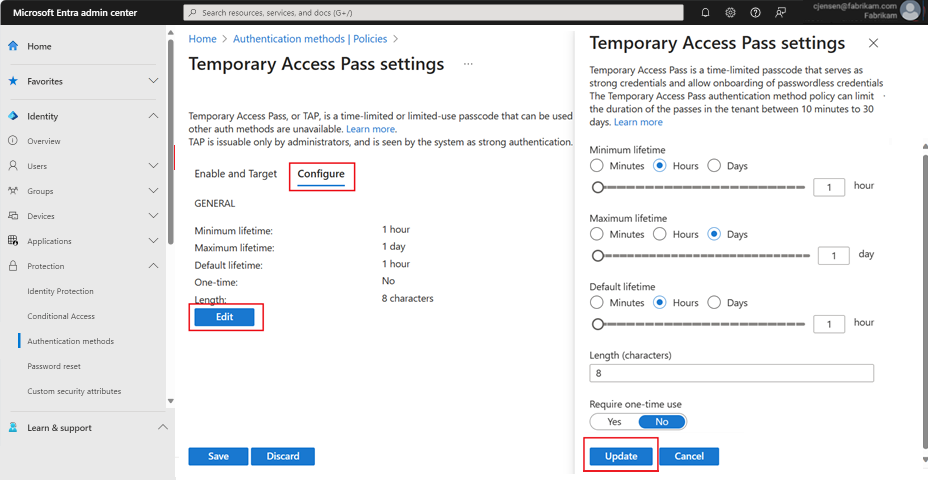
Temporary Access Pass policy settings
| Setting | Default | Range | Recommendation |
|---|---|---|---|
| Minimum lifetime | 1 hour | 10 min to 30 days | 10 to 15 minutes for recovery |
| Maximum lifetime | 8 hours | 10 min to 30 days | Keep it short. Use days only for pre-staged new-hire kits, with care |
| Default lifetime | 1 hour | 10 min to 30 days | 1 hour |
| One-time use | No | Yes/No | Yes (applies to every TAP in the tenant) |
| Length | 8 | 8 to 48 characters | 8 to 12 for usability |
Behaviors to design around (Microsoft Learn):
- One TAP per user. Creating a new one replaces the old one.
- The 10-minute window. With a one-time TAP, the user must finish registering the passwordless method within 10 minutes of sign-in.
- Session lifetime. Sessions are capped at the TAP's expiry, but TAP expiry doesn't retroactively revoke sessions already established. Pair TAP with a sign-in frequency control.
- Who can issue. Authentication Administrators can create TAPs for non-admin members. Privileged Authentication Administrators can create them for admins too. Neither can create one for themselves.
- Unsupported scenarios. TAP doesn't work for external guests, with the NPS extension, or with the AD FS adapter.
- TAP doesn't satisfy the Phishing-resistant MFA strength (Part 3). A user bootstrapping with TAP must be able to reach the registration experience without meeting that strength.
In the portal, go to the user → Authentication methods → + Add authentication method → Temporary Access Pass:
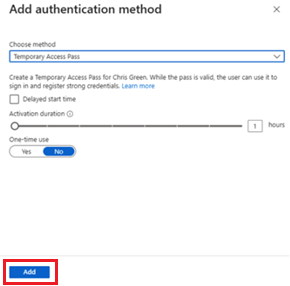
Add Temporary Access Pass dialog
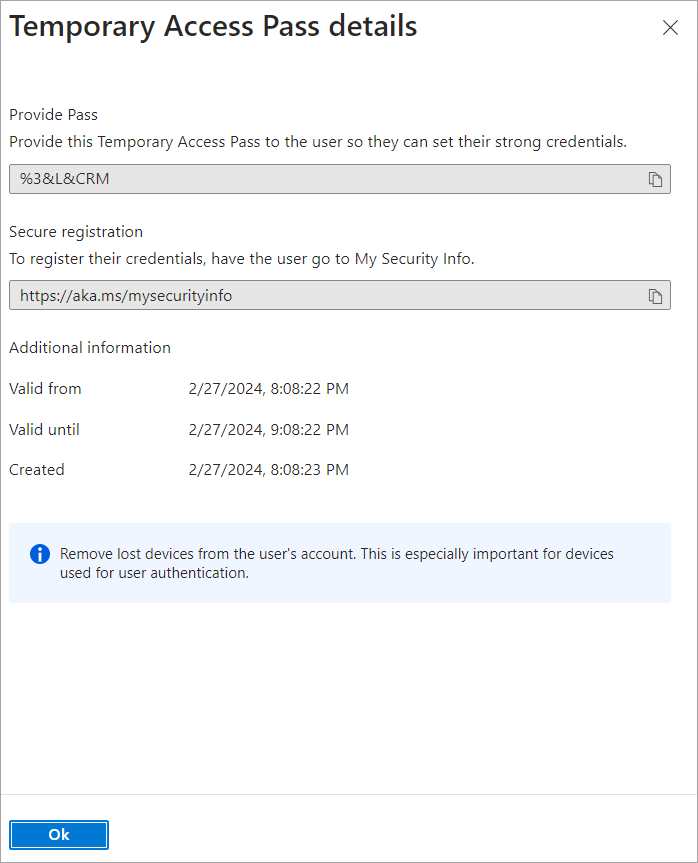
Temporary Access Pass details shown once
3. Registration campaigns (and what changed on 1 September)
The registration campaign nudges users at sign-in to register a target method, now Passkey (FIDO2) or Microsoft Authenticator, one method at a time.
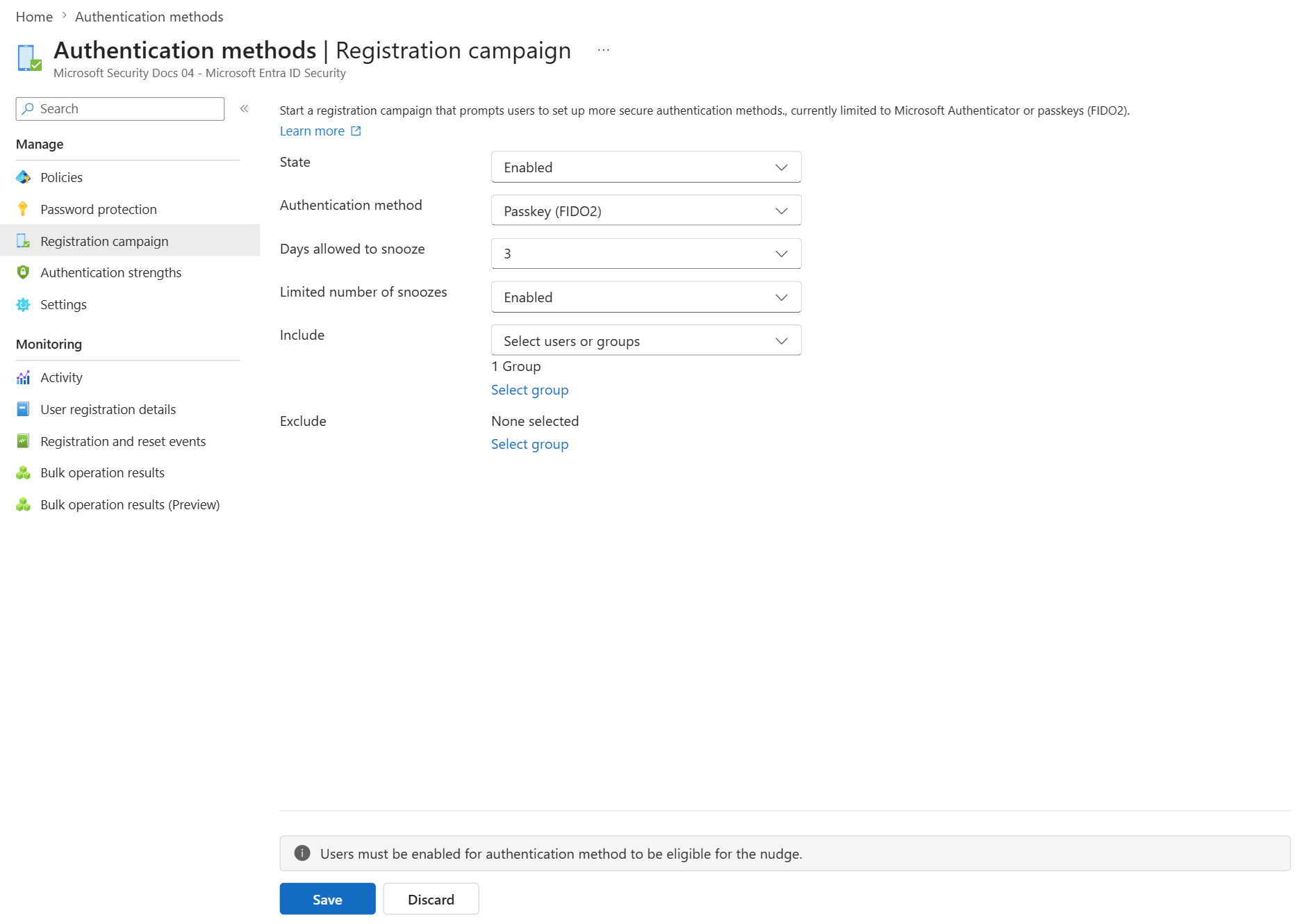
Registration campaign configured for passkeys
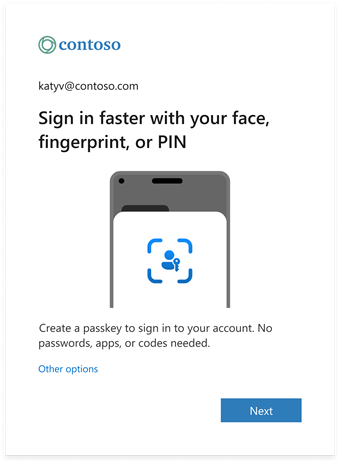
Passkey registration nudge shown to a user
| State | Who decides the method and snoozes | Notes |
|---|---|---|
| Microsoft managed | Microsoft | Passkey campaign: 1-day snooze, unlimited snoozes. You choose include/exclude targets. Eligibility requires users to be in an eligible passkey profile |
| Enabled | You | Choose the method, snooze days (0 to 14), and whether snoozes are limited. Limited snoozes allow 3, and 0 days with limited snoozes forces registration after the third |
| Disabled | n/a | No nudges |
On 1 September 2026, Microsoft switched tenants with users enabled for SMS/voice to Microsoft managed targeting passkeys (retirement guidance). Decide deliberately whether to keep that:
- Keep Microsoft managed if you want gentle, unlimited nudges while you finish recovery design.
- Switch to Enabled when you are ready to drive completion with limited snoozes, and your help desk is staffed for the wave.
- Exclude Tier 0 admins and anyone who must use a device-bound credential you issue. Otherwise they may create a synced passkey that their profile then refuses.
Nudge evaluation is per OS and browser combination. A passkey that suppresses the prompt on Windows may not suppress it on a Mac. Linux users aren't nudged. Guests aren't nudged (guest passkeys aren't available yet). The campaign works in mobile browsers and native iOS apps, but not yet in native Android apps. The rollout of this campaign experience is expected to finish by the end of September 2026, so behavior can differ between tenants until then (registration campaign).
4. Recovery that doesn't become a bypass
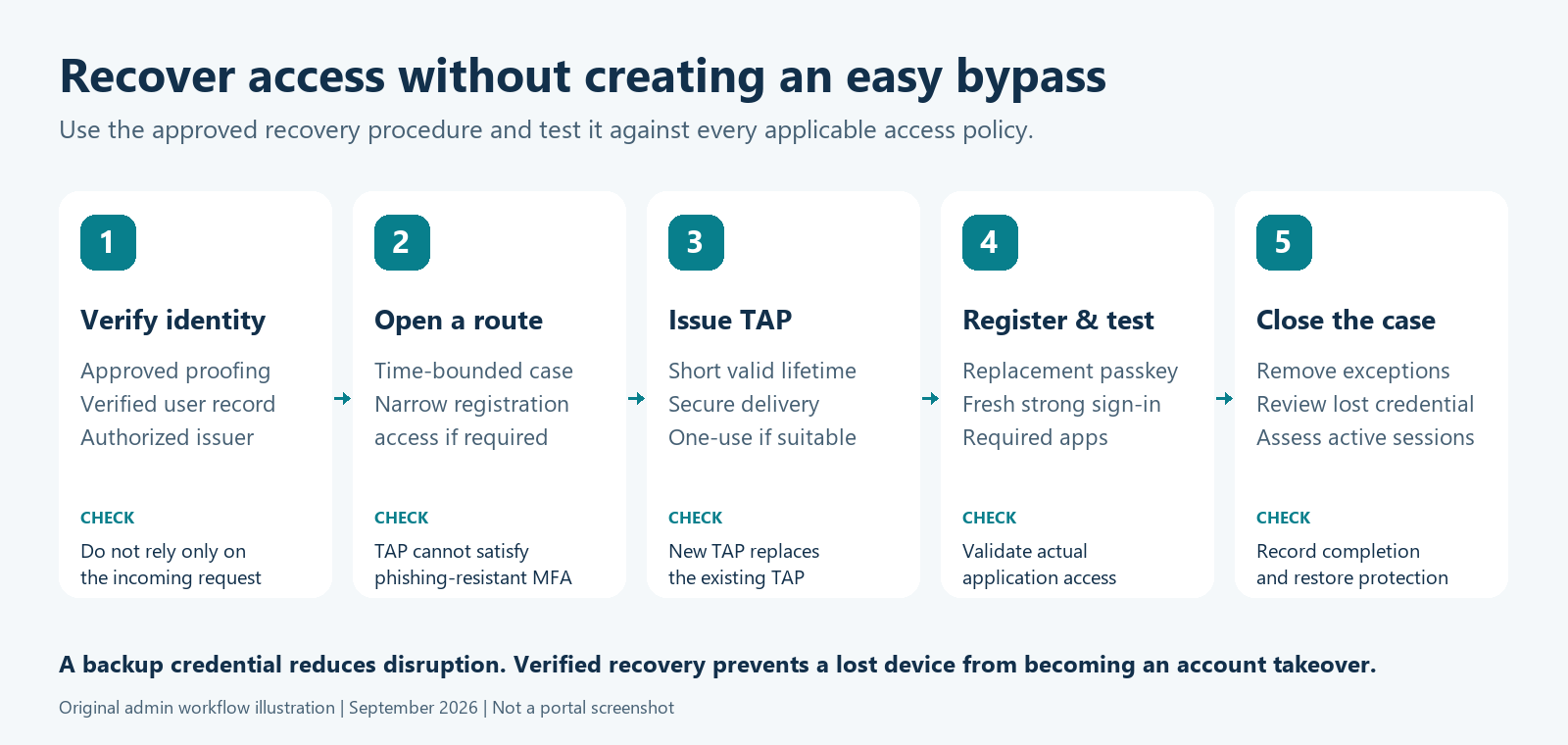
Recovery workflow: verify identity, open a route, issue TAP, register and test, close the case
Your recovery process is where you make the real security decisions. Write it down before enforcement:
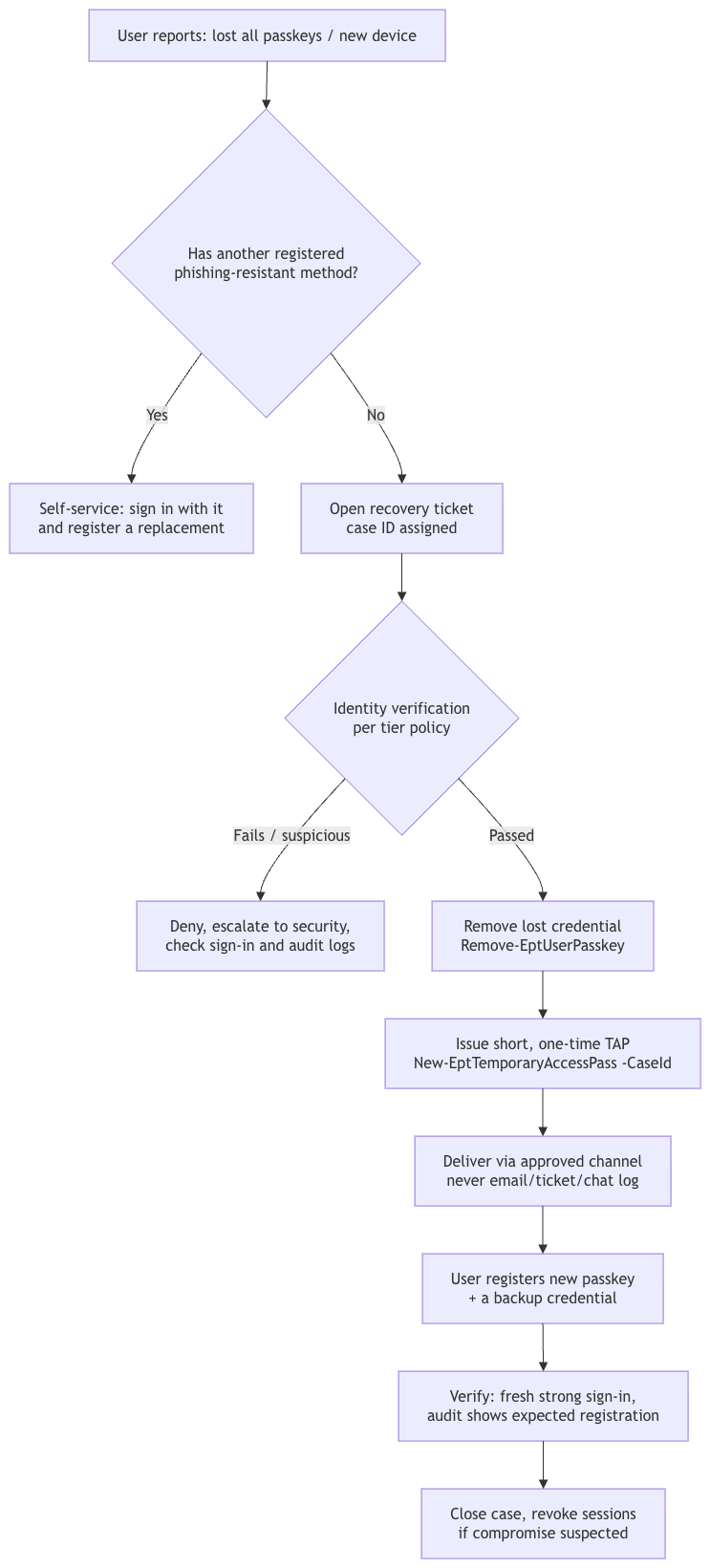
Identity verification by tier
| Tier | Minimum verification before issuing a TAP |
|---|---|
| General workforce | Call-back to a number from HR records (not the number the caller gives), plus manager confirmation or verified ID through a video call. Consider an automated identity-verification service such as Microsoft Entra Verified ID with Face Check |
| Sensitive roles | Manager and security approval, plus live video verification against a government ID |
| Tier 0 admins | In person or with a second admin present, and a break-glass-style dual control. Never accept remote self-assertion |
Help-desk rules worth printing and taping to the wall
- Treat urgency as a warning sign. "The CEO needs this in 5 minutes" is a standard social-engineering script.
- Never read a TAP aloud to an unverified caller, and never send it to a number or email the caller provides.
- Never register a method on behalf of a user. The user registers their own passkey after signing in with the TAP.
- Always record the case ID. The toolkit makes
-CaseIdmandatory for exactly this reason. - Unexpected request for an admin account? Stop, and escalate to security.
Hands-on: PowerShell for enrollment and recovery
Connect-MgGraph -TenantId $tenantId -ContextScope Process -NoWelcome `
    -Scopes 'UserAuthenticationMethod.ReadWrite.All', 'AuditLog.Read.All'
Issue a TAP inside a case: New-EptTemporaryAccessPass
-CaseIdis mandatory.ConfirmImpactis High, so you are prompted unless you pass-Confirm:$false.- The pass comes back as a SecureString, so it doesn't end up in your console scroll-back,
Start-Transcriptfiles, or pipeline logs by accident.
function New-EptTemporaryAccessPass {
    <#
    .SYNOPSIS
        Issues a Temporary Access Pass (TAP) for a verified onboarding or recovery case.
    .DESCRIPTION
        WRITE OPERATION. Creates a TAP via POST /users/{id}/authentication/temporaryAccessPassMethods.
        Creating a TAP replaces any existing TAP for the user. The pass value is only returned at
        creation time; this function returns it as a SecureString so it is not echoed to the console,
        transcripts or pipeline logs by accident.

        Guard rails:
          * -CaseId is mandatory and is written to the verbose stream and the returned object,
            so every TAP can be traced to a ticket.
          * SupportsShouldProcess with ConfirmImpact High: you are prompted unless you pass -Confirm:$false.
          * Lifetime and one-time use must also be allowed by the tenant's TAP policy, or Graph rejects the request.

        Requires: UserAuthenticationMethod.ReadWrite.All plus Authentication Administrator
        (Privileged Authentication Administrator for admin accounts).
    .EXAMPLE
        $tap = New-EptTemporaryAccessPass -UserPrincipalName jdoe@contoso.com -CaseId INC0012345 -LifetimeInMinutes 60 -OneTime
        $tap.Pass | ConvertFrom-SecureString -AsPlainText   # reveal once, deliver via the approved channel
    .EXAMPLE
        # Bulk onboarding: CSV columns UserPrincipalName, CaseId, LifetimeInMinutes
        Import-Csv ./new-hires.csv | New-EptTemporaryAccessPass -OneTime -Confirm:$false
    #>
    [Diagnostics.CodeAnalysis.SuppressMessageAttribute('PSAvoidUsingConvertToSecureStringWithPlainText', '',
        Justification = 'Graph returns the TAP in clear text once; it is wrapped in a SecureString immediately.')]
    [CmdletBinding(SupportsShouldProcess, ConfirmImpact = 'High')]
    [OutputType('Ept.TemporaryAccessPass')]
    param(
        [Parameter(Mandatory, ValueFromPipeline, ValueFromPipelineByPropertyName)]
        [Alias('Id', 'UserId', 'UPN')]
        [string] $UserPrincipalName,

        [Parameter(Mandatory, ValueFromPipelineByPropertyName)]
        [ValidatePattern('^\S{3,}$')]
        [string] $CaseId,

        [Parameter(ValueFromPipelineByPropertyName)]
        [ValidateRange(10, 43200)]
        [int] $LifetimeInMinutes = 60,

        [switch] $OneTime,

        [datetime] $StartDateTime
    )
    begin {
        Assert-EptGraphConnection -RequiredScope 'UserAuthenticationMethod.ReadWrite.All'
    }
    process {
        $body = @{
            lifetimeInMinutes = $LifetimeInMinutes
            isUsableOnce      = [bool]$OneTime
        }
        if ($StartDateTime) { $body.startDateTime = $StartDateTime.ToUniversalTime().ToString('o') }

        $target = "$UserPrincipalName (case $CaseId, $LifetimeInMinutes min, one-time=$([bool]$OneTime))"
        if (-not $PSCmdlet.ShouldProcess($target, 'Create Temporary Access Pass (replaces any existing TAP)')) { return }

        Write-Verbose "Issuing TAP for $UserPrincipalName under case $CaseId"
        $uri = "https://graph.microsoft.com/v1.0/users/$(Resolve-EptUserId $UserPrincipalName)/authentication/temporaryAccessPassMethods"
        $result = Invoke-EptGraphRequest -Method POST -Uri $uri -Body $body

        $secure = ConvertTo-SecureString -String $result.temporaryAccessPass -AsPlainText -Force
        $result.temporaryAccessPass = $null

        [pscustomobject]@{
            PSTypeName        = 'Ept.TemporaryAccessPass'
            UserPrincipalName = $UserPrincipalName
            CaseId            = $CaseId
            MethodId          = $result.id
            StartDateTime     = $result.startDateTime
            LifetimeInMinutes = $result.lifetimeInMinutes
            IsUsableOnce      = $result.isUsableOnce
            Pass              = $secure
        }
    }
}
Source: EntraPasskeyToolkit/Public/Lifecycle.ps1
# Recovery: one-time, 15 minutes, after identity verification is recorded in INC0012345
$tap = New-EptTemporaryAccessPass -UserPrincipalName 'jdoe@contoso.com' -CaseId 'INC0012345' -LifetimeInMinutes 15 -OneTime

# Reveal once, deliver via the approved channel, then discard
$tap.Pass | ConvertFrom-SecureString -AsPlainText
Remove-Variable tap
For bulk onboarding of new hires, UserPrincipalName, CaseId and LifetimeInMinutes all bind by property name, so a CSV pipes straight in. Handle the output with care, because it contains live credentials.
# new-hires.csv: UserPrincipalName,CaseId,LifetimeInMinutes
Import-Csv ./new-hires.csv |
    New-EptTemporaryAccessPass -OneTime -Confirm:$false |
    ForEach-Object {
        # Hand each pass to your secure delivery process, e.g. a sealed onboarding letter or the manager's secure portal.
        # Don't Export-Csv this output to a file share.
        [pscustomobject]@{ User = $_.UserPrincipalName; Case = $_.CaseId; Expires = ([datetime]$_.StartDateTime).AddMinutes($_.LifetimeInMinutes) }
    }
Remove-Variableis housekeeping, not guaranteed memory erasure. For high-assurance environments, deliver TAPs through a system designed for it rather than an interactive admin console.
Remove a lost or unauthorized passkey: Remove-EptUserPasskey
This takes pipeline input from Get-EptUserPasskey (Part 2), so you can filter first, preview with -WhatIf, then delete.
function Remove-EptUserPasskey {
    <#
    .SYNOPSIS
        Deletes a user's passkey (FIDO2) registration, for lost, stolen or unauthorized credentials.
    .DESCRIPTION
        WRITE OPERATION. DELETE /users/{id}/authentication/fido2Methods/{methodId}.
        Designed to take pipeline input from Get-EptUserPasskey so you can filter first and
        delete second, with -WhatIf to preview. Deleting a credential does not end sessions that
        were already issued: pair it with Revoke-EptUserSession during an incident.

        Requires: UserAuthenticationMethod.ReadWrite.All plus Authentication Administrator
        (Privileged Authentication Administrator for admin accounts).
    .EXAMPLE
        Get-EptUserPasskey -UserPrincipalName jdoe@contoso.com |
            Where-Object DisplayName -eq 'YubiKey lost 2026-09' |
            Remove-EptUserPasskey -WhatIf
    #>
    [CmdletBinding(SupportsShouldProcess, ConfirmImpact = 'High')]
    param(
        [Parameter(Mandatory, ValueFromPipelineByPropertyName)]
        [Alias('UPN')]
        [string] $UserPrincipalName,

        [Parameter(Mandatory, ValueFromPipelineByPropertyName)]
        [string] $MethodId,

        [Parameter(ValueFromPipelineByPropertyName)]
        [string] $DisplayName
    )
    begin { Assert-EptGraphConnection -RequiredScope 'UserAuthenticationMethod.ReadWrite.All' }
    process {
        $label = if ($DisplayName) { "'$DisplayName' ($MethodId)" } else { $MethodId }
        if ($PSCmdlet.ShouldProcess($UserPrincipalName, "Delete passkey $label")) {
            $uri = "https://graph.microsoft.com/v1.0/users/$(Resolve-EptUserId $UserPrincipalName)/authentication/fido2Methods/$MethodId"
            Invoke-EptGraphRequest -Method DELETE -Uri $uri | Out-Null
        }
    }
}
Source: EntraPasskeyToolkit/Public/Lifecycle.ps1
# Remove the passkey the user reported lost (identify it by name and date with the user)
Get-EptUserPasskey -UserPrincipalName 'jdoe@contoso.com' |
    Where-Object { $_.DisplayName -eq 'YubiKey blue' -and $_.Created -lt '2026-06-01' } |
    Remove-EptUserPasskey -WhatIf
Watch the registration pipeline: Get-EptAuthMethodAuditEvent
Every registration, deletion and admin change to authentication methods is written to the Entra audit log under the Authentication Methods service. Verified activity names include:
- User registered security info
- Admin registered security info
- User deleted security info
- Admin deleted security info
- User changed default security info
- Get passkey creation options
The function filters on the service rather than a fixed list of names, so it keeps working as Microsoft adds activities. It also flags whether the change was self-service, meaning the initiator is also the target.
function Get-EptAuthMethodAuditEvent {
    <#
    .SYNOPSIS
        Returns audit events for authentication-method changes (registrations, deletions, TAP issuance).
    .DESCRIPTION
        Queries GET /auditLogs/directoryAudits filtered to loggedByService 'Authentication Methods'
        within a time window, and flattens initiator and target for easy filtering and correlation.
        Filtering on the service instead of a hard-coded list of activity names keeps the function
        working when Microsoft adds or renames activities. Use -Activity to narrow client-side.

        Requires: AuditLog.Read.All plus a role such as Reports Reader or Security Reader.
        Retention depends on licence (7 days free, 30 days P1/P2); stream to Log Analytics or Sentinel
        for anything longer.
    .PARAMETER UserPrincipalName
        Limit results to events targeting these users. Accepts pipeline input.
    .PARAMETER Activity
        Wildcard filter applied to activityDisplayName, e.g. '*registered*' or '*Temporary*'.
    .EXAMPLE
        Get-EptAuthMethodAuditEvent -Days 7 -Activity '*registered security info*'
    .EXAMPLE
        Get-EptPrivilegedUser | Get-EptAuthMethodAuditEvent -Days 30 | Sort-Object Time
    #>
    [CmdletBinding()]
    [OutputType('Ept.AuthMethodAuditEvent')]
    param(
        [Parameter(ValueFromPipeline, ValueFromPipelineByPropertyName)]
        [Alias('UPN')]
        [string[]] $UserPrincipalName,

        [ValidateRange(1, 30)]
        [int] $Days = 7,

        [string] $Activity = '*'
    )
    begin {
        Assert-EptGraphConnection -RequiredScope 'AuditLog.Read.All'
        $since = (Get-Date).ToUniversalTime().AddDays(-$Days).ToString('yyyy-MM-ddTHH:mm:ssZ')
        $filter = "loggedByService eq 'Authentication Methods' and activityDateTime ge $since"
        $uri = 'https://graph.microsoft.com/v1.0/auditLogs/directoryAudits?$filter=' + [uri]::EscapeDataString($filter)
        $targets = [System.Collections.Generic.HashSet[string]]::new([StringComparer]::OrdinalIgnoreCase)
    }
    process {
        foreach ($u in $UserPrincipalName) { if ($u) { [void]$targets.Add($u) } }
    }
    end {
        Invoke-EptGraphRequest -Uri $uri |
            Where-Object activityDisplayName -Like $Activity |
            ForEach-Object {
                $target = $_.targetResources | Select-Object -First 1
                $row = [pscustomobject]@{
                    PSTypeName    = 'Ept.AuthMethodAuditEvent'
                    Time          = [datetime]$_.activityDateTime
                    Activity      = $_.activityDisplayName
                    Result        = $_.result
                    ResultReason  = $_.resultReason
                    Initiator     = if ($_.initiatedBy.user) { $_.initiatedBy.user.userPrincipalName } else { $_.initiatedBy.app.displayName }
                    InitiatorIp   = $_.initiatedBy.user.ipAddress
                    TargetUpn     = $target.userPrincipalName
                    TargetId      = $target.id
                    SelfService   = ($_.initiatedBy.user.id -and $_.initiatedBy.user.id -eq $target.id)
                    Details       = ($_.additionalDetails | ForEach-Object { "$($_.key)=$($_.value)" }) -join '; '
                    CorrelationId = $_.correlationId
                }
                if ($targets.Count -eq 0 -or $targets.Contains([string]$row.TargetUpn) -or $targets.Contains([string]$row.TargetId)) { $row }
            }
    }
}
Source: EntraPasskeyToolkit/Public/Lifecycle.ps1
Three detection queries built on it:
# 1. Admin-initiated method changes in the last 7 days: every one should map to a ticket
Get-EptAuthMethodAuditEvent -Days 7 -Activity 'Admin*' |
    Format-Table Time, Activity, Initiator, TargetUpn, Details -Wrap

# 2. Any security-info change on a privileged account in the last 30 days
Get-EptPrivilegedUser | Get-EptAuthMethodAuditEvent -Days 30 | Sort-Object Time

# 3. Registrations from IP addresses that none of your recent sign-ins came from,
#    a cheap signal for an attacker registering from their infrastructure
$knownIps = Get-EptSignInMethod -Days 7 -SuccessOnly | Select-Object -ExpandProperty IPAddress -Unique
Get-EptAuthMethodAuditEvent -Days 7 -Activity '*registered*' |
    Where-Object { $_.SelfService -and $_.InitiatorIp -and $_.InitiatorIp -notin $knownIps }
Audit logs are kept for 7 days on Entra ID Free and 30 days on P1/P2. For alerting, stream AuditLogs to Log Analytics or Microsoft Sentinel and build the same logic in KQL.
Best practices
- Treat "register a new method" like "reset a password for an admin." Log every registration and review it.
- Deploy a Conditional Access policy on Register security information before you start a registration campaign. Then test registration on a real BYOD phone, because an All resources policy can still block it.
- Make one-time, short-lived TAPs the only bootstrap. Retire "temporary SMS enablement" as a recovery method.
- Require two credentials per user so most "lost device" events become self-service.
- Tier your identity verification. Admins get in-person or dual-control recovery.
- Reconcile tickets, TAPs and registrations. Every TAP maps to a ticket, and every admin-initiated registration in the audit log maps to a TAP.
- Tell users what legitimate looks like: "IT will never ask you to scan a QR code from an email or read us a code." Give them a reporting channel.
Next, Part 5: a perfectly registered, perfectly enforced passkey still issues session tokens. What protects those?
References
- Configure Temporary Access Pass, Microsoft Learn
- Create temporaryAccessPassMethod, Microsoft Graph
- Securing security info registration, Microsoft Learn
- Registration campaign, Microsoft Learn
- Passkeys by default and SMS/voice retirement, Microsoft Learn
- Audit log activity reference, Microsoft Learn
- Enable passkeys in Authenticator: troubleshooting, Microsoft Learn
- Filter for applications in Conditional Access, Microsoft Learn
- Community guidance on the registration-resource exclusion: Threatscape, How to Fix Entra Passkey Registration on BYOD; Nathan McNulty, Improving passkey registration experiences; Jan Bakker, You shall not passkey!
- List directoryAudits and delete fido2AuthenticationMethod, Microsoft Graph