Phishing-resistant MFA where it matters most, and finding the privileged identities your role report misses
MFA to Passkeys in Microsoft Entra ID series · Part 6 of 7
If you can only do one thing from this series this quarter, focus on doing it for your administrators. A phished Global Administrator account gives the attacker the whole tenant. The attacker can:
- rewrite Conditional Access,
- register their own credentials on any account,
- grant themselves application permissions that no user MFA ever touches,
- turn off your logging.
Microsoft's guidance requires phishing-resistant MFA for administrators. Its phishing-resistant deployment guide puts admins in their own persona, with FIDO2 security keys as the recommended portable credential. This part turns that guidance into a working program. It starts with the hardest step, which is working out who your admins are.
Who is privileged? More people than your role report says
| Where privilege lives | Example of privilege | Covered by Entra role reports? |
|---|---|---|
| Entra directory roles, active | Global Administrator, Privileged Role Administrator… | Yes |
| Entra directory roles, PIM-eligible | Can activate Global Admin in minutes | Only if you query eligibility |
| Role-assignable groups | Membership grants a role | Only if you expand groups |
| Application owners | Can add a secret to an app holding Directory.ReadWrite.All |
No |
| Azure RBAC | Owner on the subscription running your domain controllers | No |
| Intune RBAC | Can push a script to every device | No |
| Defender RBAC | Live response: run commands on endpoints | No |
| Purview role groups | eDiscovery: export any mailbox, including Copilot interactions | No |
| Exchange / SharePoint RBAC | Mailbox full access, site collection admin | No |
Build the privileged cohort around capabilities, not job titles. The toolkit covers the first four rows. The others need their own product's RBAC review, and you should list those reviews in the project plan so nobody assumes the Entra report covered them.
Admin account prerequisites
Phishing-resistant MFA on the wrong account design still leaves gaps. Microsoft's privileged access guidance boils down to:
- Separate admin accounts. Make them cloud-only, with no mailbox, no Teams and no web browsing. Nobody reads phishing email with the account that owns Conditional Access.
- Just-in-time access with PIM. Make role assignments eligible instead of permanent for everyone except break-glass accounts. Require approval for Tier 0 roles. Also require re-authentication on activation, using a Conditional Access authentication context that demands your Tier 0 strength.
- Privileged Access Workstations (PAW). If you can't deploy PAWs, use compliant, dedicated admin devices at minimum. Require a compliant device for admin portals.
- Device-bound, attested passkeys. Issue security keys from an approved AAGUID list and enforce attestation (Part 2). Give each admin two keys, stored separately.
- No phishable methods on admin accounts. Remove SMS, voice, OATH and push from the admin persona in the authentication methods policy once keys are registered. Even unused, they are a help-desk social-engineering target (Part 4).
- Target custom roles through groups. Conditional Access role targeting honors only built-in roles. If you use custom or AU-scoped roles, target a group of those admins instead.
Emergency access (break-glass) accounts
Microsoft's emergency access guidance now covers phishing-resistant methods:
- Two or more cloud-only accounts on the
*.onmicrosoft.comdomain, with Global Administrator assigned as permanent active in PIM, not eligible. - Passwordless, phishing-resistant authentication, either "Passkey (FIDO2) (Recommended)" or certificate-based authentication. Use methods that differ from your normal admin accounts, so a problem with one method or one key vendor can't lock out both.
- Mandatory MFA applies to break-glass accounts too. There is no exemption from the Azure and admin-portal MFA enforcement, which is another reason to give them passkeys.
- Use a dedicated group to exclude them from Conditional Access policies that can block sign-in. Report-only policies don't need the exclusion.
- Alert on every sign-in (threshold > 0) with Azure Monitor or Sentinel, and validate the accounts at least every 90 days.
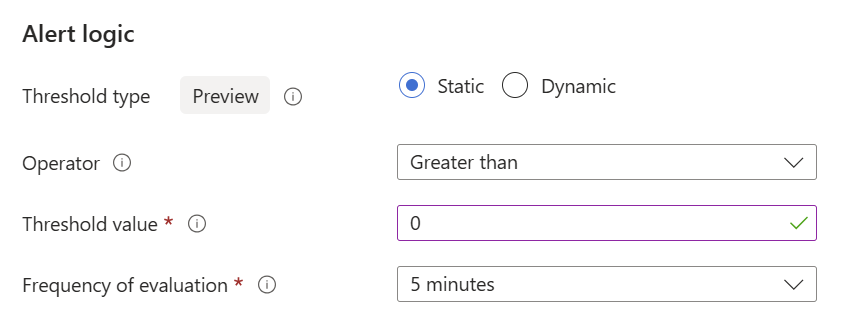
Azure Monitor alert logic for emergency account sign-ins
Store the break-glass security keys in two physically separate safes, with a documented, dual-control retrieval process. Test that process, not just the keys.
The admin policy set
Building on Part 3's reference design:
| Policy | Target | Control |
|---|---|---|
| CA100 | 14 privileged roles (Microsoft template list) | Phishing-resistant MFA strength, or custom Tier 0 strength |
| CA101 | Tier 0 admins group (covers custom and AU-scoped roles) | Custom Tier 0 strength (approved AAGUIDs) |
| CA102 | Admin portals (Microsoft Admin Portals app) for all admins | Compliant device |
| CA103 | PIM activation (authentication context c1) |
Tier 0 strength, sign-in frequency every time |
Hidden admins: application owners and workload identities
An application owner can add a client secret or certificate to that app. If the app holds high-privilege application permissions (for example Directory.ReadWrite.All, RoleManagement.ReadWrite.Directory, Mail.ReadWrite), the owner can mint app-only tokens that:
- never involve a user sign-in,
- never meet a passkey prompt,
- never trigger user-based Conditional Access.
User MFA doesn't turn an app-only token request into an interactive sign-in. Treat these owners as privileged:
- inventory app registrations, their owners and their credentials;
- remove owners who don't need to manage credentials, and prefer certificates or federated credentials over secrets;
- review high-privilege application permissions and consent grants on the enterprise app (service principal) side;
- consider Conditional Access for workload identities (location- and risk-based) for the most powerful single-tenant apps.
Hands-on: build the privileged cohort and test it
Connect-MgGraph -TenantId $tenantId -ContextScope Process -NoWelcome -Scopes `
    'RoleManagement.Read.Directory', 'GroupMember.Read.All', 'AuditLog.Read.All', 'Policy.Read.All', `
    'UserAuthenticationMethod.Read.All', 'Application.Read.All'
Every privileged user, active and eligible: Get-EptPrivilegedUser
This reads active role assignments and PIM eligibility (roleEligibilityScheduleInstances), expands role-assignable groups to their transitive user members, and returns one object per user with their roles, assignment types, and the groups that granted them. Eligibility needs Entra ID P2. If that call fails, the function warns and continues with active assignments.
function Get-EptPrivilegedUser {
    <#
    .SYNOPSIS
        Lists users who hold Entra directory roles, both active and PIM-eligible, one object per user.
    .DESCRIPTION
        Reads active assignments (GET /roleManagement/directory/roleAssignments) and, unless
        -ActiveOnly is used, PIM eligibility (GET /roleManagement/directory/roleEligibilityScheduleInstances).
        Role-assignable groups are expanded to their transitive user members so that group-based
        admins are not missed. Service principals holding roles are reported with -IncludeServicePrincipal.

        Output binds by property name (UserPrincipalName, Id) to the other Ept functions, which makes
        this the natural start of an admin posture pipeline.

        This covers Entra directory roles only. Azure RBAC, Intune, Defender, Purview and
        application ownership are separate control planes: review them separately.

        Requires: RoleManagement.Read.Directory (plus GroupMember.Read.All to expand groups) and
        a role such as Global Reader or Privileged Role Administrator. Eligibility needs Entra ID P2.
    .PARAMETER RoleName
        Only return holders of these roles (wildcards allowed), e.g. 'Global Administrator','*Authentication*'.
    .EXAMPLE
        Get-EptPrivilegedUser | Get-EptUserRegistration | Where-Object { -not $_.HasPhishingResistant }
    .EXAMPLE
        Get-EptPrivilegedUser -RoleName 'Global Administrator' | Format-Table UserPrincipalName, Roles, AssignmentTypes
    #>
    [CmdletBinding()]
    [OutputType('Ept.PrivilegedUser')]
    param(
        [string[]] $RoleName = '*',
        [switch] $ActiveOnly,
        [switch] $IncludeServicePrincipal
    )

    Assert-EptGraphConnection -RequiredScope 'RoleManagement.Read.Directory'
    $root = 'https://graph.microsoft.com/v1.0/roleManagement/directory'

    $sources = @(@{ Type = 'Active'; Uri = "$root/roleAssignments?`$expand=principal,roleDefinition" })
    if (-not $ActiveOnly) {
        $sources += @{ Type = 'Eligible'; Uri = "$root/roleEligibilityScheduleInstances?`$expand=principal,roleDefinition" }
    }

    $byPrincipal = @{}
    foreach ($source in $sources) {
        try {
            $assignments = @(Invoke-EptGraphRequest -Uri $source.Uri)
        }
        catch {
            if ($source.Type -eq 'Eligible') {
                Write-Warning "Could not read PIM eligibility (P2 licence or permission missing?): $($_.Exception.Message)"
                continue
            }
            throw
        }

        foreach ($a in $assignments) {
            $role = $a.roleDefinition.displayName
            if (-not ($RoleName | Where-Object { $role -like $_ })) { continue }

            $principal = $a.principal
            $kind = $principal.'@odata.type' -replace '#microsoft.graph.', ''
            $members = switch ($kind) {
                'user' { , $principal }
                'group' {
                    Invoke-EptGraphRequest -Uri "https://graph.microsoft.com/v1.0/groups/$($principal.id)/transitiveMembers/microsoft.graph.user?`$select=id,userPrincipalName,displayName,accountEnabled"
                }
                'servicePrincipal' { if ($IncludeServicePrincipal) { , $principal } }
            }

            foreach ($m in $members) {
                if (-not $byPrincipal.ContainsKey($m.id)) {
                    $byPrincipal[$m.id] = [pscustomobject]@{
                        PSTypeName        = 'Ept.PrivilegedUser'
                        Id                = $m.id
                        UserPrincipalName = if ($m.userPrincipalName) { $m.userPrincipalName } else { $m.appId }
                        DisplayName       = $m.displayName
                        PrincipalType     = $kind
                        AccountEnabled    = $m.accountEnabled
                        Roles             = [System.Collections.Generic.SortedSet[string]]::new()
                        AssignmentTypes   = [System.Collections.Generic.SortedSet[string]]::new()
                        ViaGroup          = [System.Collections.Generic.SortedSet[string]]::new()
                    }
                }
                $entry = $byPrincipal[$m.id]
                [void]$entry.Roles.Add($role)
                [void]$entry.AssignmentTypes.Add($source.Type)
                if ($kind -eq 'group') { [void]$entry.ViaGroup.Add($principal.displayName) }
            }
        }
    }

    $byPrincipal.Values | ForEach-Object {
        # Flatten sets to strings so the objects export cleanly to CSV.
        $_.Roles = @($_.Roles) -join '; '
        $_.AssignmentTypes = @($_.AssignmentTypes) -join '; '
        $_.ViaGroup = @($_.ViaGroup) -join '; '
        $_
    } | Sort-Object UserPrincipalName
}
Source: EntraPasskeyToolkit/Public/Privileged.ps1
App registrations, owners and credentials: Get-EptAppCredentialOwner
This returns credential metadata only (counts and expiry). It never reads secret values.
function Get-EptAppCredentialOwner {
    <#
    .SYNOPSIS
        Inventories app registrations with their owners and credential metadata (never secret values).
    .DESCRIPTION
        An owner of an app registration can add credentials to it. If the app holds powerful
        application permissions, its owners are effectively privileged even without a directory role,
        and user MFA does not apply to the app-only tokens that credential can obtain.
        Pipe the Owners into Get-EptUserRegistration to check how those people authenticate.

        Requires: Application.Read.All.
    .EXAMPLE
        Get-EptAppCredentialOwner | Where-Object OwnerCount -eq 0
    .EXAMPLE
        Get-EptAppCredentialOwner | Select-Object -ExpandProperty Owners -Unique | Get-EptUserRegistration
    #>
    [CmdletBinding()]
    [OutputType('Ept.AppCredentialOwner')]
    param(
        [ValidateRange(0, 3650)]
        [int] $ExpiringWithinDays = 30
    )
    Assert-EptGraphConnection -RequiredScope 'Application.Read.All'
    $now = (Get-Date).ToUniversalTime()

    Invoke-EptGraphRequest -Uri 'https://graph.microsoft.com/v1.0/applications?$select=id,appId,displayName,passwordCredentials,keyCredentials&$expand=owners($select=id,userPrincipalName)' |
        ForEach-Object {
            $creds = @($_.passwordCredentials) + @($_.keyCredentials) | Where-Object { $_ }
            $ends = $creds | ForEach-Object { [datetime]$_.endDateTime }
            [pscustomobject]@{
                PSTypeName         = 'Ept.AppCredentialOwner'
                AppId              = $_.appId
                DisplayName        = $_.displayName
                OwnerCount         = @($_.owners).Count
                Owners             = @($_.owners | Where-Object userPrincipalName | ForEach-Object userPrincipalName)
                SecretCount        = @($_.passwordCredentials).Count
                CertificateCount   = @($_.keyCredentials).Count
                ExpiredCredentials = @($ends | Where-Object { $_ -lt $now }).Count
                ExpiringSoon       = @($ends | Where-Object { $_ -ge $now -and $_ -lt $now.AddDays($ExpiringWithinDays) }).Count
            }
        }
}
Source: EntraPasskeyToolkit/Public/Privileged.ps1
The admin posture report
The same $admins cohort feeds every check below:
$admins = Get-EptPrivilegedUser
$admins | Format-Table UserPrincipalName, Roles, AssignmentTypes, ViaGroup -Wrap

# 1. How do admins authenticate? (registration)
$reg = $admins | Get-EptUserRegistration
$reg | Measure-EptMfaPosture
$reg | Where-Object { -not $_.HasPhishingResistant -or $_.PhishableMethods } |
    Format-Table UserPrincipalName, StrongestMethod, @{ n = 'Phishable'; e = { $_.PhishableMethods -join ', ' } }

# 2. What kind of passkeys do they hold? (Tier 0 = attested, device-bound only)
$admins | Get-EptUserPasskey |
    Where-Object { $_.PasskeyType -ne 'deviceBound' -or $_.AttestationLevel -ne 'attested' } |
    Format-Table UserPrincipalName, Authenticator, PasskeyType, AttestationLevel

# 3. Does an enforced phishing-resistant policy actually cover them? (Part 3)
$admins | Test-EptPhishResistantCoverage | Where-Object Verdict -ne 'Covered' |
    Format-Table UserPrincipalName, Verdict, PhishableMethods

# 4. How did they actually sign in over the last 14 days? (Part 5)
$admins | Get-EptSignInMethod -Days 14 -SuccessOnly |
    Where-Object { $_.AuthRequirement -eq 'multiFactorAuthentication' -and $_.MethodClass -ne 'PhishingResistant' } |
    Group-Object UserPrincipalName, MethodClass -NoElement

# 5. Any recent security-info changes on admin accounts? (Part 4)
$admins | Get-EptAuthMethodAuditEvent -Days 30 | Format-Table Time, Activity, Initiator, TargetUpn
Export everything for the review meeting:
$stamp = Get-Date -Format yyyyMMdd
$admins | Test-EptPhishResistantCoverage | Export-Csv "./admin-coverage-$stamp.csv" -NoTypeInformation
$admins | Get-EptUserPasskey | Export-Csv "./admin-passkeys-$stamp.csv" -NoTypeInformation
Hidden admins: owners of apps that deserve review
# Apps nobody owns, or with credentials expiring soon
Get-EptAppCredentialOwner -ExpiringWithinDays 30 |
    Where-Object { $_.OwnerCount -eq 0 -or $_.ExpiringSoon -gt 0 } |
    Format-Table DisplayName, OwnerCount, SecretCount, CertificateCount, ExpiringSoon

# How do app owners authenticate? Owners of apps with secrets are privileged in practice.
Get-EptAppCredentialOwner |
    Where-Object SecretCount -gt 0 |
    Select-Object -ExpandProperty Owners -Unique |
    Get-EptUserRegistration |
    Where-Object { -not $_.HasPhishingResistant } |
    Format-Table UserPrincipalName, StrongestMethod
This inventory covers app registrations in your tenant. It doesn't resolve which of those apps hold dangerous permissions. Cross-reference with the enterprise application's Permissions blade, or with Graph appRoleAssignments on the service principal, before you decide which owners belong in the Tier 0 cohort.
Break-glass verification
$breakGlass = 'bg-01@contoso.onmicrosoft.com', 'bg-02@contoso.onmicrosoft.com'

# Must be: phishing-resistant only, excluded from blocking policies, and rarely used
$breakGlass | Get-EptUserRegistration | Format-Table UserPrincipalName, StrongestMethod, MethodsRegistered
$breakGlass | Get-EptUserPasskey | Format-Table UserPrincipalName, Authenticator, AttestationLevel, Created
$breakGlass | Get-EptSignInMethod -Days 30 | Format-Table Time, AppDisplayName, IPAddress, MethodsUsed   # expect only your 90-day tests
Best practices
- Define "privileged" by capability, and include PIM-eligible users, group-assigned roles, and app owners.
- Use separate, cloud-only admin accounts with no mailbox, and sign in to them only from compliant or PAW devices.
- Issue attested, device-bound passkeys from an approved list, two per admin, and leave no phishable fallback methods.
- Put every role except break-glass in PIM, with authentication-context step-up on activation.
- Keep two or more break-glass accounts with passkeys or CBA that differ from normal admin methods, excluded from blocking policies, alerted on every sign-in, and tested every 90 days.
- Review workload identities, including owners, credentials, application permissions, and Conditional Access for workload identities.
- Run the admin posture report monthly and track the trend over time instead of relying on a one-time snapshot.
Next, Part 7: turning Parts 1–6 into a phased migration plan that finishes before Microsoft's SMS/voice retirement dates.
References
- Require phishing-resistant MFA for administrators, Microsoft Learn
- Manage emergency access accounts, Microsoft Learn
- Mandatory MFA for Azure and admin portals, Microsoft Learn
- View Entra role assignments, Microsoft Learn
- List roleEligibilityScheduleInstances, Microsoft Graph
- Securing privileged access overview, Microsoft Learn
- Assign application owners, Microsoft Learn
- Conditional Access for workload identities, Microsoft Learn
- List applications, Microsoft Graph