Passkeys Explained, and Choosing the Right Model
How WebAuthn defeats phishing, and how to match device-bound and synced passkeys to your workforce with passkey profiles
MFA to Passkeys in Microsoft Entra ID series · Part 2 of 7
In part 1 went over how an adversary-in-the-middle proxy relays a traditional MFA challenge and walks away with the session, something I have to admit I see often, almot always in the BEC (Bussiness Email Compromise) I see. This part answers the next two questions: what makes a passkey different, and which kind of passkey should each of your users have?
The second question used to be simple: buy security keys like the ones provided by Yubikey. In 2026 the answer is richer, and more nuanced. Entra ID now supports:
- device-bound passkeys: FIDO2 security keys, Microsoft Authenticator, Microsoft Entra passkeys on Windows, and Windows Hello for Business;
- synced passkeys: Apple Passwords/iCloud Keychain, Google Password Manager, and third-party managers such as 1Password and Bitwarden;
- passkey profiles, which let you allow different kinds of passkeys for different groups.
If you choose right model and you can move most of the workforce to phishing-resistant sign-in with no hardware budget, while holding administrators to a much higher standard.
A passkey is a key pair, not a secret
Lets go over one of th biggest missunderstandings I see. A passkey is a FIDO2/WebAuthn credential. At registration:
- Entra ID (the relying party) sends a challenge and its identifier (
login.microsoft.com). - The authenticator generates a new key pair unique to that relying party and that account.
- The public key goes to Entra ID. The private key stays with the authenticator (device-bound) or in the user's end-to-end encrypted passkey provider (synced).
At sign-in:
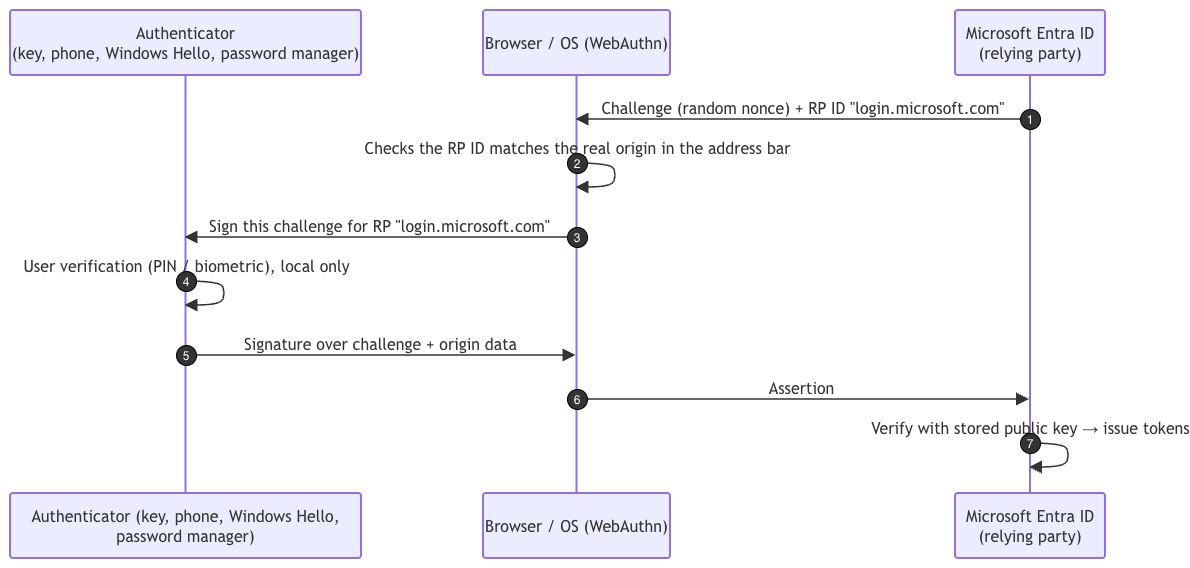
Three properties stand out in this design:
- Origin binding (step 2). The browser supplies the origin, not the user. If the page is
login-micros0ft.example, the authenticator never finds a credential for it. There is nothing for a proxy to relay. - No shared secret. Entra ID stores only a public key. A database breach yields nothing reusable.
- Two factors in one gesture. Possession of the authenticator plus local user verification (PIN or biometric) satisfies MFA. The biometric never leaves the device.
What passkeys don't solve: device code phishing (the user is on the real site), stolen session cookies after sign-in, and a help desk that registers an attacker's passkey on request. Parts 3–5 handle those cases.
The passkey landscape in Entra ID
| Credential | Type | Where the private key lives | Attestation possible | Typical fit |
|---|---|---|---|---|
| FIDO2 security key (USB/NFC) | Device-bound | Secure element on the key | Yes | Admins, shared/kiosk devices, no-phone users |
| Passkey in Microsoft Authenticator (iOS 17+ / Android 14+) | Device-bound | Phone's secure hardware, inside Authenticator | Yes (App Attest / Play Integrity) | Mobile-first workforce, cross-device sign-in |
| Microsoft Entra passkey on Windows | Device-bound | Windows Hello container on that PC | No (profile can't enforce attestation) | Unmanaged or personal Windows PCs, multiple Entra accounts per PC |
| Windows Hello for Business | Device-bound | TPM on an Entra/hybrid-joined PC | n/a (managed by Intune/GPO) | Corporate Windows devices, including device sign-in |
| Platform SSO (macOS) | Device-bound | Secure Enclave | n/a | Corporate Macs |
| Synced passkey (iCloud Keychain, Google Password Manager, 1Password, Bitwarden…) | Synced | User's passkey provider, end-to-end encrypted, on all their devices | No, never | General workforce |
Microsoft's own numbers for synced passkeys are compelling. From Microsoft Learn: 99% of users successfully register them, sign-in is 14× faster than password + traditional MFA (3 seconds instead of 69), and sign-in success is 95% vs. 30%.
Device-bound vs. synced: the real trade-off
| Question | Device-bound | Synced |
|---|---|---|
| Can the organization verify the make/model? | Yes, with attestation enforced | No. Synced passkeys don't support attestation |
| What happens when a device is lost? | Need a second credential or a recovery process (Part 4) | Provider restores the passkey to a new device |
| Who controls recovery? | You (help desk + TAP) | The provider account (Apple ID, Google account…) and its recovery |
| Deployment cost | Hardware and logistics (security keys) or app rollout (Authenticator) | Nearly zero |
| Phishing-resistant? | Yes | Yes |
The key sentence from Microsoft's FIDO2 guidance: "Treat synced passkeys as phishing-resistant credentials but with the same security posture as other unattested authenticators." Synced passkeys fully defeat AiTM phishing. What you give up is provenance: you can't prove the private key isn't also sitting in a personal account on a family iPad.
Attestation and AAGUIDs: know what you are really enforcing
Every authenticator model has an AAGUID, a 128-bit make-and-model identifier. Passkey profiles and authentication strengths can allow or block AAGUIDs. Read this carefully, though:
"If enforce attestation is set to No, Microsoft Entra ID can't guarantee any attribute about a passkey, including if it's synced or device-bound." (Microsoft Learn)
Without attestation, the AAGUID is a claim the authenticator makes about itself. Microsoft calls AAGUID lists a "policy guide rather than a strict security control" in that case. Two more caveats:
- Attestation is checked at registration only. Turning it on later doesn't evict passkeys registered without it.
- Removing an AAGUID from an allow list does stop existing passkeys of that model from signing in. Useful, but easy to trigger by accident.
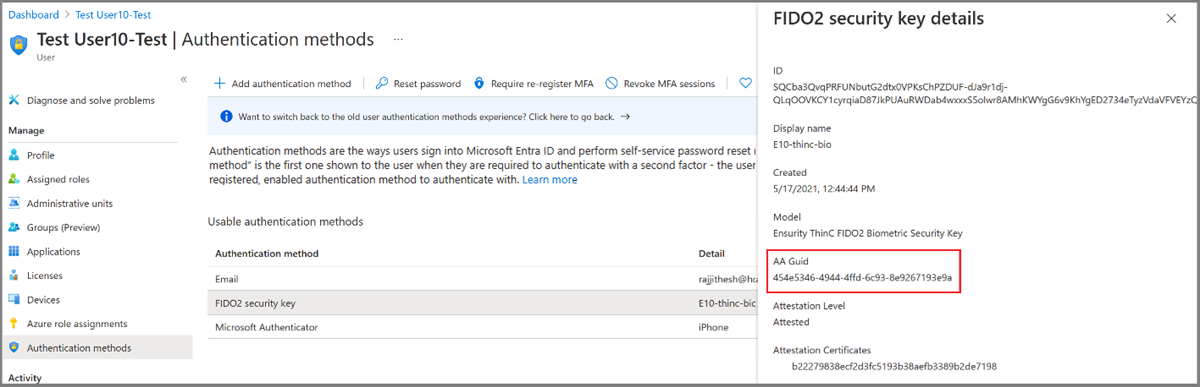
Screenshot: Microsoft Learn. A user's passkey details in the admin center include the AAGUID.
Useful AAGUIDs published by Microsoft:
| Authenticator | AAGUID |
|---|---|
| Microsoft Authenticator (Android) | de1e552d-db1d-4423-a619-566b625cdc84 |
| Microsoft Authenticator (iOS) | 90a3ccdf-635c-4729-a248-9b709135078f |
| Windows Hello (hardware) | 08987058-cadc-4b81-b6e1-30de50dcbe96 |
| Windows Hello (VBS hardware) | 9ddd1817-af5a-4672-a2b9-3e3dd95000a9 |
| Windows Hello (software) | 6028b017-b1d4-4c02-b4b3-afcdafc96bb2 |
Security-key vendors publish theirs, and the FIDO Alliance Metadata Service lists certified models.
Choosing a model: personas, not a single answer
Microsoft's phishing-resistant passwordless deployment guide recommends one passkey profile per persona: FIDO2 security keys for admins and highly regulated users, synced passkeys for everyone else. It also recommends every user keep at least two methods registered. A practical tiering:
| Persona | Allowed passkeys | Attestation | Additional controls |
|---|---|---|---|
| Tier 0 – Privileged admins | Device-bound only: approved security-key AAGUIDs (optionally Windows Hello hardware) | Enforced | Dedicated admin account, PAW or compliant device, two keys each (Part 6) |
| Tier 1 – Sensitive/regulated (finance, HR, legal, developers with prod access) | Device-bound: security keys + Microsoft Authenticator | Enforced | Compliant device for sensitive apps |
| Tier 2 – General workforce | Device-bound or synced | Not enforced | Compliant device where the app warrants it (Part 5) |
| Frontline / shared devices | Security keys, or Entra passkey on Windows for a user's own PC | Per risk | No personal phone required |
This isn't a universal prescription. BYOD policy, regulatory requirements, and whether you trust personal Apple/Google accounts all shift the lines. It is a good default to argue from.
Configuring passkey profiles
Passkey profiles are the mechanism for per-persona rules. Go to Entra ID → Authentication methods → Policies → Passkey (FIDO2). You need at least Authentication Policy Administrator. Passkeys are available in every Entra ID edition, including Free.
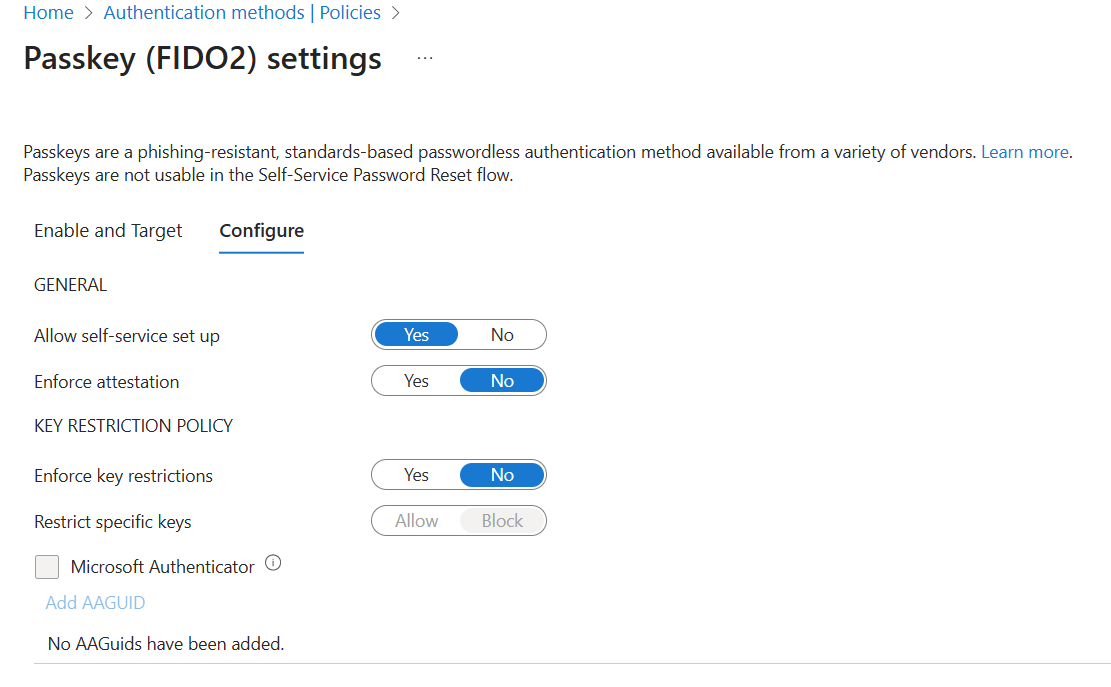
Screenshot: Microsoft Learn. Opting in moves your existing settings into a Default passkey profile. The opt-in is one-way.
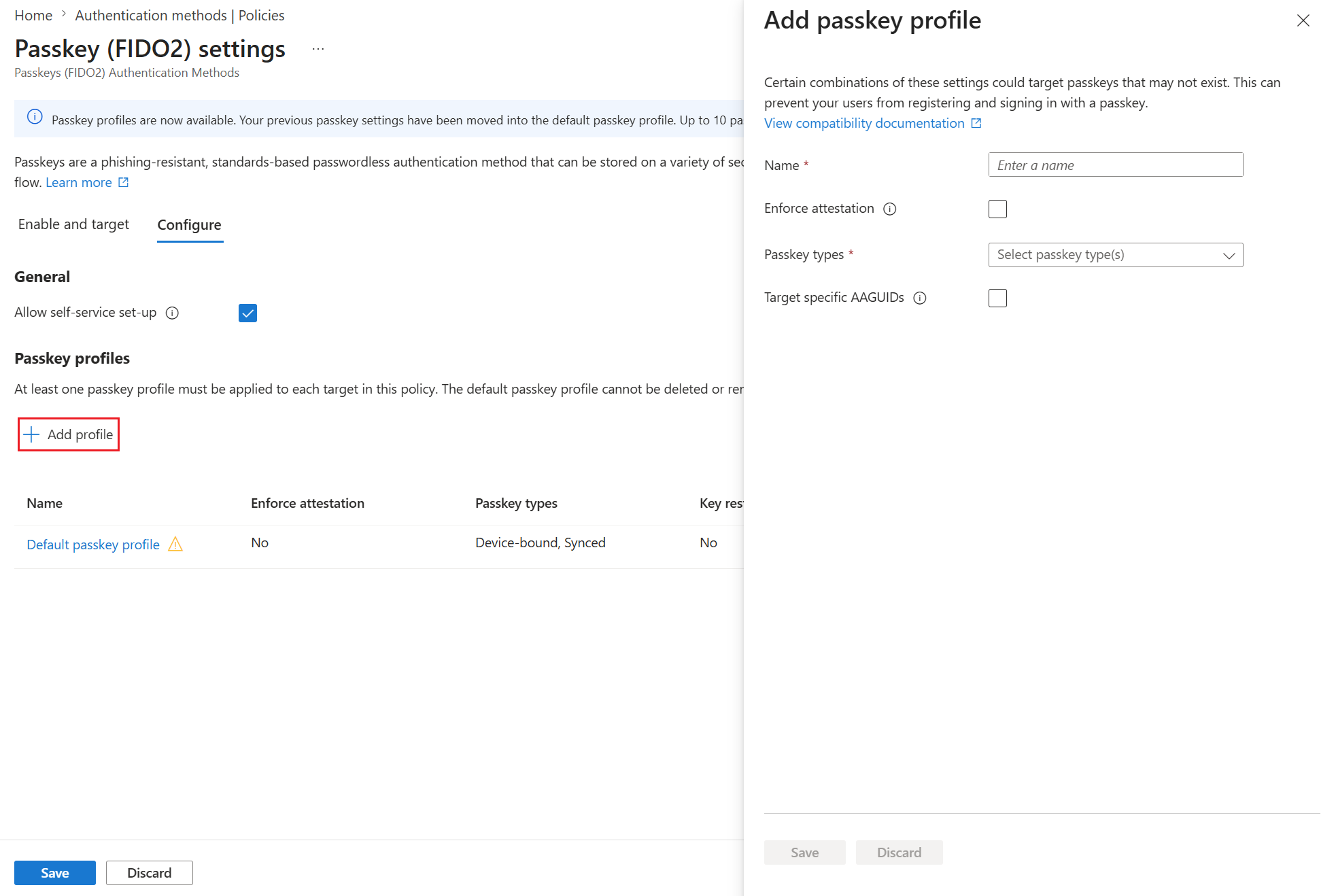
Each profile defines three things:
- Enforce attestation: on or off.
- Passkey types: device-bound, synced, or both.
- Target specific AAGUIDs: an allow list or a block list.
Some examples from Microsoft's documentation:
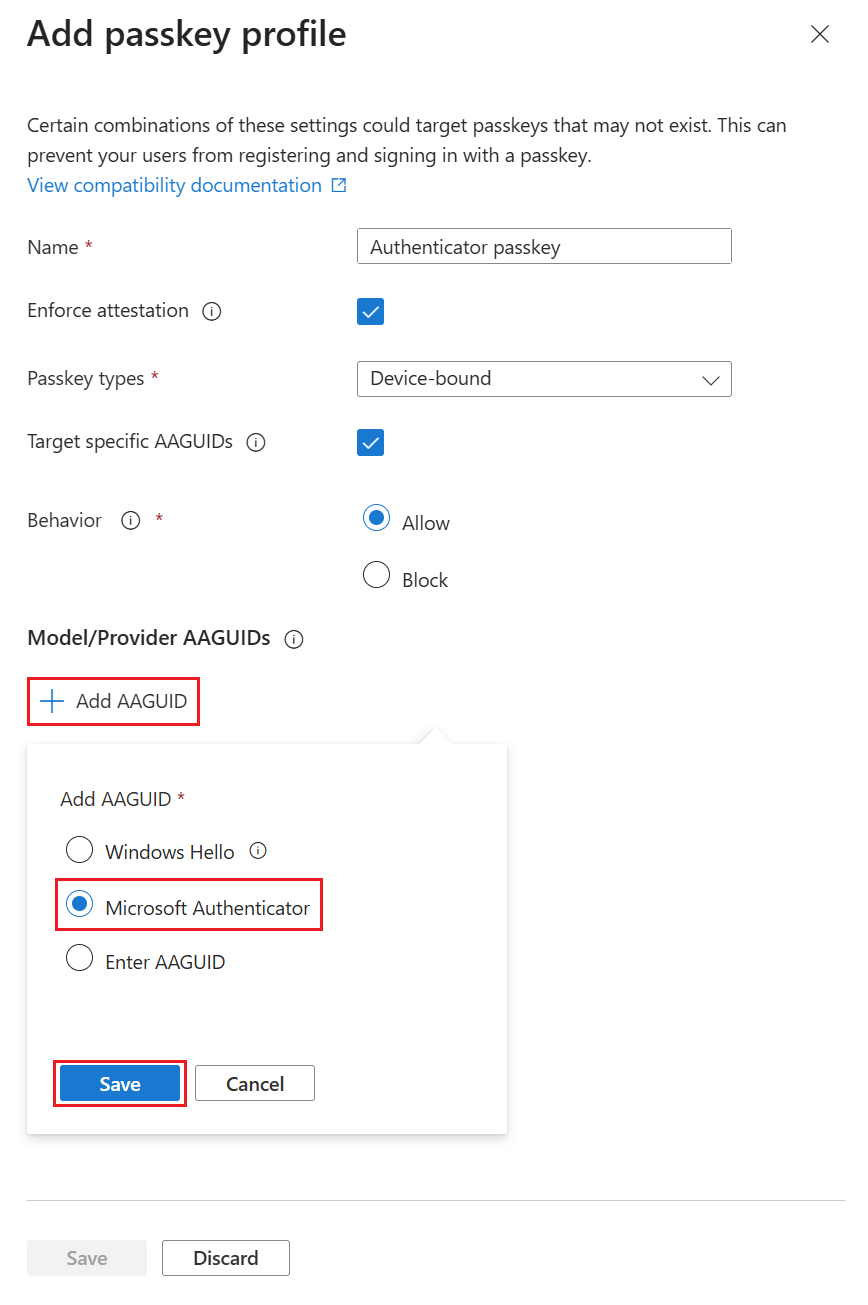
Passkey profile allowing only Microsoft Authenticator AAGUIDs
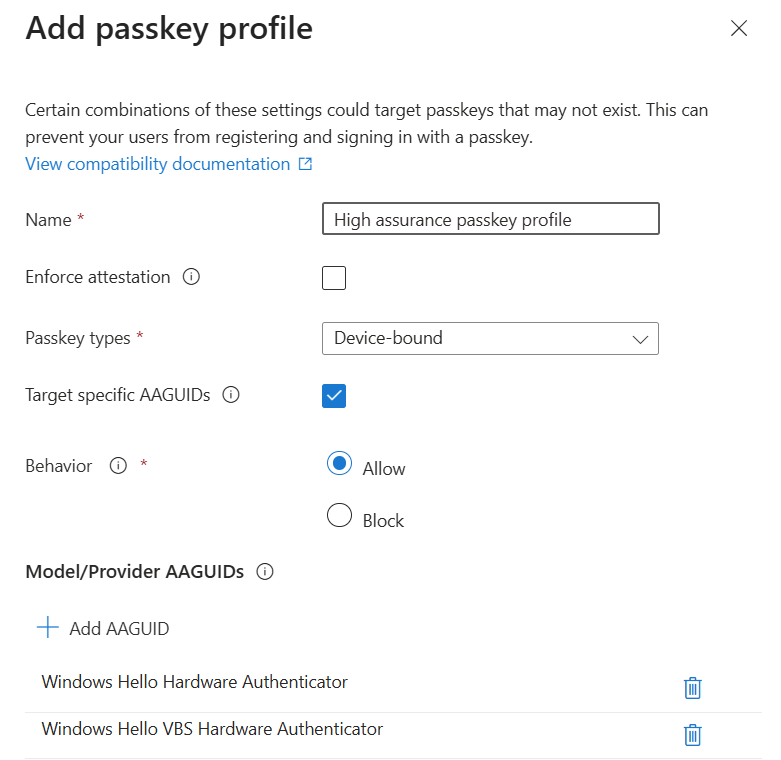
High-assurance profile allowing only Windows Hello hardware AAGUIDs
Then, on Enable and target, attach one or more profiles to each group:
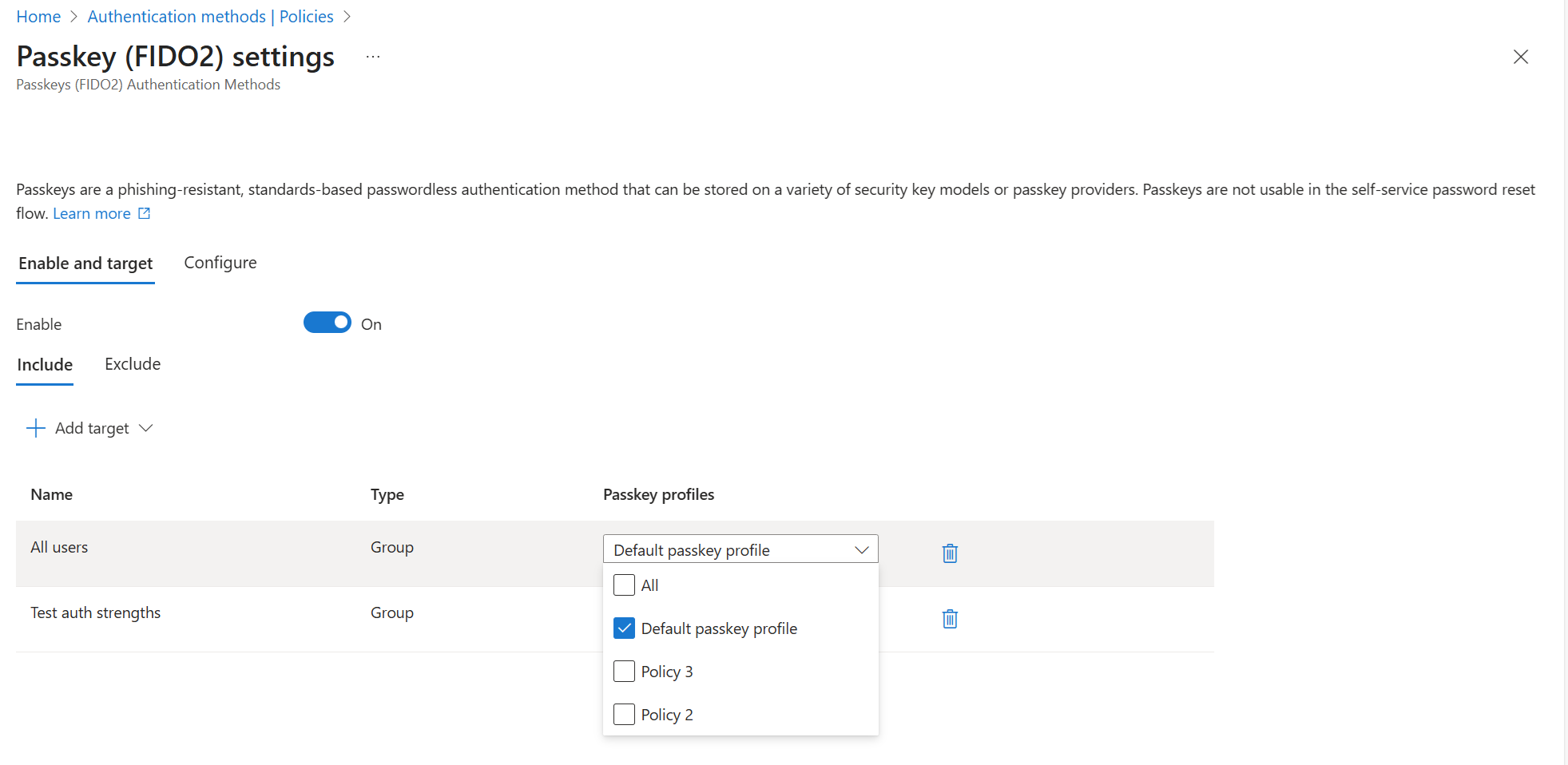
Selecting which passkey profiles apply to a target group
Rules that trip up people
- Limits. Microsoft Learn states that up to three profiles are supported, including the Default, with more "in development". Recent portal builds show a higher limit in the banner, so check your tenant. The entire policy must stay under 20 KB.
- Multiple profiles per user. A passkey is allowed if it satisfies at least one of the user's profiles. Profiles add permissions. They don't intersect.
- Exclusions win. Membership in an excluded group blocks passkey registration and sign-in entirely, even if the user is also in an included group.
- Attestation needs device-bound. If attestation is on, synced passkeys are excluded. With the Authenticator app, attestation also blocks cross-device registration.
- Entra passkeys on Windows need a profile that targets the Windows Hello AAGUIDs without attestation enforcement.
- Registration requires recent MFA. Users must complete MFA within the past five minutes before registering a passkey.
- Your own BYOD policies can block registration. Require app protection policy or Require approved client app on All resources stops passkey registration in Microsoft Authenticator, because Authenticator doesn't support app protection policies. See Part 4 for how to diagnose and fix it.
- Guests can't register passkeys yet. Microsoft plans B2B/guest passkey support "by the end of calendar year 2026".
- UPN changes require users to delete and re-register their passkeys.
- Self-service setup is global. Allow self-service set up applies to the whole policy, not to individual profiles.
What users see
Registration happens at My Sign-Ins → Security info → + Add sign-in method → Passkey. The OS then offers the available passkey providers (Windows Hello, a security key, a phone, iCloud Keychain, Google Password Manager, or a third-party manager).
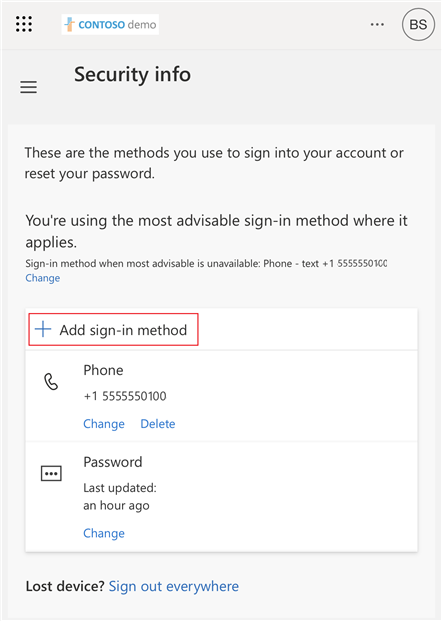
Security info Add sign-in method
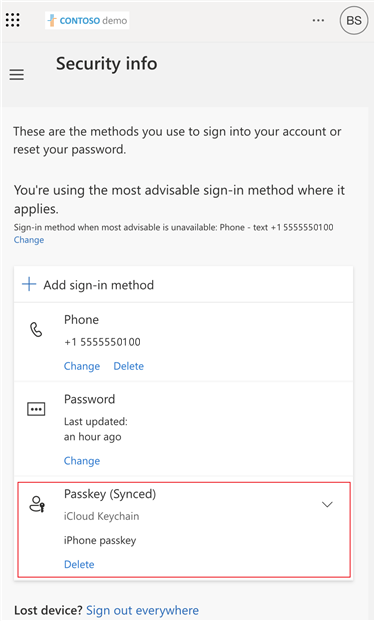
Passkey added in Security info
Hands-on: inventory and configure passkeys with PowerShell
Read the current configuration: Get-EptPasskeyProfile
This returns one object per passkey profile, with attestation mode, passkey types, key restrictions and the groups that use it. Tenants that haven't opted in to profiles get a single Legacy row describing the tenant-wide settings. Those tenant-level properties (isAttestationEnforced, keyRestrictions) are deprecated in Graph v1.0 and scheduled for removal in October 2027.
function Get-EptPasskeyProfile {
    <#
    .SYNOPSIS
        Returns the Passkey (FIDO2) method configuration with its passkey profiles and targets.
    .DESCRIPTION
        GET /policies/authenticationMethodsPolicy/authenticationMethodConfigurations/fido2 (v1.0).
        Emits one object per passkey profile, with the groups that use it. Tenants that have not
        opted in to passkey profiles return the legacy tenant-wide settings as a single 'Legacy' profile.
        (The tenant-level isAttestationEnforced / keyRestrictions properties are deprecated and
        scheduled for removal in October 2027.)

        Requires: Policy.Read.All (or Policy.Read.AuthenticationMethod).
    .EXAMPLE
        Get-EptPasskeyProfile | Format-List
    #>
    [CmdletBinding()]
    [OutputType('Ept.PasskeyProfile')]
    param()

    Assert-EptGraphConnection -RequiredScope 'Policy.Read.All'
    $config = Invoke-EptGraphRequest -Uri 'https://graph.microsoft.com/v1.0/policies/authenticationMethodsPolicy/authenticationMethodConfigurations/fido2'

    $profiles = @($config.passkeyProfiles)
    if (-not $profiles) {
        $profiles = @([pscustomobject]@{
            id                     = 'legacy'
            name                   = 'Legacy (tenant-wide settings)'
            passkeyTypes           = 'deviceBound,synced'
            attestationEnforcement = if ($config.isAttestationEnforced) { 'registrationOnly' } else { 'disabled' }
            keyRestrictions        = $config.keyRestrictions
        })
    }

    foreach ($p in $profiles) {
        $targets = @($config.includeTargets | Where-Object {
            $_.allowedPasskeyProfiles -contains $p.id -or $p.id -eq 'legacy' -or
            (-not $_.allowedPasskeyProfiles -and $p.id -eq $config.defaultPasskeyProfile)
        })
        [pscustomobject]@{
            PSTypeName           = 'Ept.PasskeyProfile'
            PolicyState          = $config.state
            SelfServiceSetup     = $config.isSelfServiceRegistrationAllowed
            ProfileId            = $p.id
            ProfileName          = $p.name
            IsDefault            = ($p.id -eq $config.defaultPasskeyProfile)
            PasskeyTypes         = $p.passkeyTypes
            Attestation          = $p.attestationEnforcement
            KeyRestriction       = if ($p.keyRestrictions.isEnforced) { $p.keyRestrictions.enforcementType } else { 'none' }
            Aaguids              = @($p.keyRestrictions.aaGuids)
            TargetIds            = @($targets.id)
            ExcludedIds          = @($config.excludeTargets.id)
        }
    }
}
Source: EntraPasskeyToolkit/Public/Passkey.ps1
Connect-MgGraph -TenantId $tenantId -ContextScope Process -NoWelcome -Scopes 'Policy.Read.All'
Get-EptPasskeyProfile | Format-Table ProfileName, PasskeyTypes, Attestation, KeyRestriction, @{ n = 'Targets'; e = { $_.TargetIds -join ', ' } }
The rest of the method policy: Get-EptAuthMethodPolicy
Part 1 used this function for the baseline. It is also the fastest way to confirm what the 1 September 2026 auto-enablement changed in your tenant:
function Get-EptAuthMethodPolicy {
    <#
    .SYNOPSIS
        Summarises every method in the Authentication methods policy: state, targets and exclusions.
    .DESCRIPTION
        GET /policies/authenticationMethodsPolicy (v1.0). One object per method configuration,
        plus the policy migration state and registration campaign settings on each object so that the
        output is self-contained when exported. Use it to answer "who is still enabled for SMS/voice?"
        and "is the legacy MFA/SSPR policy still in play?".

        Requires: Policy.Read.All (or Policy.Read.AuthenticationMethod).
    .EXAMPLE
        Get-EptAuthMethodPolicy | Where-Object State -eq 'enabled' | Format-Table Method, Targets, Excluded
    #>
    [CmdletBinding()]
    [OutputType('Ept.AuthMethodPolicy')]
    param()

    Assert-EptGraphConnection -RequiredScope 'Policy.Read.All'
    $policy = Invoke-EptGraphRequest -Uri 'https://graph.microsoft.com/v1.0/policies/authenticationMethodsPolicy'
    $campaign = $policy.registrationEnforcement.authenticationMethodsRegistrationCampaign

    foreach ($m in $policy.authenticationMethodConfigurations) {
        [pscustomobject]@{
            PSTypeName      = 'Ept.AuthMethodPolicy'
            Method          = $m.id
            State           = $m.state
            Targets         = @($m.includeTargets | ForEach-Object { if ($_.id -eq 'all_users') { 'All users' } else { $_.id } })
            Excluded        = @($m.excludeTargets.id)
            MigrationState  = $policy.policyMigrationState
            CampaignState   = $campaign.state
            CampaignMethod  = @($campaign.includeTargets.targetedAuthenticationMethod | Select-Object -Unique) -join ';'
            CampaignSnooze  = $campaign.snoozeDurationInDays
        }
    }
}
Source: EntraPasskeyToolkit/Public/Passkey.ps1
Who has which passkey: Get-EptUserPasskey
This lists every passkey for the users you pipe in, with PasskeyType (deviceBound or synced), AttestationLevel, and a friendly authenticator name resolved from the AAGUID. Pass -AaguidMap to add your approved security-key models.
function Get-EptUserPasskey {
    <#
    .SYNOPSIS
        Lists the passkeys (FIDO2 methods) registered to one or more users.
    .DESCRIPTION
        GET /users/{id}/authentication/fido2Methods (v1.0). Returns the passkey type (deviceBound or
        synced), attestation level, AAGUID with a friendly name where known, and creation date.

        Output binds by property name to Remove-EptUserPasskey (UserPrincipalName + MethodId).

        Remember: without attestation enforcement, Entra cannot guarantee any attribute of a
        passkey, including its AAGUID or whether it is device-bound. Treat unattested values as claims.

        Requires: UserAuthenticationMethod.Read.All (or UserAuthMethod-Passkey.Read.All) plus
        Global Reader, Authentication Administrator or Privileged Authentication Administrator.
    .PARAMETER AaguidMap
        Extra AAGUID-to-name mappings merged with the built-in list, e.g. your approved security keys.
    .EXAMPLE
        Get-EptPrivilegedUser | Get-EptUserPasskey | Where-Object PasskeyType -eq 'synced'
    .EXAMPLE
        Get-Content pilot.txt | Get-EptUserPasskey | Group-Object Authenticator | Sort-Object Count -Descending
    #>
    [CmdletBinding()]
    [OutputType('Ept.UserPasskey')]
    param(
        [Parameter(Mandatory, ValueFromPipeline, ValueFromPipelineByPropertyName)]
        [Alias('Id', 'UserId', 'UPN')]
        [string[]] $UserPrincipalName,

        [hashtable] $AaguidMap = @{}
    )
    begin {
        Assert-EptGraphConnection -RequiredScope 'UserAuthenticationMethod.Read.All'
        $names = $script:EptKnownAaguid.Clone()
        foreach ($k in $AaguidMap.Keys) { $names[$k.ToLower()] = $AaguidMap[$k] }
    }
    process {
        foreach ($user in $UserPrincipalName) {
            $uri = "https://graph.microsoft.com/v1.0/users/$(Resolve-EptUserId $user)/authentication/fido2Methods"
            try { $methods = @(Invoke-EptGraphRequest -Uri $uri) }
            catch { Write-Error "Could not read passkeys for '$user': $($_.Exception.Message)"; continue }

            foreach ($m in $methods) {
                $aaguid = ([string]$m.aaGuid).ToLower()
                [pscustomobject]@{
                    PSTypeName        = 'Ept.UserPasskey'
                    UserPrincipalName = $user
                    MethodId          = $m.id
                    DisplayName       = $m.displayName
                    Model             = $m.model
                    PasskeyType       = $m.passkeyType
                    AttestationLevel  = $m.attestationLevel
                    Aaguid            = $aaguid
                    Authenticator     = if ($names.ContainsKey($aaguid)) { $names[$aaguid] } elseif ($m.model) { $m.model } else { 'Unknown' }
                    Created           = if ($m.createdDateTime) { [datetime]$m.createdDateTime } else { $null }
                }
            }
        }
    }
}
Source: EntraPasskeyToolkit/Public/Passkey.ps1
Useful pipelines:
Connect-MgGraph -TenantId $tenantId -ContextScope Process -NoWelcome `
    -Scopes 'UserAuthenticationMethod.Read.All', 'RoleManagement.Read.Directory', 'GroupMember.Read.All', 'Policy.Read.All'

# Your approved security keys (example values; use the AAGUIDs of the models you buy)
$approvedKeys = @{
    'ee882879-721c-4913-9775-3dfcce97072a' = 'YubiKey 5 (USB-A, firmware 5.2/5.4)'
    'fa2b99dc-9e39-4257-8f92-4a30d23c4118' = 'YubiKey 5 NFC (firmware 5.1)'
}

# 1. Admins holding synced or unattested passkeys: the Tier 0 violations
Get-EptPrivilegedUser |
    Get-EptUserPasskey -AaguidMap $approvedKeys |
    Where-Object { $_.PasskeyType -eq 'synced' -or $_.AttestationLevel -ne 'attested' } |
    Format-Table UserPrincipalName, Authenticator, PasskeyType, AttestationLevel, Created

# 2. Which authenticators is the pilot group actually using?
Get-Content ./pilot-users.txt |
    Get-EptUserPasskey -AaguidMap $approvedKeys |
    Group-Object Authenticator -NoElement | Sort-Object Count -Descending

# 3. Users with exactly one passkey (no backup credential, so recovery is at risk)
Get-Content ./pilot-users.txt |
    Get-EptUserPasskey |
    Group-Object UserPrincipalName |
    Where-Object Count -eq 1 |
    Select-Object @{ n = 'UserPrincipalName'; e = { $_.Name } }
Get-EptPrivilegedUseris introduced in Part 6. It is used here to show how the functions compose: any command that emits objects with aUserPrincipalNameproperty can feed anyEptfunction that takes users.
Create persona profiles: Add-EptPasskeyProfile
For repeatable builds, such as a test tenant, a second production tenant, or infrastructure-as-code reviews, Add-EptPasskeyProfile does a read-modify-write against the FIDO2 configuration. It reads the current profiles and targets, appends the new profile, and PATCHes the complete collections back so existing profiles are preserved. It refuses the one combination Entra will never accept (attestation plus synced passkeys) before calling Graph.
function Add-EptPasskeyProfile {
    <#
    .SYNOPSIS
        Adds a passkey profile to the Passkey (FIDO2) policy and, optionally, targets a group with it.
    .DESCRIPTION
        WRITE OPERATION. Read-modify-write against
        PATCH /policies/authenticationMethodsPolicy/authenticationMethodConfigurations/fido2 (v1.0):
        the current profiles and targets are read, the new profile is appended, and the complete
        collections are sent back so existing profiles are preserved.

        Prerequisites and limits (check Microsoft Learn for the current values):
          * The tenant must already have opted in to passkey profiles (a one-way change made in the portal).
          * The number of profiles per tenant is limited, and the whole policy must stay under 20 KB.
          * Attestation cannot be enforced on a profile that allows synced passkeys, and
            Entra passkeys on Windows need a profile without attestation enforcement.
          * Removing an AAGUID from an allow list later stops existing passkeys of that model from signing in.

        Validate in a test tenant first and run with -WhatIf to inspect the request body.
        Requires: Policy.ReadWrite.AuthenticationMethod + Authentication Policy Administrator.
    .EXAMPLE
        # Admin persona: hardware security keys only, attested
        Add-EptPasskeyProfile -Name 'Admins - attested security keys' -PasskeyType deviceBound `
            -EnforceAttestation -AllowedAaguid $approvedKeyAaguids -TargetGroupId $adminGroupId -WhatIf
    .EXAMPLE
        # Workforce: synced or device-bound, no attestation
        Add-EptPasskeyProfile -Name 'Workforce - synced allowed' -PasskeyType deviceBound, synced -TargetGroupId $pilotGroupId
    #>
    [CmdletBinding(SupportsShouldProcess, ConfirmImpact = 'High')]
    [OutputType('Ept.PasskeyProfile')]
    param(
        [Parameter(Mandatory)]
        [ValidateLength(1, 64)]
        [string] $Name,

        [Parameter(Mandatory)]
        [ValidateSet('deviceBound', 'synced')]
        [string[]] $PasskeyType,

        [switch] $EnforceAttestation,

        [ValidatePattern('^[0-9a-fA-F-]{36}$')]
        [string[]] $AllowedAaguid,

        [guid] $TargetGroupId
    )

    Assert-EptGraphConnection -RequiredScope 'Policy.ReadWrite.AuthenticationMethod'
    if ($EnforceAttestation -and $PasskeyType -contains 'synced') {
        throw 'Synced passkeys do not support attestation. Use -PasskeyType deviceBound with -EnforceAttestation.'
    }

    $uri = 'https://graph.microsoft.com/v1.0/policies/authenticationMethodsPolicy/authenticationMethodConfigurations/fido2'
    $config = Invoke-EptGraphRequest -Uri $uri
    if (-not $config.passkeyProfiles) {
        throw 'Passkey profiles are not enabled in this tenant. Opt in from the Passkey (FIDO2) settings page first.'
    }
    if ($config.passkeyProfiles.name -contains $Name) { throw "A passkey profile named '$Name' already exists." }

    $newProfile = [ordered]@{
        id                     = [guid]::NewGuid().ToString()
        name                   = $Name
        passkeyTypes           = ($PasskeyType | Select-Object -Unique) -join ','
        attestationEnforcement = if ($EnforceAttestation) { 'registrationOnly' } else { 'disabled' }
        keyRestrictions        = @{
            isEnforced      = [bool]$AllowedAaguid
            enforcementType = 'allow'
            aaGuids         = @($AllowedAaguid | ForEach-Object ToLower)
        }
    }

    $body = [ordered]@{
        '@odata.type'   = '#microsoft.graph.fido2AuthenticationMethodConfiguration'
        passkeyProfiles = @($config.passkeyProfiles) + $newProfile
    }
    if ($TargetGroupId) {
        $targets = @($config.includeTargets | Where-Object id -ne $TargetGroupId.ToString())
        $targets += [ordered]@{
            targetType             = 'group'
            id                     = $TargetGroupId.ToString()
            isRegistrationRequired = $false
            allowedPasskeyProfiles = @($newProfile.id)
        }
        $body.includeTargets = $targets
    }

    Write-Verbose ($body | ConvertTo-Json -Depth 10)
    if ($PSCmdlet.ShouldProcess('Passkey (FIDO2) policy', "Add profile '$Name' ($($newProfile.passkeyTypes), attestation=$($newProfile.attestationEnforcement))")) {
        Invoke-EptGraphRequest -Method PATCH -Uri $uri -Body $body | Out-Null
        Get-EptPasskeyProfile | Where-Object ProfileName -eq $Name
    }
}
Source: EntraPasskeyToolkit/Public/Passkey.ps1
Connect-MgGraph -TenantId $tenantId -ContextScope Process -NoWelcome `
    -Scopes 'Policy.ReadWrite.AuthenticationMethod', 'Policy.Read.All'

$tier0Group     = '<object id of your Tier 0 admins group>'
$workforceGroup = '<object id of your workforce pilot group>'

# Tier 0: attested hardware keys only. Preview the exact request body first.
Add-EptPasskeyProfile -Name 'Tier0 - attested security keys' -PasskeyType deviceBound `
    -EnforceAttestation -AllowedAaguid $approvedKeys.Keys -TargetGroupId $tier0Group -WhatIf -Verbose

# Workforce: any passkey type, no attestation
Add-EptPasskeyProfile -Name 'Workforce - device-bound or synced' -PasskeyType deviceBound, synced `
    -TargetGroupId $workforceGroup
Warning: Test in a non-production tenant first. Passkey-profile write operations are recent. Validate the request body with
-WhatIf -Verboseand confirm the result in the portal. The function creates a new profile ID client-side. If your tenant's API version rejects that, create the profile in the portal and use the toolkit for inventory and verification.
Best practices
- Design profiles around personas (Tier 0 / sensitive / workforce / frontline), not around devices.
- Enforce attestation where provenance matters (admins, regulated roles). Accept unattested and synced passkeys where usability matters more than provenance.
- Require two credentials per user, especially for device-bound-only personas. Two copies inside the same provider account are not independent.
- Pilot the actual OS/browser combinations your users run. Passkey availability and prompts differ between Windows, macOS, iOS, Android and Linux.
- Communicate the approved providers. Tell users whether personal iCloud/Google accounts are acceptable, and what to name the passkey (for example, "YubiKey – blue – issued 2026-09").
- Treat AAGUID changes like firewall changes: peer review, change record, rollback plan. Removing an AAGUID locks out existing users of that model.
- Don't confuse enabling with enforcing. Everything in this post makes passkeys available. Nothing in it stops a user from signing in with SMS. That's Part 3.
Next, Part 3: authentication strengths and Conditional Access, where passkeys stop being optional.
References
- Enable passkeys (FIDO2) and passkey profiles, Microsoft Learn
- Enable synced passkeys, Microsoft Learn
- Enable passkeys in Microsoft Authenticator, Microsoft Learn
- Microsoft Entra passkeys on Windows, Microsoft Learn
- Register a passkey (end-user guide), Microsoft Learn
- Plan a phishing-resistant passwordless deployment, Microsoft Learn
- fido2AuthenticationMethod and passkeyProfile resources, Microsoft Graph
- Update fido2AuthenticationMethodConfiguration, Microsoft Graph
- FIDO Alliance: passkeys