Verifying Patching with PowerShell (Part 1 Finding the Java Versions)

One of the greatest dilemmas that both the system admin as well as the the security professional face is knowing if a patch tool and even more I would say it would be having visibility of what is currently in their environment. Lets look at to approaches:

  1. We will use WMI to check the Java version of a series of host.
  2. We will use WMI to check if a specific Microsoft patch is present (Get-Hotfix was behaving strangely in a workflow for me).
For both cases we will save the data in to a CSV file for simplicity of parsing the data. We will be pulling the hosts to check directly from AD using the AD cmdlets that are installed as part of the RSAT (Remote Server Administration Tools) that can be installed on a Windows 7 or Windows 8 hosts or we could as well run this from a Windows 2008 R2 or Windows 2012 server that have the ActiveDirectory module installed. Lets start by pulling the Computers we want from the domain. If the host we are on is a Windows 7 or Windows 8 hosts we need to know if the RSAT component is installed and if so if the AD PowerShell Module is available in the features, I will cover the commands as if we where on command shell since this could be useful if you are a pentester that just gained access to hosts that have RSAT tools Winking smile (used this last week and it worked beautifully) To check if the AD PowerShell component is installed we can use the DSIM command:
C:\Windows\system32>dism /online /Get-features | findstr /i powershell

Feature Name : RemoteServerAdministrationTools-Roles-AD-Powershell

As we can the the feature is available to use. To install we can use the DSIM tool itself:

dism /online /enable-feature /featurename:RemoteServerAdministrationTools-Roles-AD-Powershell

In the case of a Windows 2008 R2 Server or a Windows 2012 server we would import the Server Manager Module:

PS > Import-Module ServerManager 

Then we would query for the feature and install it:

PS > Get-WindowsFeature RSAT-AD-PowerShell | Add-WindowsFeature 

Once the tool is installed we can load the module and execute the PowerShell cmdlets to query AD, in the case of PowerShell v3 modules are automatically loaded and they do not need no be loaded by hand. To import we would use:

PS > Import-Module ActiveDirectory 

Note: if you are in a pentest and have shell on a host that have the RSAT tools you an invoke your powershell commands against AD either from a domain account or from system since both the computer account and domain user accounts have read permissions on AD allowing for enumeration of the domain.

For our specific need we will use the Get-ADComputer cmdlet, this cmdlet allows the pulling of computer information where we can filter by either property of the computer or by using an LDAP filter. To get a list of all the properties we could filter on we can just use the Get-Member cmdlet and have it only show properties:

PS > Get-ADComputer -Filter * -Properties * | Get-Member -MemberType Properties 

In this case so as to keep things simple I recommend  you filter either by OS type or by OU. Here is an example where we will filter for only those machines that are running client OS and we retrieve their Name, OS and IPv4Address:

PS C:\> Get-ADComputer -Filter "OperatingSystem -notlike '*server*'" `

-Properties Name,OperatingSystem,ipv4address `

| Select-Object Name,OperatingSystem,ipv4address
Name OperatingSystem ipv4address
---- --------------- -----------
WIN701 Windows 7 Enterprise 192.168.10.20
WINXP01 Windows XP Professional 192.168.10.30
WINXP02 Windows XP Professional 192.168.10.31
WIN702 Windows 7 Ultimate 192.168.10.21
WIN801 Windows 8 Enterprise 192.168.10.40

If we want to limit our search we use the –SearchBase parameter:

PS C:\>  Get-ADComputer -Filter "OperatingSystem -notlike '*server*'" `

-Properties Name,OperatingSystem,ipv4address -SearchBase "OU=HR,DC=acmelabs,DC=com" `

| Select-Object Name,OperatingSystem,ipv4address

Name                                         OperatingSystem                              ipv4address                               
----                                         ---------------                              -----------                               
WIN702                                       Windows 7 Ultimate                           192.168.10.21                             
WIN701                                       Windows 7 Enterprise                         192.168.10.20                             

Now that we are able to list the PC’s that we want to check against, lets look in the case of third party tool like Java I like checking the version of the file that application uses since it is simpler that querying the registry with WMI.

Since a user can install both a 32bit and a 64bit version of java we will have to look in the 2 default locations. The WMI Class to use for this is the CIM_Datafile  this class will allow me to query a specific file and get it’s properties.

Note: You may see examples in the internet use Win32_Product, this class should be avoided for enumerating installed software. The Win32_Product class works by enumerating every MSI package that is installed on the system. When a package is touched, it performs a reconfiguration where the application is validated (and repaired if found to be inconsistent with the original MSI). So configuration settings may go to default and services that may have been disabled will be re-enabled, this may expose the systems to greater risk or break the software in some configurations.

For querying the CIM_Datafile class we will use Get-WMIObject since it is available in both PowerShell v2 and PowerShell v3. The use of WMI also allow us to provide alternate credentials if we wish.

Lets query a system with both 32bit and 64bit versions in the default locations and get the version for Java.dll:

PS C:\> Get-WmiObject -Class CIM_Datafile -Filter `

'(Name="C:\\Program Files\\Java\\jre7\\bin\\java.dll" OR Name="C:\\Program Files (x86)\\Java\\jre7\\bin\\java.dll")'
Compressed : False
Encrypted : False
Size :
Hidden : False
Name : c:\program files (x86)\java\jre7\bin\java.dll
Readable : True
System : False
Version : 7.0.100.18
Writeable : True

Compressed : False
Encrypted : False
Size :
Hidden : False
Name : c:\program files\java\jre7\bin\java.dll
Readable : True
System : False
Version : 7.0.100.18
Writeable : True

As we can see we are able to pull both versions of both files.

Since WMI takes a while to run PowerShell has several ways to speed up the process.  The most compatible one is to use Jobs, these will spin up a separate powershell.exe environment and execute the command and save the results in memory for us to pull and parse, the other is to use threads and pools and new to PowerShell v3 we can create what is called a Workflow. We will use this code to create a Workflow since it is less resource intensive that Jobs and easier to write that threads in a pool. A workflow is kind of a special function that allows one to run tasks in parallel up to 5 threads at a time so it will make it easier to pull data. Here is the Workflow I came up with:


Workflow Get-Java7Version {

[cmdletbinding()]

param(

[psobject[]]$Computers

)

foreach -parallel ($computer in $computers) {

Write-Verbose -Message "Running against $($computer.Name)"

# Check each computer for the info.

$versions = Get-WmiObject -Class CIM_Datafile `

-Filter '(Name="C:\\Program Files\\Java\\jre7\\bin\\java.dll" OR Name="C:\\Program Files (x86)\\Java\\jre7\\bin\\java.dll")' `

-PSComputerName $computer.ipv4address -ErrorAction SilentlyContinue | Select-Object -Property name,version

if ($versions){

# Process each version found

Write-Verbose -Message "Java found on $($computer.Name)"

foreach($version in $versions){

# Create a Custom PSObject with the info to process

$found = InlineScript {

New-Object –TypeName PSObject –Prop @{'Computer'=$Using:computer.Name;

'IPv4Address'=$Using:computer.ipv4address;

'File'=$Using:version.name;

'Version'=$Using:version.version}

}

# Return the custom object

$found

}

}

else {

Write-Verbose -Message "Java not found in $($computer.Name)"

}

}

}

The workflow breaks down as follows:


  • We add to our Workflow the cmdletbinding() this will allow us to inherit certain functionality found on cmdlets like being able to show verbose and debug output.
  • We define as a parameter for the workflow Computers which is a array of PSObjects. This will be objects that can be taken from the Get-ADComputer or any other cmdlet that produces objects with the properties of IPv4Address and Name for the computers we want to run against.
  • We now go thru each computer objects in $Computers and run the WMI query against each, the –parallel parameter in foreach can only be used inside of workflows. This will create a pool of jobs and run in parallel 5 at a time.
  • For each version we get we create a custom object with the computer name, IP Address, File Location and the Version of the file. We return the Object.

As you can see it is not to complicated other than some special rules for Workflows like the no use of positional parameters and the instantiation of objects must be done inside a inlinescript script block.

You can read more about Workflows in the “Getting Started with PowerShell Workflows” document from Microsoft  or using the Get-Help cmdlet and looking at about_Workflows and about_Workflow_Common_Parameters.

The workflow can be ran just like any other function. You can save the code in to a PS1 file and just do a `. .\<filename>.ps1` and it will add the function inside of it in to your session.

We will save the computers found with the Get-ADComputer cmdlet in to a variable:

 PS C:\> $computers = Get-ADComputer -Filter * `

-Properties Name,OperatingSystem,ipv4address `

| Select-Object Name,ipv4address

Now we can pass these to the workflow and use the –verbose option to see the progress:
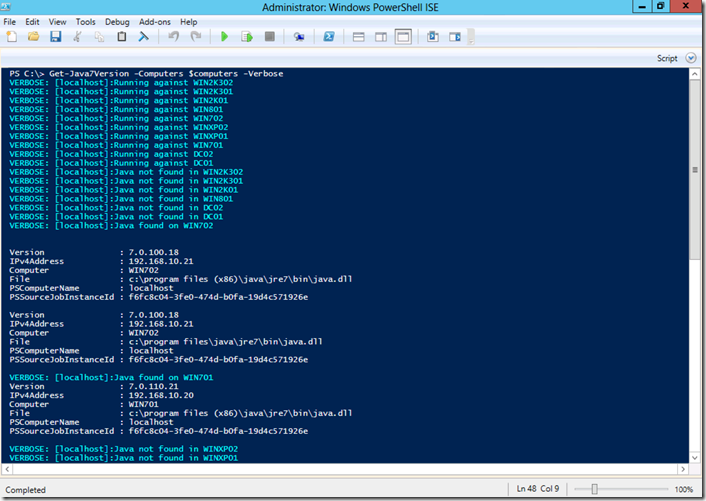
image

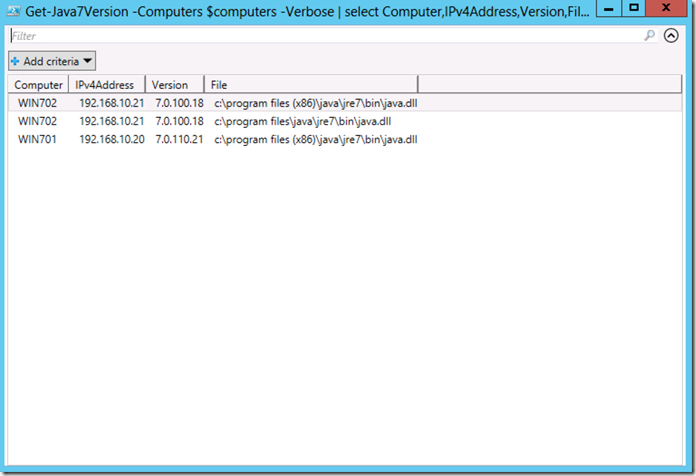
Since we are returning objects we can manipulate the data using several formating and export cmdlets from PowerShell. One out my favorites is the Grid View cmdlet so I can filter and parse the data.

PS C:\> Get-Java7Version -Computers $computers -Verbose | select Computer,IPv4Address,Version,File | Out-GridView 


This will give us:
image

Now we can parse and filter the data anyway we want. For part 2 I will cover how to check the MS Hotfixes and also how to get some diagnostic data to determine if a hotfix failed and why.  As always I hope you found the information useful.

New Guide for Installing Metasploit Framework CentOS and RHEL 6

I know that many hostting companies offer CentOS 6 as their OS of choice for VPS do to its great track record. So I decided to write and maintain a guide for getting a Development environment for Metasploit Framework or for those that prefer to use only the OSS versions of it in CentOS 6 the guide also covers RHEL 6 for both x86 and x64 versions. /msf-centosrhel/

Hope you find it useful.

PowerShell Basics–Running Commands

Lets start running commands and tying in what was covered in the previous posts. As you may have guessed by now in PowerShell the cmdlets, functions, workflows and scripts are all named in a - format. This aids in classifying the functionality of them and keeps to the idea of having one specific area of functionality per command similar to Unix. To get a list of all of the Verbs we use the Get-Verb cmdlet to get the list of approved verbs for PowerShell. When we write our own we can name them anything we like but it is recommended to follow the same standard as the one present in the shell so as to maintain uniformity and ease of use. The verbs are grouped per functionality in the following groups:

  • Common
  • Data
  • Lifecycle
  • Diagnostic
  • Communications
  • Security
  • Other

In the blogpost on using the help subsystem I covered that the Get-Help cmdlet could be use to find commands on the system since it parses the help information, this could prove useful in exploring but it will also miss system commands, Dynamic Link Libraries and some time it can even be to noisy depending on what we want to find. There is a specific cmdlet in PowerShell whose whole purpose is to find all commands that are installed on the computer, including cmdlets, aliases, functions,workflows, filters, scripts, and applications. Get-Command gets the commands from Windows PowerShell modules and this is the Get-Command cmdlet. If we use the Get-Help cmdlet against the Get-Command cmdlet we get the following Syntax options:

image

We have 2 general ways we can run the cmdlet, the first one we can search by Verb or Noun and in the second one we can search by Name of the cmdlet. Lets take take the second way of running the cmdlet and look at the name option [[-Name] ] we see that it takes a string object and that we can provide it a list of string because it has the [ ] at the end of the type, we also see that -Name is between [ ] which means it is optional to. If we look at the parameter it self we will see:

PS C:\> Get-Help Get-Command -Parameter Name

-Name <String[]>
    Gets only commands with the specified name. Enter a name or name pattern. Wildcards are permitted.

    To get commands that have the same name, use the All parameter. When two commands have the same name, by default,
    Get-Command gets the command that runs when you type the command name.

    Required?                    false
    Position?                    1
    Default value                None
    Accept pipeline input?       True (ByValue, ByPropertyName)
    Accept wildcard characters?  false

NOTE: I see that is in “Accept wildcard characters?” it says false, that  is a bug that has been present since PowerShell 2.0 since I can remember, this is why I have gotten in to the habit of also reading the description of the parameters, I have only seen it happen with this cmdlet.

In the description we can see that we can use wildcard characters for looking in the names of the commands and also we see it is in position 1 so we can just pass that wildcard expression as the first argument passed to the cmdlet.  It will search for system commands in all the locations that are in the $PATH variable also. Here is an example where I show the contents of my Path environment variable and as it can be seen it includes Nmap and SQL Express installations so if I look for *nmap* and for *sql* it will show the commands for those:

PS C:\> $env:path
C:\Windows\system32;C:\Windows;C:\Windows\System32\Wbem;C:\Windows\System32\WindowsPowerShell\v1.0\;C:\Windows\System32\Wind
ows System Resource Manager\bin;C:\Program Files\Microsoft Network Monitor 3\;C:\Program Files\Microsoft SQL Server\110\Tool
s\Binn\;C:\Program Files (x86)\Windows Live\Shared;C:\Program Files (x86)\Nmap
PS C:\> get-command *nmap*

CommandType     Name                                               ModuleName
-----------     ----                                               ----------
Application     nmap.exe
Application     nmap-update.exe
Application     zenmap.exe


PS C:\> get-command *sql*

CommandType     Name                                               ModuleName
-----------     ----                                               ----------
Application     SQLCMD.EXE
Application     SqlLocalDB.exe

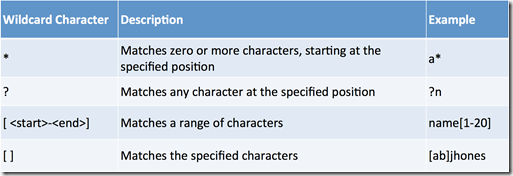
When using Wildcard Characters we can use any of the characters listed in the table below:

image

When it comes to parameters PowerShell also has Tab Autocomplete for parameter and they can be shorten to the minimum unique characters like we can with Cisco IOS, PowerShell does this by looking at the cmdlet it self and in the case of Function, Scripts and Workflows it will even parse the code to read this so as to provide them to AutoComplete. So we could run the Get-Service command as follows to get the information for the BITS service:

PS C:\Windows\system32> Get-Service -Name bits

Status   Name               DisplayName
------   ----               -----------
Running  bits               Background Intelligent Transfer Ser...


PS C:\Windows\system32> Get-Service -Name bits*

Status   Name               DisplayName
------   ----               -----------
Running  BITS               Background Intelligent Transfer Ser...


PS C:\Windows\system32> Get-Service -Na bits*

Status   Name               DisplayName
------   ----               -----------
Running  BITS               Background Intelligent Transfer Ser...


PS C:\Windows\system32> Get-Service bits*

Status   Name               DisplayName
------   ----               -----------
Running  BITS               Background Intelligent Transfer Ser...

This provides great flexibility for running cmdlets, Functions and Workflows but it also adds the power of discoverability, we can just type a –<Tab> and keep hitting the Tab key to discover the parameter we want.

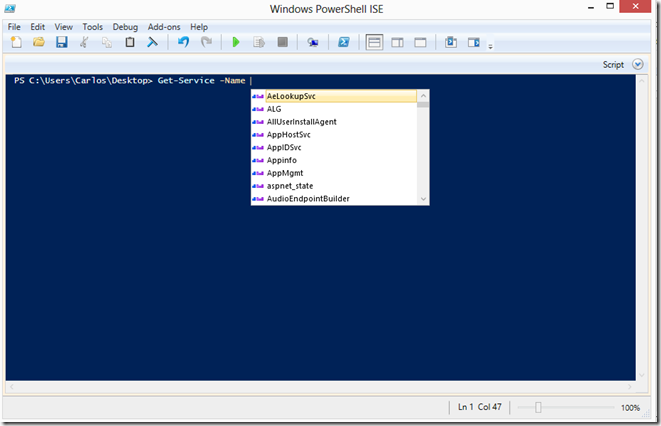
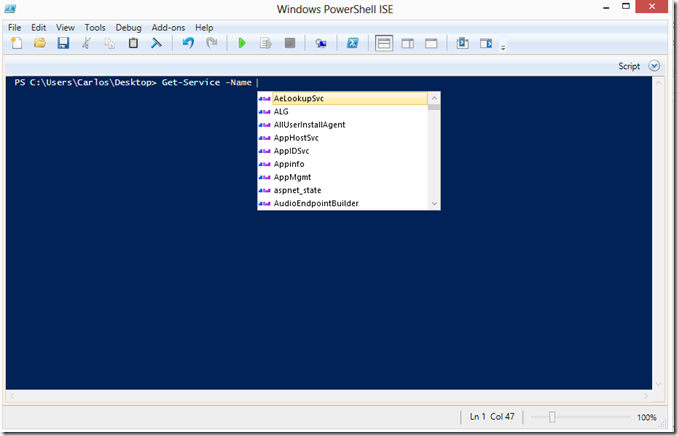
On PowerShell v3 the autocompleting is further expanded to include predefined lists or those that can be calculated and deduced by the command like list of processes, list of services, error actions ..etc.

Expansion for services as they are enumerated for autocomplete:

image

Expansion of predefine options:

image

in the none ISE Terminal one can cycle thru them by just keep hitting the <Tab> Key

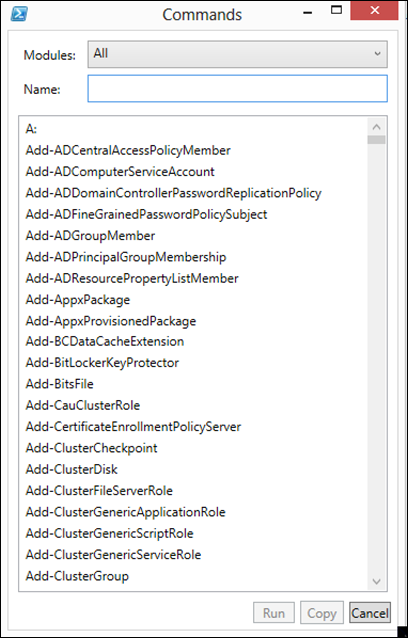
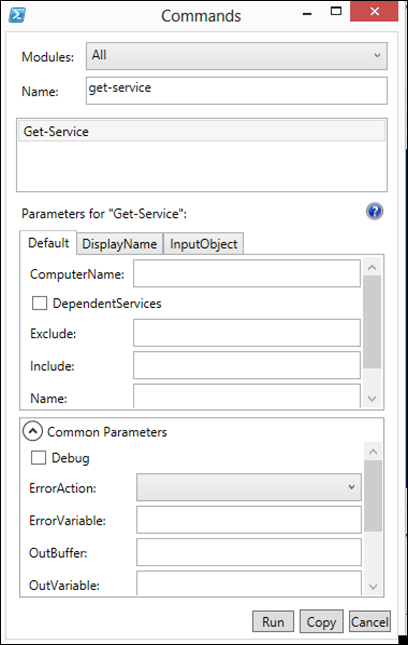
PowerShell v3 added a graphical way to also explore PowerShell specific commands and build the command in the GUI and execute it in the GUI also using the Show-Command cmdlet

image

image

PowerShell just like other Unix shells allows the use of Aliases for commands, this allows for less typing. Now a word of advice, since PowerShell allows the shortening of parameters or use of the values of such can produce very hard to read code when scripting with PowerShell so for interactive shell this is perfect so as to allow for fast use but when sharing command strings or scripts get in to the habit of expanding the command alias and the parameters.

We can use the Get-Command cmdlet to search for all the cmdlets for managing Aliases:

PS C:\> Get-Command *alias*

CommandType     Name                                               ModuleName
-----------     ----                                               ----------
Cmdlet          Export-Alias                                       Microsoft.PowerShell.Utility
Cmdlet          Get-Alias                                          Microsoft.PowerShell.Utility
Cmdlet          Import-Alias                                       Microsoft.PowerShell.Utility
Cmdlet          New-Alias                                          Microsoft.PowerShell.Utility
Cmdlet          Set-Alias                                          Microsoft.PowerShell.Utility

The use of the <verb>-<noun> format makes the identification of the purpose of the cmdlets quite simple. To get a list of the aliases on the current sessions we would use the Get-Alias cmdlet. We can create new cmdlets with New-Alias and Set-Alias, to modify an Alias the Set-Alias cmdlet is used.

To get the definition of a specific alias:

PS C:\> Get-Alias -Name ls

CommandType     Name                                               ModuleName
-----------     ----                                               ----------
Alias           ls -> Get-ChildItem

To get what aliases are for a specific cmdlet

PS C:\> Get-Alias -Definition Get-ChildItem

CommandType     Name                                               ModuleName
-----------     ----                                               ----------
Alias           dir -> Get-ChildItem
Alias           gci -> Get-ChildItem
Alias           ls -> Get-ChildItem

To create a new alias

PS C:\> New-Alias -Name ll -Value Get-ChildItem
PS C:\> ll


    Directory: C:\


Mode                LastWriteTime     Length Name
----                -------------     ------ ----
d----         8/16/2012   5:14 PM            inetpub
d----         7/26/2012   3:33 AM            PerfLogs
d-r--         1/18/2013  10:03 PM            Program Files
d-r--         1/13/2013   8:33 AM            Program Files (x86)
d----        10/30/2012  10:02 PM            SQLEXPRESS
d-r--         8/15/2012   8:35 PM            Users
d----         1/12/2013  10:56 PM            Windows

Sadly the aliases we create are not permanent and are lost once we close the session. We can export the aliases we create to a file and load them in to any session or autoload them with the use of profiles files (More on this on a later blogpost), to export them we use the Export-Alias cmdlet.

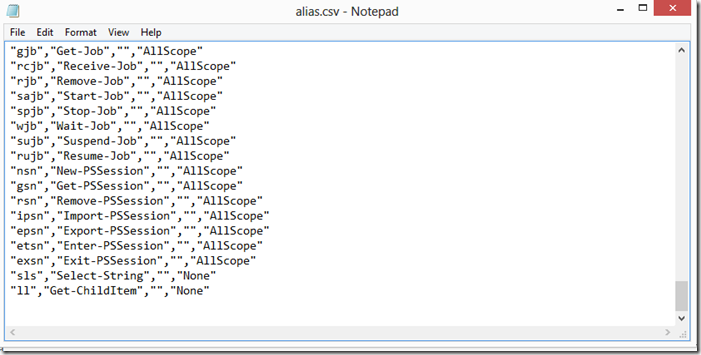
PS C:\> export-alias -path alias.csv

This will generate a a list in to a CSV File

image

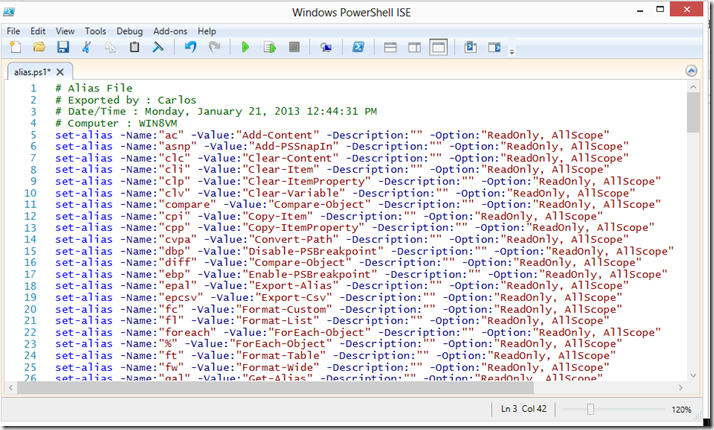
It an also be exported as a Script

PS C:\> Export-Alias -Path .\alias.ps1 -as script

image

To import the aliases that where exported we use the Import-Alias.

PS C:\> Import-Alias -Path .\alias.csv -ErrorAction SilentlyContinue

Conclusion

As always I hope you found this blogpost useful and I invite you to read more on the subject covered by looking at the following conceptual help information inside of PowerShell using the Get-Help cmdlet (Yes it is homework):

  • about_CommonParameters
  • about_Parameters
  • about_Parameters_Default_Values
  • about_Core_Commands
  • about_Command_Syntax
  • about_Command_Precedence
  • about_Aliases

PowerShell Basics–Using the Help Subsystem

Before we start running commands one of the fist things we have to do is to understand the rich help subsystem in PowerShell or as we say to many users in our IT life, RTFM. One of the first things to cover is that Help Subsystem in PowerShell v3 was improved so as to be able to update its contents.

Updating PowerShell v3 Help

We can update the help system from Microsoft it self or from a share or drive in the case the machine does not have access to the internet. Windows 8 and Windows 2012 come with no PowerShell help files as does a install of PowerShell v3 on a Windows 7, 2008 or 2008 R2 system so the first step we have to take is to run the Get-Help cmdlet to update our help files if our system has internet connection. Things to consider when running the Get-Help cmdlet for updating the help files from the internet:

  • To update the help files the account you run the command from must be part of the Local Administrators group and it must be ran from a PowerShell console running as elevated privileges.
  • It will use the Proxy settings configured on Internet Explorer.
  • If the proxy requires NTLM, negotiate, or Kerberos-based authentication the –UseDefaultCredentials parameter must be used so ad to use the current user credentials to authenticate with the proxy.
  • We can only update the help files once every 24 hours  if we want to update inside the 24 hours we would have to use the –Force parameter.

    When it executes it will perform the following actions:

  • Determines which modules support Updatable Help.
  • Finds the Internet location where each module stores its Updatable Help files.
  • Compares the help files for each module on your computer to the newest help files that are available for each module.
  • Downloads the new files from the Internet.
  • Unwraps the help file package.
  • Verifies that the files are valid help files.
  • Installs the help files in the language-specific subdirectory of the module directory.

    We can also update from a share in the network or from a location on the computer (USB Stick, External Hard Drive..) for those hosts that we decided to limit the risk of data exfiltration by not permitting them access to the internet or the machines are isolated for other reasons. So lets cover how this would be done:

  • We start by downloading from a machines that has internet access to a local folder or file share the machine has access to.

    Save-HelpDestinationPath \\fps1.acmelabs.com\resources\PSv3Help

  • We can move the files to a USB Drive or Share  and them from the host that we want to update the help files we specify the –SourcePath and the path to where the files are located

    Update-HelpSourcePath \\fps1.acmelabs.com\resources\PSv3Help

    We can configure a scheduled task to update each day the PowerShell help files either from the internet or from a share as in the example above:

    Register-ScheduledJob -Name UpdatePSHelp `

    -ScheduledJobOption @{RunElevated=$true} ` -ScriptBlock {Update-Help -Force -Verbose} ` -Trigger @{At='6:00 AM';Frequency='Daily'}

    We can take a look at the output of the scheduled jobs with:

    Get-Job -Name UpdateHelp | Receive-Job 

    Now if you are using PowerShell v2 and you also want the latest help information you can use the –Online parameter and this will open Internet Explorer to the page with the latest information you requested.

    Using Get-Help

    We use the Get-Help cmdlet displays information about Windows PowerShell concepts and commands, including cmdlets, functions, CIM commands, workflows, providers, aliases and scripts.

    The cmdlet has also an Aliases set in the shell by default as help and man. It can be used in either of two ways, the first one to search for help information across the entire help with the use of wildcards. help <wildcard expression> will look for the word or expression in the titles of the help files, if none is found it will look in the content of the help for it. We can also limit to what type of information we may want with the –Category parameter

      help -Category Cmdlet -Name *service*

    The cmdlet can also be ran against a specific cmdlets, functions, CIM commands, workflows, providers, aliases or scripts. Wen used against a cmdlet with no options it will show Name, Synopsis, Syntax, Description, Related Links and Remarks. One can select what parts of a help file we want to see by specifying the parameter for the level of information one wants

    • –Detailed parameter is given it will show Parameter information and Examples.
    •  –Full parameter is given it will show a more detailed list of info for Parameters.
    • –Examples parameter is given only examples are shown.

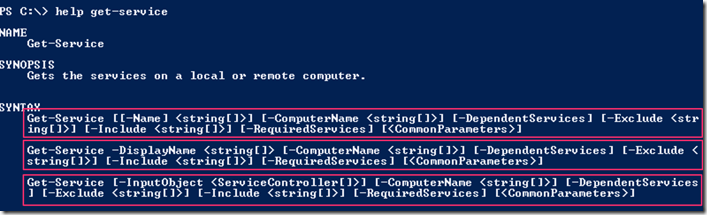
    A cmdlet can have more than one way for it to be invoked and this can be seen in the syntax. They will typically have one or more Parameter Sets that will differ from syntax to syntax.

    image

    The parameters can be read as:

    • Required for required options or values they will not be enclosed in any bracket.
    • Options or values enclosed in [ ] are optional
    • Values are represent with the type they take between < >
    • Those values that can be lists are represented as <type[ ]> 
    • Those that have a predefined list of options it can take are represented as < option1 | option2 | option3>

    When the help cmdlet is used with the -full option is used we get additional information on the parameters:

    • required? - specifies if the option is required or not.
    • position? - specified if the position is a named one or an order one. For ordered one it will give the number of the position for the value it will map to it.
    • Default value - Default value the option has. (Some times on PSv2 it does not display properly)
    • Accept pipeline input? - specified if the option accepts input from the pipeline and if the input is by value type or by property name.
    • Accept Wildcard Characters? - specifies if wildcard characters can be used.

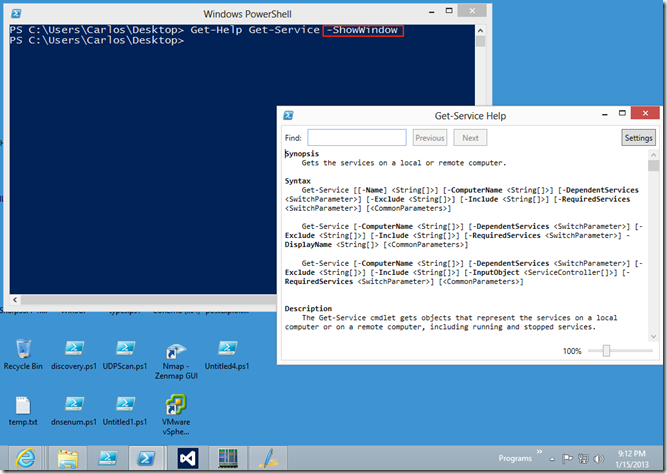
    With PowerShell v3 the –ShowWindow parameter was added to open a separate window that can be used as reference while one works construction a command

    image

    Conceptual Help Topics

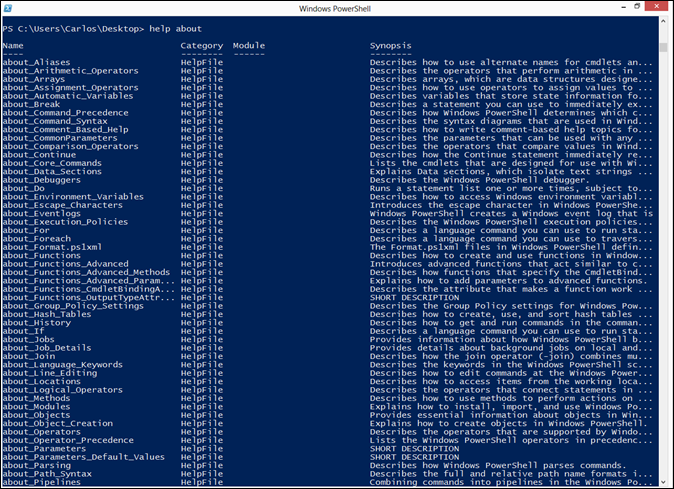
    PowerShell contains what is called Conceptual help topics that contains detailed information about several subjects and areas of Powershell. These can be found at  http://technet.microsoft.com/en-us/library/jj583016 or from the PowerShell console just run

    help about 

    This will list all conceptual topics.

    image

    Conclusion

    I invite you to run help against the command shown here and explore the conceptual help topics. Hope you find the blog post useful.

  • Centralized Management of Java SE Environment Using GPO (Redux)

    My Adventures helping a friend secure his Java environment where fun, in my original blog post I used GPO to reduce the risk in his environment by crudely pushing  a configuration file to his environment. After 24 hours the fun started because we got insight from the support team, developer and users and came with a game plan.

    The requirements:

    • Solution must provide the ability to configure Java 7 and Java 6.
    • Users must still be able to look at the settings in the Java control panel so they can relay information to helpdesk for troubleshooting.
    • The configuration files must be in a place where the can be replicated to Domain Controllers in other locations.
    • Solution must work on Windows Versions 5.x and 6.x
    • Policy Should only apply and create the files for machines with Java installed.
    • Policy should be robust enough to adapt is Java 6 or 7 are installed on the target in the case a computer is moved from one OU (Organizational Unit) to another.

    Thankfully we worked and came with a much simple and easier to manage solution that made everyone happy (And me never volunteering to help).

    Creating WMI Filter

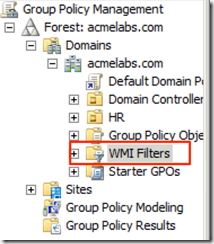
    When it comes to applying Group Policy Objects I find that WMI filters is one of the best ways to determining to what machines to apply a policy and to witch not. We start by creating 2 WMI filters one for Java 6 and another for Java 7. We first go in to Group Policy Management Console, and go in to WMI Filters:

    image

    We Right-Click on it and select New

    image

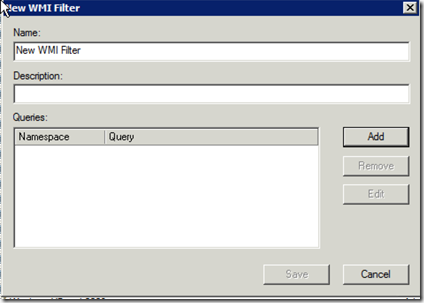
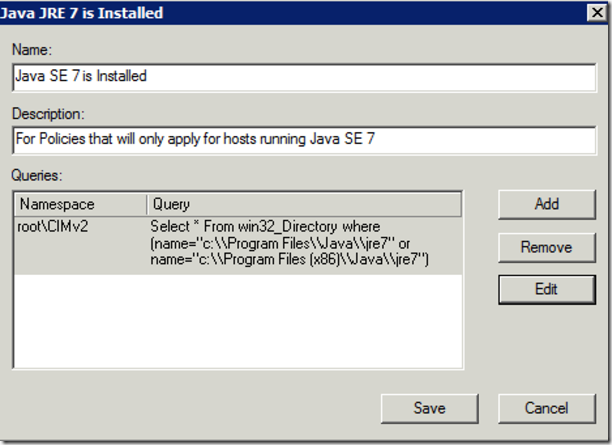
    We give it a name of Java SE 7 is Installed and a description of “For Policies that will only apply for hosts running Java SE 7” and we Click on Add to include our WMI WQL Query and we add the query

    Select * From win32_Directory where (name="c:\\Program Files\\Java\\jre7" or name="c:\\Program Files (x86)\\Java\\jre7")

    This WMI Query will look for bot X64 and X86 locations of the JRE7 Folder on the System and if found it will apply the policy.

    image

    We click on Save to save the query.

    We would do the same for Java SE 6 if we want to cover it.

    Creating Policy Files

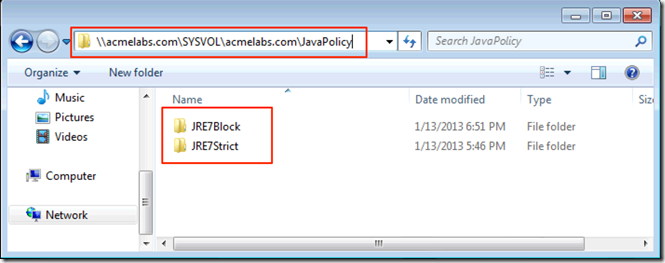
    Next we create policy files for Java in our domains \\FQDN\SYSVOL\FQDN\JavaPolicy folder where FQDN is the full path of your domain name. In my example I will create to folders one called JRE7Strict that will have restrictive settings and another called JRE7Block that will have the files to block Java on all web browsers.:

    image

    In Jave SE a deployment.config file is used for specifying the System-Level deployment.properties for use by all users of the system and it is located in %windir%\Sun\Java\Deployment\deployment.config. By default no deployment.config  or folder structure exists. The deployment.config file needs the option of deployment.system.config and it can point to a URL(HTTP or HTTPS) or a File Path that points to the deployment.properties to load, to ensure that the properties file in the user %APDATA% location is not loaded we set the deployment.system.config.mandatory option with a value of true. Our config file for the restricted settings would be:

    deployment.system.config=file\://acmelabs.com/SYSVOL/acmelabs.com/JavaPolicy/JRE7Strict/deployment.properties
    deployment.system.config.mandatory=true

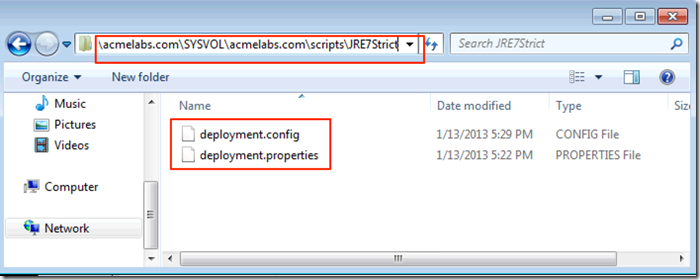
    and we would place the file in the JRE7Strict folder and we would create our Properties file with the options we want and to lock the options so they still show in the control panel but would be greyed out so they can not be modified we would also add a <property>.locked line. A sample restricted properties file would look like:

    deployment.security.level=VERY_HIGH deployment.security.level.locked deployment.security.askgrantdialog.notinca=false deployment.security.askgrantdialog.notinca.locked deployment.security.notinca.warning=true deployment.security.notinca.warning.locked

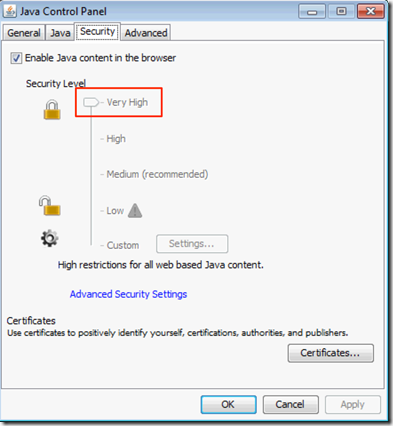
    In the example I set the Security Level to Very High and locked it as well as other options.

    Update: for more information on the security levels and what they restrict take a look at http://docs.oracle.com/javase/7/docs/technotes/guides/jweb/client-security.html Remember security levels where added in version 7 Update 10. The only whitelisting available is for sites that use signed Java Applets, those that do not will be blocked by the Very High security level, if you need access to unsigned Java Applets and are not able to sign and create a whitelist of signed ones set the setting to High and educate your users or Restrict them to Internet Explorer only and set security zones and settings per zone and site http://blogs.msdn.com/b/ieinternals/archive/2011/05/15/controlling-java-in-internet-explorer.aspx?Redirected=true.

    As domain admins we would save the files in the folder:

    image

    for a policy that would block Java on all the web browser we would only add to the properties file:

    deployment.webjava.enabled=false
    deployment.webjava.enabled.locked


    Creating the Policy

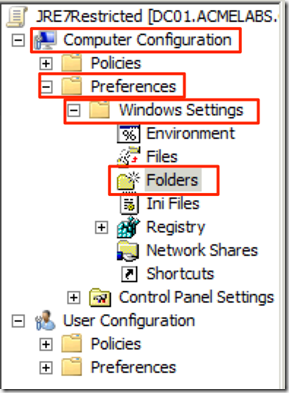
    The use of the centralized files it makes creating a policy file it is more simple. We just create a new GPO and we start by setting the creation of the folder where the config file will be placed so in the Policy we would go in to Computer Configuration –> Preferences –> Windows Settings –> Folders:

    image 

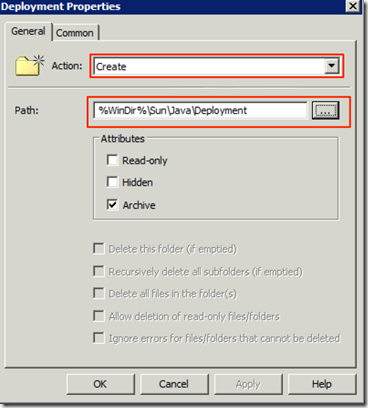
    We create a new entry for the creation of the folder %WinDir%\Sun\Java\Deployment

    image

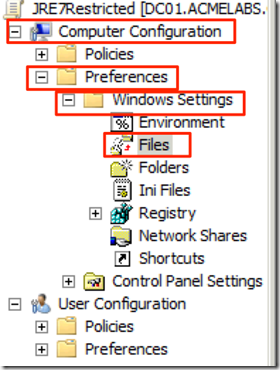
    Now we can create an entry for copying the config file to the folde we go to Computer Configuration –> Preferences –> Windows Settings –> Files:

    image

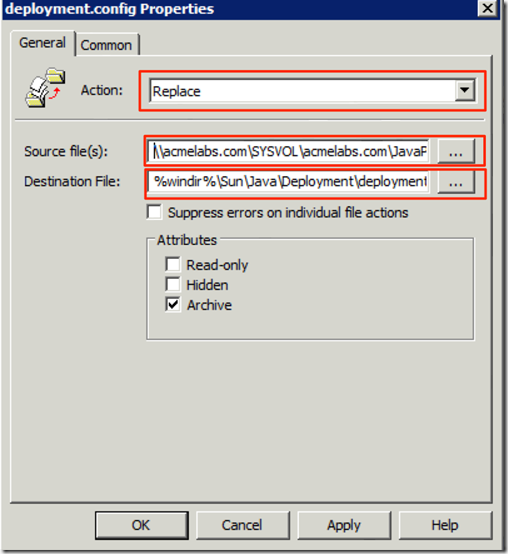
    We now create a new file policy and set it to replace so updating only takes modifying the file it self we set  the Action to Replace so when the file is updated it will be sent to all the machines in the domain when they update their policy, we set the Source to  \\FQDN\SYSVOL\FQDN\JavaPolicy\JRE7Strict\deployment.config and the Destination to %windir%\Sun\Java\Deployment\deployment.config:

    image

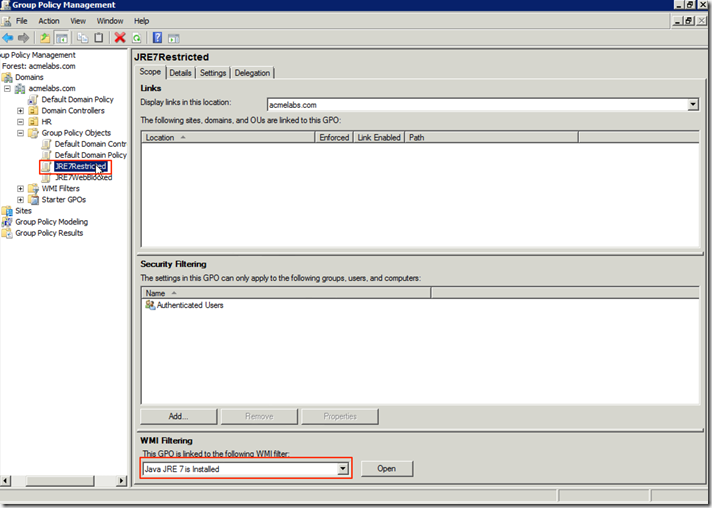
    Before we link the policy to any OU we must set the WMI filter we created so it will only create the folder and file on machines running the correct version of JRE

    image

    Once it is done we can link it to the OU we want the policy to apply to. Once a hosts update it’s policy via schedule or it is forced.

    If you are running a Windows 2012 DC I recommend you go in to the Starter GPO’s and have the 2012 DC create them if they have not yet, if they have been already created and they where in a Windows 2008 or Windows 2008 R2 back the Starter GPOs, Delete the starter GPO folder from \\FQDN\SYSVOL\FQDN\, go back to the Group Policy Management Console on Windows 2012 and have it generate them, you should have 2 additional GPO templates for Firewall and Management configuration. From PowerShell (Had to sneak some PowerShell in Smile with tongue out) run:

    New-GPO –Name "Configure firewall rules for remote gpupdate" –StarterGpoName "Group Policy Remote Update Firewall Ports" | New-GPLink –target "dc=acmelabs,dc=com" –LinkEnabled yes 

    This will create a New Group Policy and link it to the Domain (Make sure you modify the DC values to the ones of your domain) that will allow you to force GPO updates against the host in the domain once the policy is applied.

    To force a update of the policy from your Windows 2012 DC run Invoke-GPUpdate against the machines you want to update, in this example I’m running it against the HR OU where my test VM’s are in my lab:

      Get-ADComputer –filter * -Searchbase "ou=HR, dc=acmelabs,dc=com" | foreach{ Invoke-GPUpdate –computer $_.name -force} 

    Once the policy has been updated we can just open the Java Control Panel and confirm the options have been set and that they are greyed out.

    image

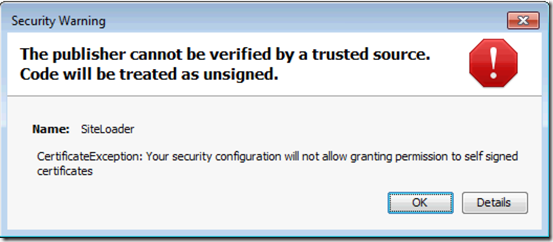
    If the user tries to load a self-signed applet or one not in your trusted signature file he will get:

    image

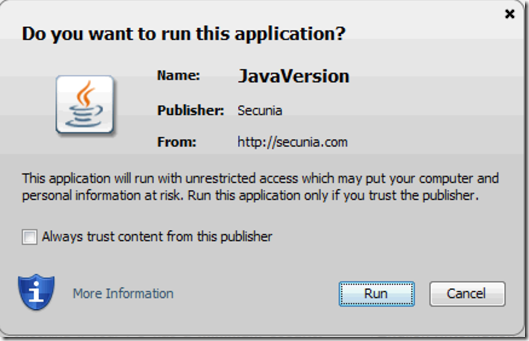
    If the Applet is validly signed he will get a popup giving him a warning and allowing him to run run the applet:

    image

    This method can be used to set other policies like the path for the trusted signatures and PKI files plus settings. So make sure your applets are properly signed with valid certificate and modify your trusted CA file to only trust your vendor to reduce the risk of the attacker using a valid provider or even better use your own CA and signed your applets with your own cert.

    For Java 7 properties reference use http://docs.oracle.com/javase/7/docs/technotes/guides/deployment/deployment-guide/properties.html

    For Java 6 properties reference use http://docs.oracle.com/javase/6/docs/technotes/guides/deployment/deployment-guide/properties.html

    Hope you find this useful and allow you to secure your Java environment in Windows.