Pushing Security Configuration for Java 7 Update 10 via GPO

NOTE: Please use the following blog post with improved solution /blog/2013/1/14/centralized-management-of-java-se-environment-using-gpo-redu.html

A friend of mine that work on a local government agency called me quite concerned about the new Java Exploit that surfaced this month for Java 7u10, specially since he a lot of his CRM and HR systems depend on Java being Up and Running for the Oracle Solution he uses at work. He has always been quite concerned about the security of his hosts pushing Microsoft EMET on his windows boxes, Running the latest version of Java and uninstalling the old ones, having his machines up to date in patches and just all around good administration. He asked me if I could help him out find a way to force security to Very High on the the Java configuration and deploy it to all of his Windows 7 machines, so I took it as a challenged and the good guy in me said I would do it for free…. has this been a long afternoon of testing but finally got it.

JavaSE 1.7 update 10 allows for the configuration of its setting via a file called deployment.properties that can either reside in the user %APPDATA% folder under Sun\Java\Deployment or as a System Wide Setting under %WINDIR% folder under Sun\Java\Deployment so I took it to come up with a GPO Object for him that I could use with the settings he wanted to make sure as to mitigate the vulnerability and allow the teams inside his organization to use it while disabling Java to other via other settings.

The first step is to log in to a machine with Java and in the Java Control Panel configure the security level and in Advanced Settings the additional settings
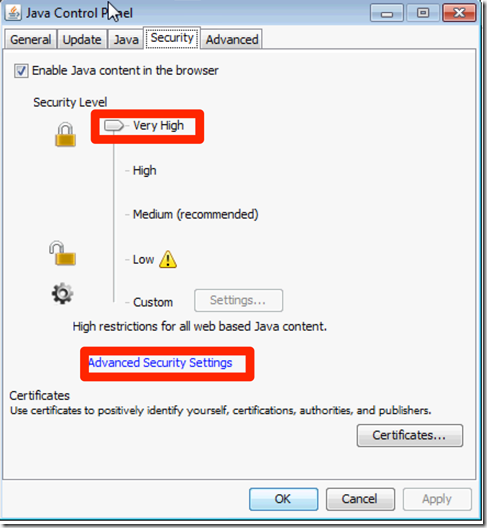
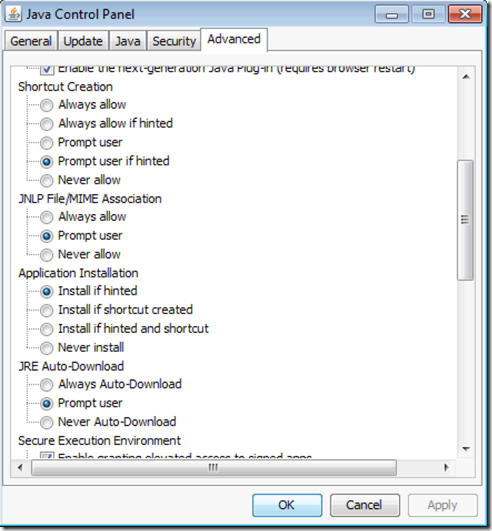
image

image


This generated for us a file called deployment.properties that we can use as the master file to push to our Windows Clients.  The file is located under %USERPROFILE%\AppData\LocalLow\Sun\Java\Deployment The file is just a simple text file that we can then manipulated and add other entries to it. We now copy this file to a share that is accessible to all machines and that the file is readable to machine accounts in the domains since the connections to the share will be done by them.

The main lines you will want are:

deployment.security.askgrantdialog.notinca=false
deployment.security.level=VERY_HIGH
This will block none trusted Applets and will prompt the user for automatic applet download. If you want you can create a second one to block Java on all browsers by making sure the file contains:
deployment.webjava.enabled=false

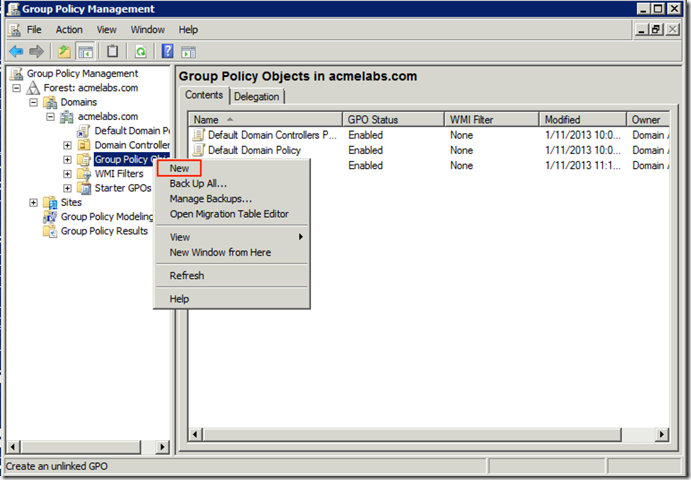
On one of our domain controller we open the Group Policy Management administration tool. We right click on the Group Policy Objects node in the right side and select New in the menu
image

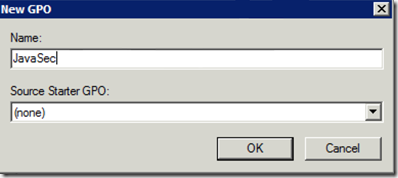
We give it a descriptive name

image

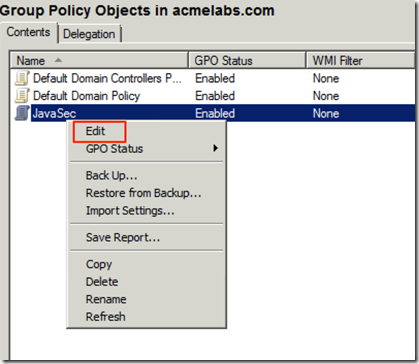
We Right-Click on the newly created Policy and choose Edit from the menu
image

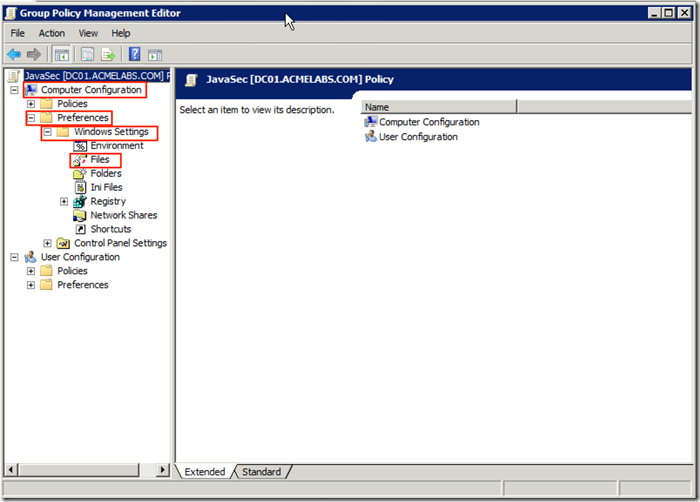
We now navigate to Computer Configuration –> Preferences –> Windows Settings –> Files
image

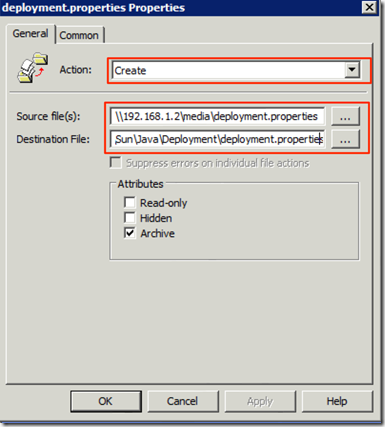
We select the Action of Create, put in the Source File the file in the share accessible to all the machines and in Destination %WINDIR%\Sun\Java\Deployment\deployment.properties
image

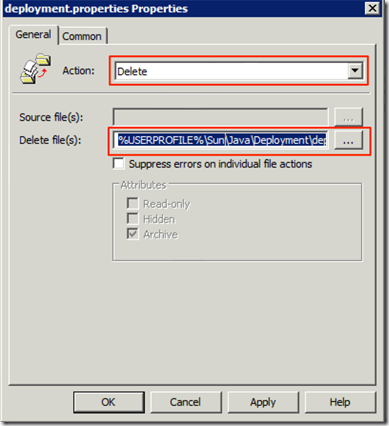
We create another file entry with the Action of Delete an the Destination of %USERPROFILE%\Sun\Java\Deployment\deployment.properties  this is to ensure that the Users copy does not go above the System Wide one since a user preference will override the systems.  This one we Create it under the User Configuration node
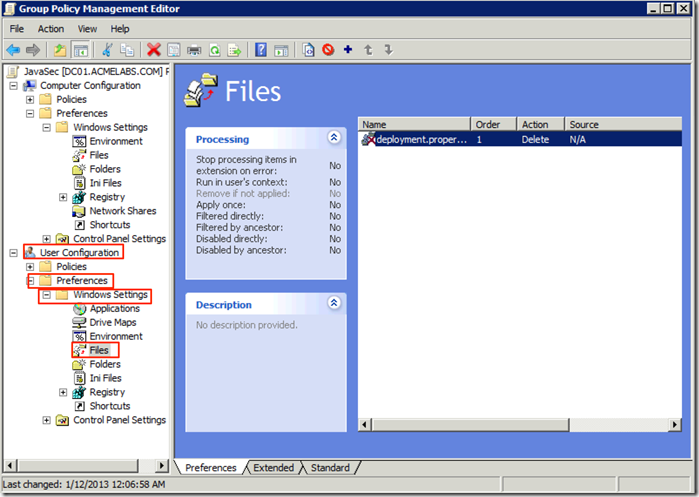
image

image

We now do one last entry under Folders so as to make sure the folder is created for the configuration file since if it is not the file is not copied.
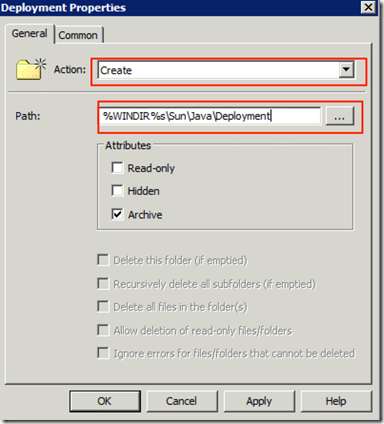
image

Now that it is done we can close the edit window and attach the policy to the OU where the users we want to keep using Java but with higher security settings are, we do this by Right-Clicking on the OU we want to apply the policy against and choose to link an existing one
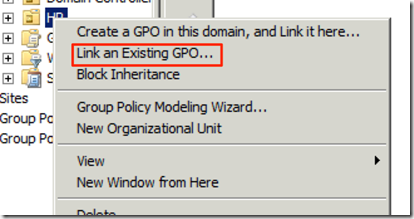
image

From the list we select the one we created
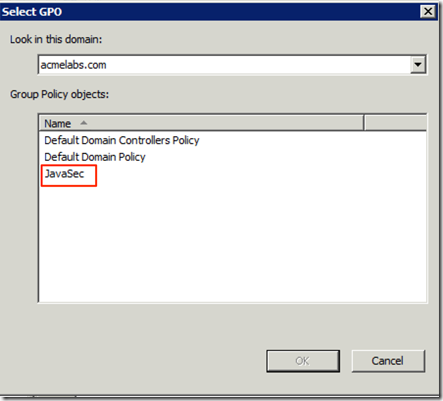
image

Once Linked next time the GPO refreshes the policy should apply and settings should be set. Do test in your own environment and adjust these steps as needed, remember one can use WMI Filters, and different standards may apply, this is just one of many ways for a certain scenario but still hope you find the information useful. For more information on the file format and details look at http://docs.oracle.com/javase/7/docs/technotes/guides/deployment/deployment-guide/properties.html

Update:

For those asking how it impacts the levels with the vulnerability trying to execute here are how the Medium, High and Very High security levels mitigate the vulnerability.

With Security Level at Medium
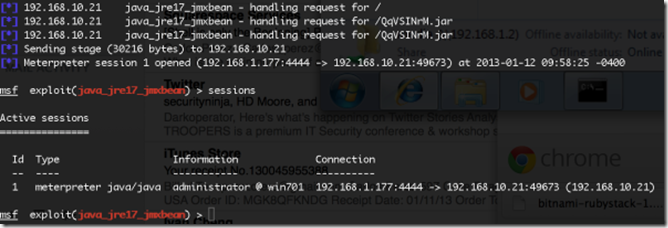
image

Should I say more?

With the Security Level at High
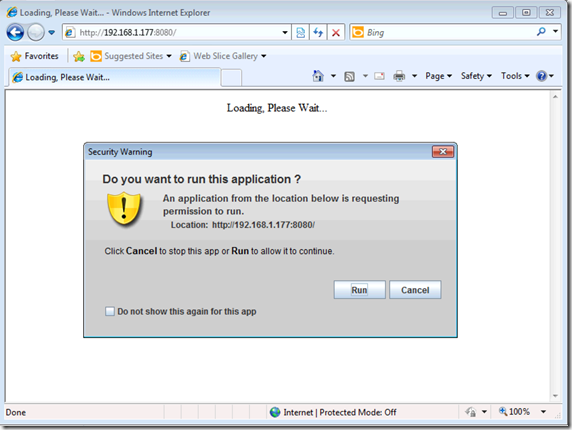
image

This would be the case if you have not set trust for the internal application you run and will require some user training and awareness chats since they can just hit run and the exploit will execute.

With the Security Level at Very High
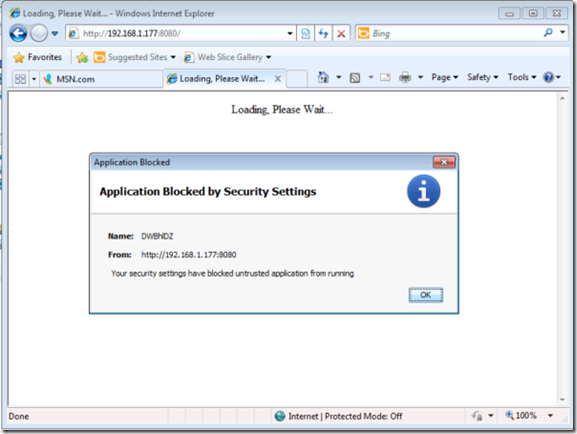
image

One can go even further and have a network location or use the same method to specify trusted certificate lists and manage all the Certificate settings, for this you can take a look at http://docs.oracle.com/javase/7/docs/technotes/guides/deployment/deployment-guide/jcp.html#security

Another thing to keep in mind is to block access to the user to the Java Control Panel so as to prevent them from reducing the security levels. You will have to do this from a machine with Java installed so I recommend a Windows 7 or 8 Machine in the domain with the RSAT tools installed.
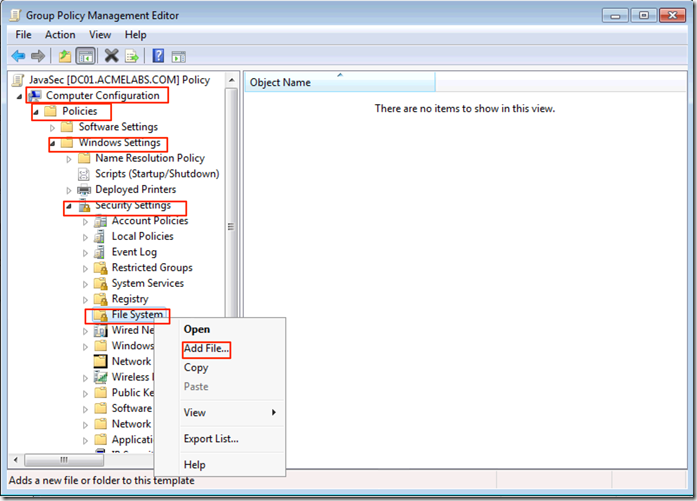
image

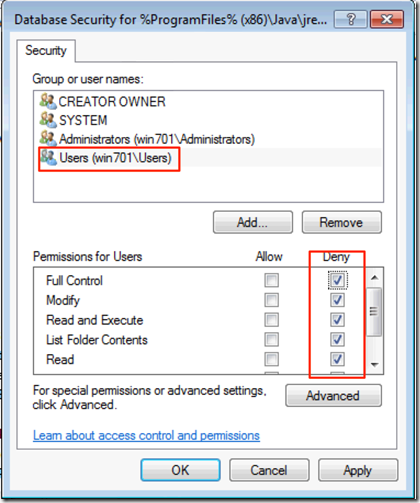
Set the Proper permissions for the user group you want to restrict, in the example I use the local Users group as an example, make sure your admin account is not under the group you decide to use Smile since the most restrictive permission will apply first, here it is only as an example not the recommended setting since your environment will vary.


image

Make sure it is set to replace the permissions:
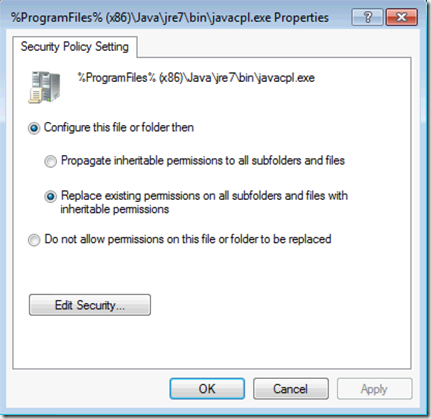
image

This settings will apply to a x64 system, make sure to also add a path for x86 system to then file or create a separate policy for those and use WMI Filters ass needed.

Now after the policy has been updated and user tries to to access the control panel shortcut to modify the settings he should get:
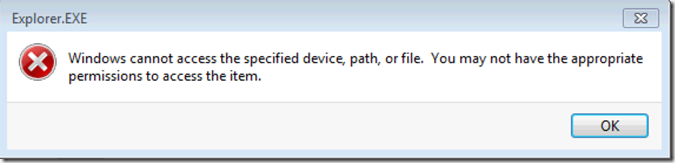
image

The file permissions can also be used to block users from creating and reading the %USERPROFILE%\AppData\LocalLow\Sun\Java\Deployment\deployment.properties  file on Windows Vista and higher versions of Windows and %USERPROFILE%\AppData\Sun\Java\Deployment\deployment.properties on Windows XP and 2003 systems.
Set PowerShell as Your Default Shell in Windows 2012 Core

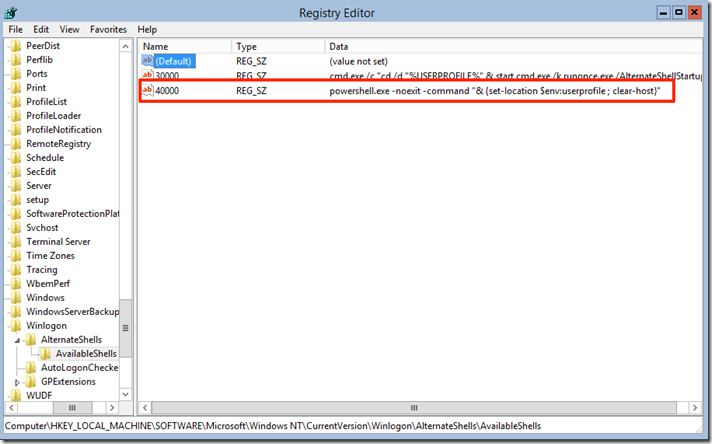
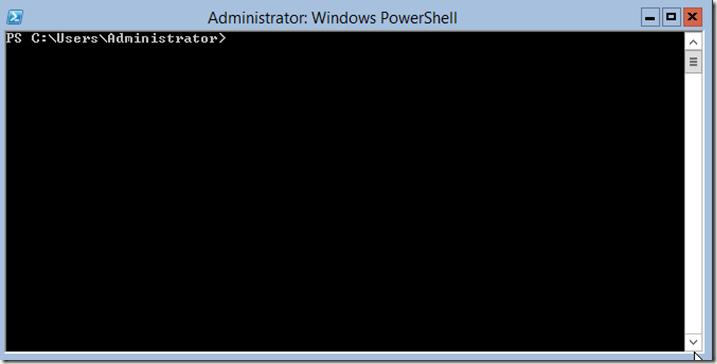
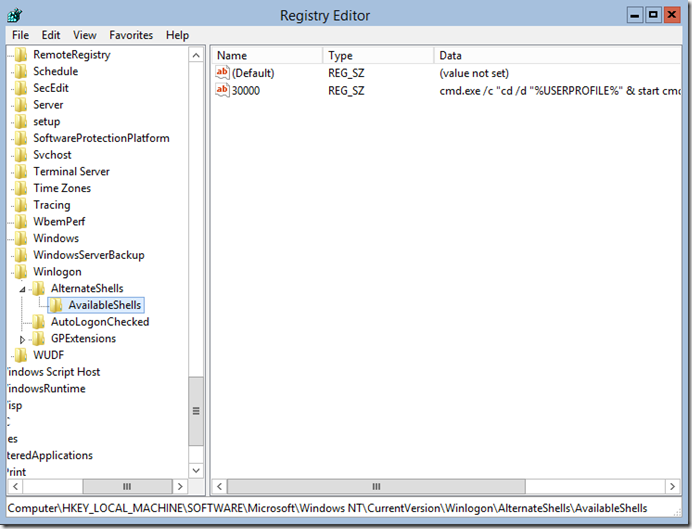
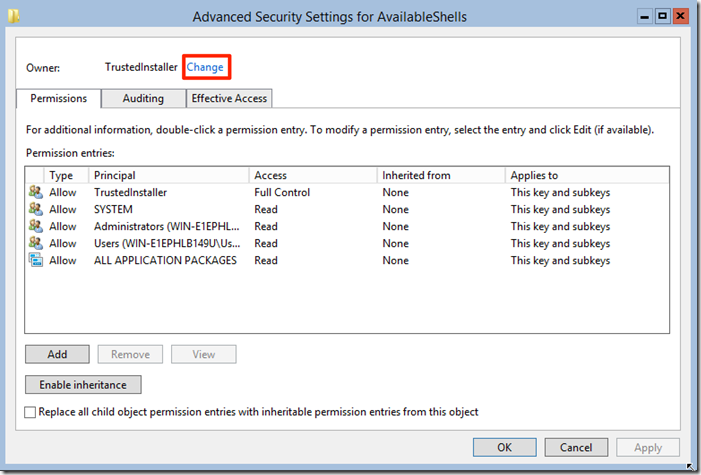
One thing I do hate in the new Windows 2012 Core setup is that PowerShell is not the default shell when one logs in. Microsoft made it so that in Core most of the Administration task are done via PowerShell or Remote Administratio tools. The fist thing one must do is to take ownership of the HKLM\SOFTWARE\Microsoft\Windows NT\CurrentVersion\Winlogon\AlternateShells\AvailableShells Registry key since we will be modifying it. To achieve this Microsoft was nice enough to include the GUI version of the registry editor so we only need to type regedit in the command prompt and hit enter, after it comes up we can navigate to the key image We right-click on the Key AvailableShells and click on Permission, on Permissions click on Advanced and click on Change image Add the Administrator account, click on OK and on the previous screen click on Apply. Create a registry value under the key with the name of 40000 and set the value to:

powershell.exe -noexit -command "& {set-location $env:userprofile; clear-host}"


image

Now when you log off and log back in you will be greeted with a PowerShell window.

image

The reason why we use 40000 is that when you install the full GUI Explorer.exe will be 90000 and we want to PowerShell to be the Shell only if we are in Core or in Server-Gui-Mgmt-Infra.

To make life simpler here is a script you can either copy and paste in to a PowerShell window or create a .ps1 file and execute from there:

# Use C# to leverage the Win32API
$definition = @"

using System;

using System.Runtime.InteropServices;

namespace Win32Api

{

public class NtDll

{

[DllImport("ntdll.dll", EntryPoint="RtlAdjustPrivilege")]

public static extern int RtlAdjustPrivilege(ulong Privilege, bool Enable, bool CurrentThread, ref bool Enabled);

}

}

"@
Add-Type -TypeDefinition $definition -PassThru
$bEnabled = $false


# Enable SeTakeOwnershipPrivilege
$res = [Win32Api.NtDll]::RtlAdjustPrivilege(9, $true, $false, [ref]$bEnabled)

# Take ownership of the registry key
$key = [Microsoft.Win32.Registry]::LocalMachine.OpenSubKey('SOFTWARE\Microsoft\Windows NT\CurrentVersion\Winlogon\AlternateShells', [Microsoft.Win32.RegistryKeyPermissionCheck]::ReadWriteSubTree,[System.Security.AccessControl.RegistryRights]::takeownership)
$acl = $key.GetAccessControl()
$acl.SetOwner([System.Security.Principal.NTAccount]"Administrators")


# Set Full Control for Administrators
$rule = New-Object System.Security.AccessControl.RegistryAccessRule("Administrators","FullControl", "Allow")
$acl.AddAccessRule($rule)
[void]$key.SetAccessControl($acl)


# Create Registry Value
[void][Microsoft.Win32.Registry]::SetValue($key,"90000",'powershell.exe -noexit -command "& {set-location $env:userprofile; clear-host}"')

I hope you found the blog post information useful.

Windows 2012 Server Different GUI Levels

I do have to say after using Windows 2012 server for a while in my lab and to host several Hyper-V machines for research and testing I do have to say I like it. It is a lot less resource intensive that Windows 2008 and Windows 2008 R2 are, the use of WinRM for Remote Management and the Server Manager interface makes administrating several servers a breeze, the best part of all is that I can administer the server completely with Windows PowerShell and for those cases that I need the GUI I can install and remove it to save a couple of MB of memory and reduce the attack surface of the box. 

The main reason that the GUI can be modified is that the components for it are now features of the OS:

  • Graphical Management Tools and Infrastructure (Server-Gui-Mgmt-Infra):  provides a minimal server interface and server management tools. The components for it are:
    • Server Manager
    • Microsoft Management Console (MMC) and snap-ins
    • Subset of Control Panel
  • Server Graphical Shell (Server-Gui-Shell): it  is dependent on the first feature and provides the rest of the GUI experience. The component of it are:
    • Desktop
    • Start screen
    • Windows Explorer
    • Internet Explorer

In he blog post I will cover how to use PowerShell for adding and removing of the features since PowerShell is available in server core with none of the components installed.

Here is Windows 2012 Server Core default install after logging on as administrator:

default_desktop

The terminal it provides is cmd.exe so to get to Windows PowerShell we need to type powershell and press enter.  In PowerShell we can use the Windows Feature functions to add and remove features. To list them we can use the Get-Command cmdlet:

PS C:\Users\Administrator> Get-Command *windowsfeature* -Type function,cmdlet

CommandType     Name                                               ModuleName
-----------     ----                                               ----------
Function        Get-WindowsFeature                                 ServerManager
Function        Install-WindowsFeature                             ServerManager
Function        Uninstall-WindowsFeature                           ServerManager

We find that we can get the Windows Features currently installed on the system, we can Install and Uninstall Windows Features also. to get a list of the options and examples of use for each we can use Get-Help cmdlet with the –Full paramter:

Get-Help Install-WindowsFeature -Full

Lets start by installing only the Graphical Management Tools and Infrastructure (Server-Gui-Mgmt-Infra), this will give us the tools for only managing the server but not for browsing the web or doing some activities that might cause the server to fall for a client side attack.  To install we just use the Install-WindowsFeature function and give it the parameter to restart the server after it is installed:

Install-WindowsFeature Server-Gui-Mgmt-Infra –Restart

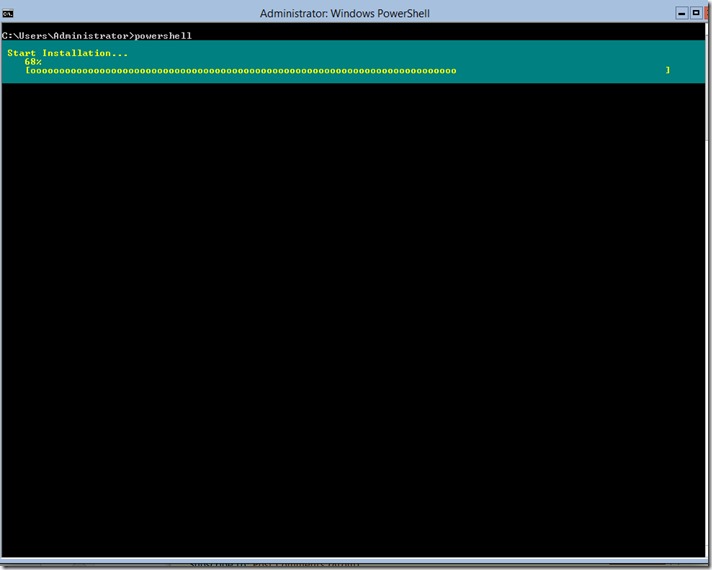
Once it is ran PowerShell will show the progress of the installation:

mgmt-infra-install

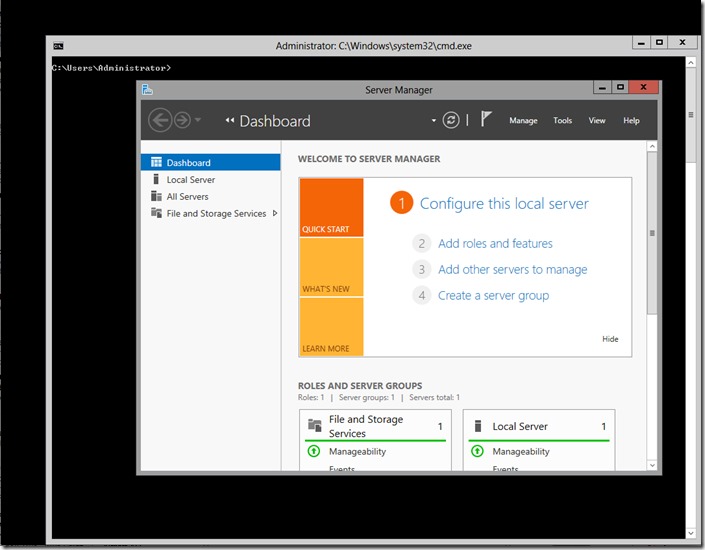
Once the server starts and one logs on we can see that. Once the server reboots and one logs one Server Manager will come up automatically and can be used for management tasks.

mgmt-infra-install2

If we want the full desktop experience and the addition of Internet Explorer we just need to run the following command to add that component:

Install-WindowsFeature Server-Gui-Shell –Restart

One shortcut to install all if you are in Core enumerate the features with the word GUI and since PowerShell is an Object Based shell we can pass the objects it returns to the Install-WindowsFeture function to install those:

Get-WindowsFeature *gui* | Install-WindowsFeature -Restart

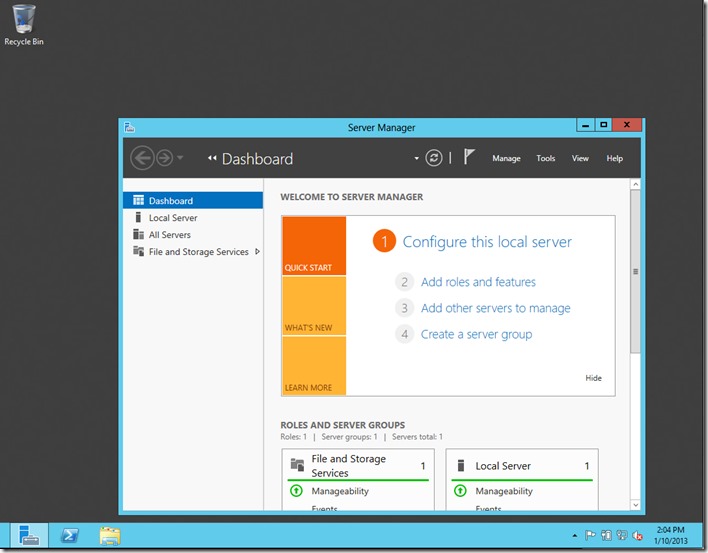
Once the server reboots and the user logs in they should have a full GUI experience:

server-gui-shell

One thing to take in to account on this system with no GUI as a Core only server default install memory use was around 322MB of memory, with the Infrastructure Management Tool support only it was around 436MB of memory and with the full GUI Experience it was around 527MB of memory. I would recommend only having Server-Gui-Mgmt-Infra installed as a mid point of usability and reduces attack surface on the server.

I hope you found the information on the blog post useful.

PowerShell Basics–The Environment

I do have to say last year I started to write about PowerShell Basics and I then stopped. The main reason was that after talking with Dave Kennedy I decided to write a class for DerbyCon 2012 and boy did I thought it was going to be simple. I started believing that I could write it in a month or two and have it done since I use PowerShell on a daily basis, took me over 6 months, ended up with over 600 slides and was even modifying the slides on the airplane ride to Louisville since Microsoft came out with PowerShell Version 3.0 as part of the Windows Management Framework 3 a week before the conference. The good part is that I have now more than enough material to re-start the series and cover more fun stuff for the security professional and the admin alike.

I have given the PowerShell for Security Professionals class 3 times and one thing I decided for the blog posts that differs from the class it self is to provide short segments of fast and easy to use information for people to start getting in to Powershell.

What is PowerShell

PowerShell is Microsoft new Command Line Interface for Windows systems, it provides access to:

  • Existing Windows Command Line tools.
  • PowerShell Cmdlets (PowerShell own Commands)
  • PowerShell Functions
  • Access to the .Net Framework API
  • Access to WMI (Windows Management Instrumentation
  • Access to Windows COM (Component Object Model)
  • Access to function in Windows DLL (Dynamic Linked Libraries)

As it can be seen PowerShell does provide a lot of access to different technologies and APIs on a Windows system making it ideal for administration and for security work alike.

Microsoft if making PowerShell the default management interface for many of it’s server products like Exchange, System Center Operations Manager, SQL Server, SharePoint Server and more, not only that but with Windows 2012 server the default install is core (GUI-Less System) and management is done via the command line or using Remote Admiration Tools. Microsoft included over 4 thousand new PowerShell cmdlets to make the administration of the new server the easiest ever using the command line.

PowerShell

Depending on the environment and systems you work with there are 2 main versions of PowerShell you will fond your self working with:

  • PowerShell v2 –Included with Windows 7 and Windows 2008 R2. Available as a separate download for Windows XP SP3, Windows 2003 SP2, Windows Vista SP1 and Windows 2008 SP2. It can be pushed to hosts via Windows Server Update Service. Download t http://support.microsoft.com/kb/968929
  • PowerShell v3 – Included with Windows 8 and Windows 2012. Available as a separate download for Windows 7 SP1 and Windows 2008 R2 SP2. It can not be pushed to hosts via Windows Server Update Service. Download http://www.microsoft.com/en-us/download/details.aspx?id=34595

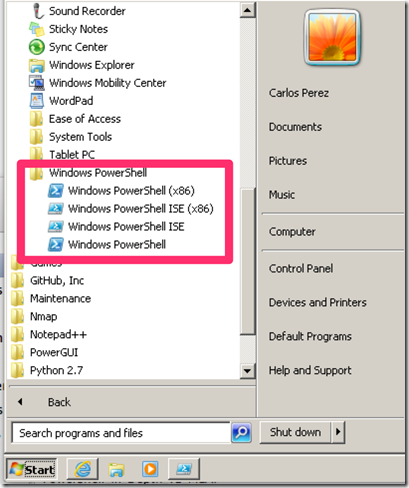
On Windows System prior to Windows 8 and Windows 2012 PowerShell can be found under Start –> All Programs –> Accessories –> System Tools Depending on the architecture of the operating system there will be an x86 version and a x64 version of PowerShell. In addition to the shortcut to the PowerShell terminal there will also be shortcuts to the ISE (Integrated Scripting Environment) and Editor for PowerShell scripts that was included with PowerShell v2 and greatly improved on PowerShell v3. On Systems running Windows 8 and Windows 2012 with the Metro Interface one just need to type PowerShell or PowerShell_ISE to access the components. On a Windows 2012 Core System one just needs to type powershell.exe in the command prompt to load it.

Some recommendations when loading PowerShell:

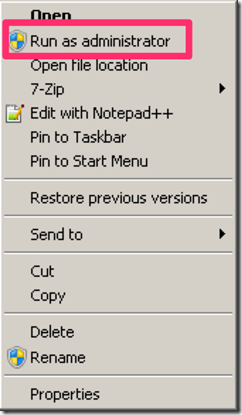
  • Since PowerShell provides access to many administrative functions it is recommended to run it as Administrator.

image


image

  • If you are on a x64 system make sure you run the x64 version of it (The one with no x86 in the name of the shortcut)

 image

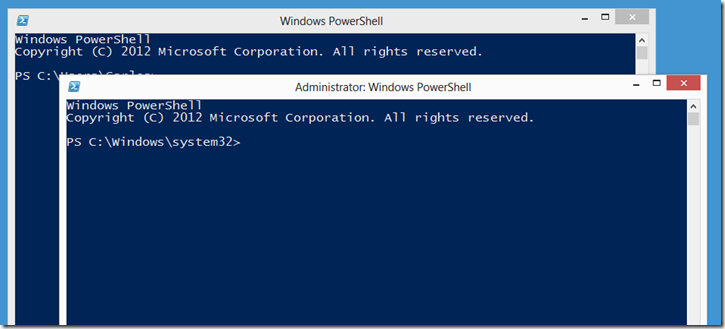
When we launch PowerShell we are greeted with a blue command window with white text.

image

As it an be seen one can easily determine by looking at the title bar of the window if one is running as Administrator or not.

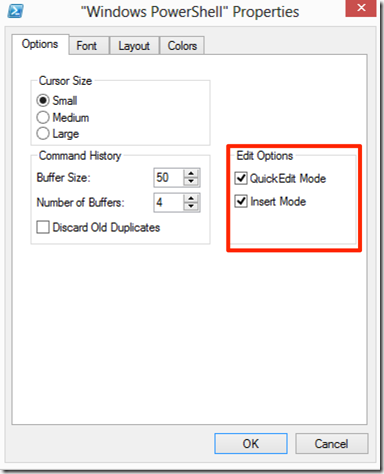
I would recommend to take the chance and customize the shortcut for launching PowerShell so as to provide the best experience. Right click on the PowerShell blue icon on the top left of the PowerShell Window and select Properties, make sure on the Options tab that the Edit Options are selected

image

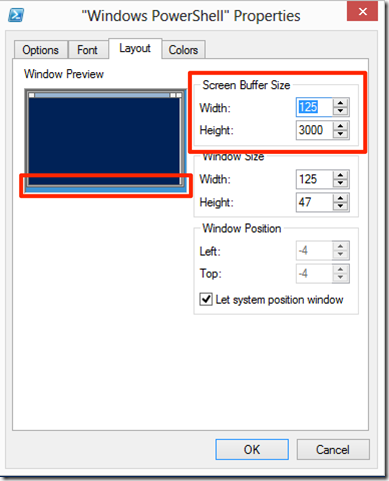
On the Layout tab adjust the Screen Buffer Size Width to one where there is no need for side scroll bar making sure that both Width fields have the same value in both the Buffer Size and Window Size.

image

Ensuring a proper with will make the management of large amounts of output generated by some cmdlets easier to look at on the screen.

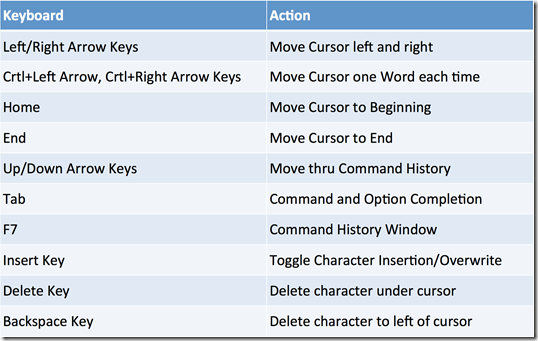
The terminal has several keyboard shortcuts that can be used, a list of the most common are in the table bellow:

image


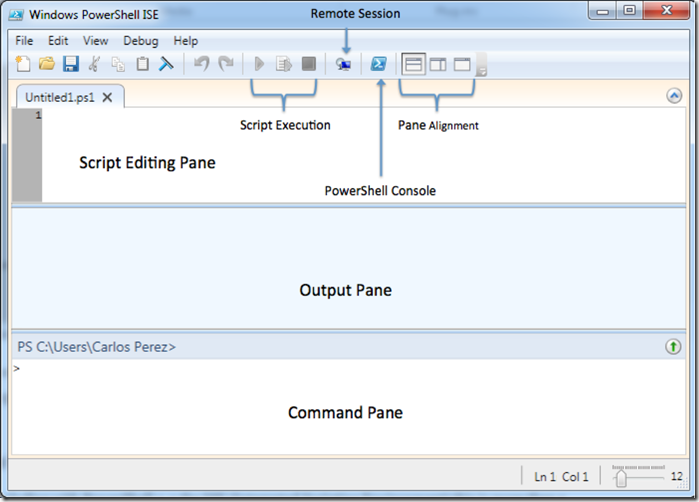
On PowerShell v2 the ISE can also be use as an interactive command prompt where commands are entered in on window and output is shown in the next, in addition it is is a script editor with syntax highlighting

image

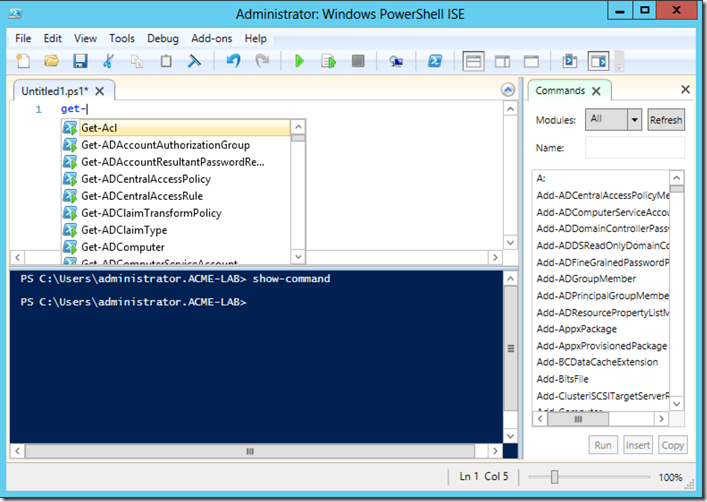
On PowerShell v3 the ISE has been greatly improved, offering a consolidated command prompt and also provides a cmdlet help pane

image

In addition ISEv3 also provides:

  • Intellisense for Cmdlets and parameters with parameter help popup.
  • Intellisense will provide values for parameters based on enumerations and pre-defined sets.
  • Intellisense will perform smart matching for cmdlet names
  • Intellisense will show path options for filesystems and PSProviders
  • Intellisense will show variables
  • Intellisense will show for objects properties and methods available

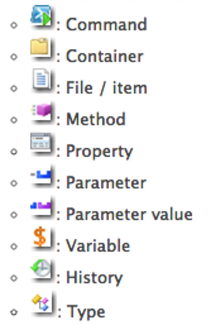
It will also provide an Icon Reference that makes it easier to select in Intellisense what one wants to choose.

image

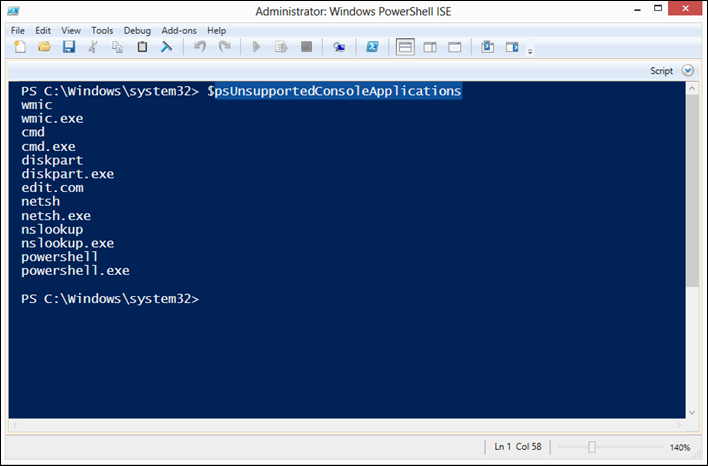
The command prompt on ISEv3 can be said to be the closest one can get to the perfect terminal for PowerShell with the exception that since it is not a true terminal several console commands are not supported. To get a list of the unsupported console commands one can take a look at the $psUnsupportedConsoleApplications variable

image

There are some other alternatives to consoles I recommend people to also try out if they find the one included with Windows to limiting:

For my next blog post I will go in to running commands, exploring the commands and using the help system.

Metasploit Framework Guides Updated for Using Git

I updated my installation guides for Metasploit Framework for Ubuntu and OS X for the recent changes where Git is now used for updating. I do have to say I'm a happy ow, since the addition on Gemcache folder to host all the Gems for both the Open Source base and the Comercial Products based of it SVN has timed out or error out in updating those so with this change it resolves this issue. If you have used my guides for you current setups just:

cp /usr/local/share/metasploit-framework/database.yml /tmp
cd /usr/local/share/
rm -rf metasploit-framework
git clone https://github.com/rapid7/metasploit-framework.git
cp /tmp/database.yml /usr/local/share/metasploit-framework/